
Update your payment method
Card details are handled by Stripe.
New card, or an old one expiring? Update it in a minute. Your card details are handled by Stripe, our payment provider.
On this page
Before you start
- You're an Owner or Admin. Others see "Ask an owner or admin to manage the plan."
- Have your new card handy.
Open Billing #
Go to Settings, then Billing, and find Payment method. It shows the card ending you have on file and when it expires.
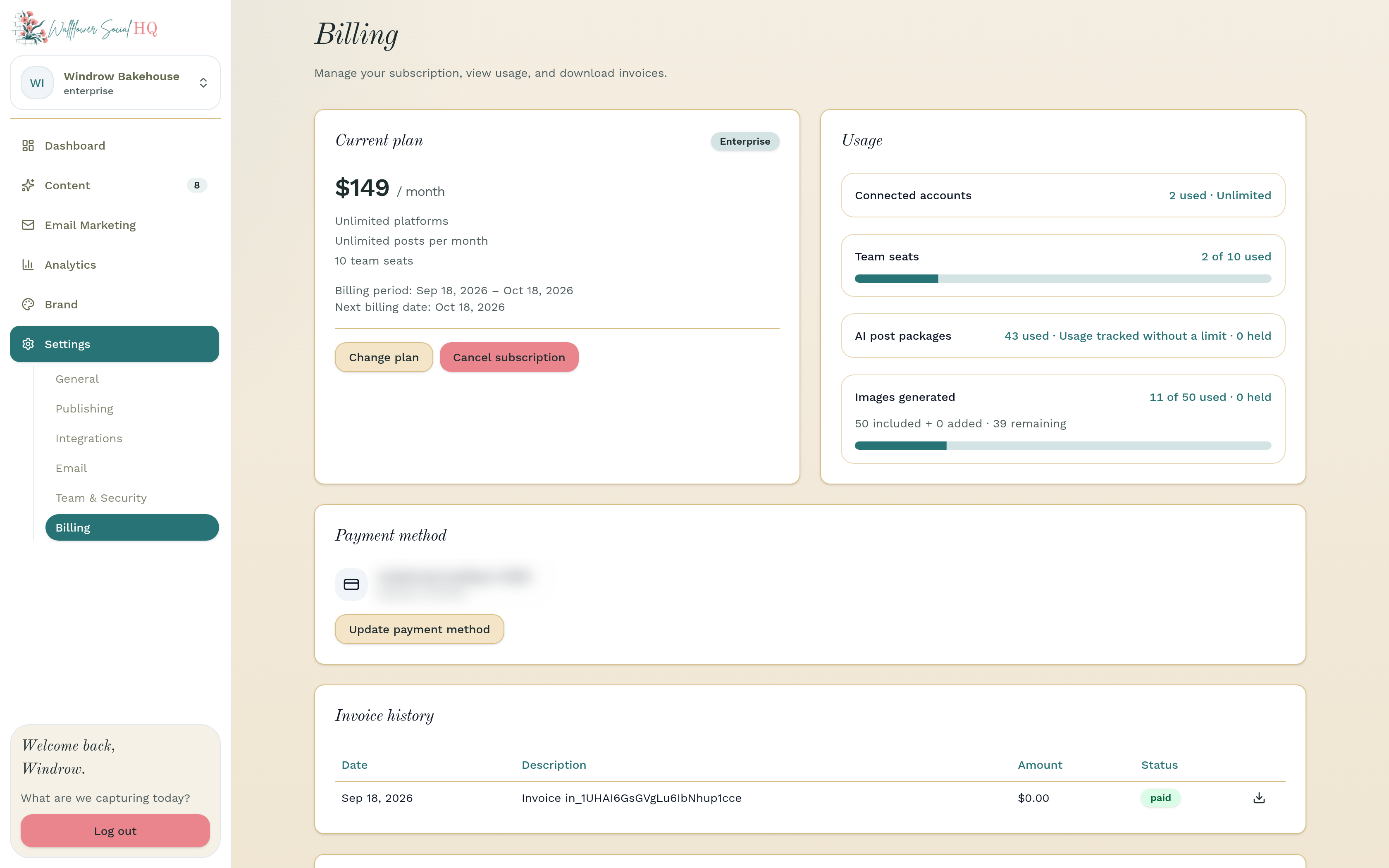
Update your card #
Click Update payment method, or Add payment method if there's no card on file. Stripe opens in a secure page. Enter your new card and save it.
TipIn a trial? You can also click Update card on the trial banner.Check it went through #
Back in Wallflower, you'll see one of these:
- "Your payment method has been updated." You're all set.
- "The new card was declined." Try another card.
- Your bank wants to confirm it. Click Open invoice to confirm payment, confirm with your bank, then click Refresh payment status.
NoteIf a payment failed and your account went read-only, updating your card retries the payment and restores access.Get your invoices #
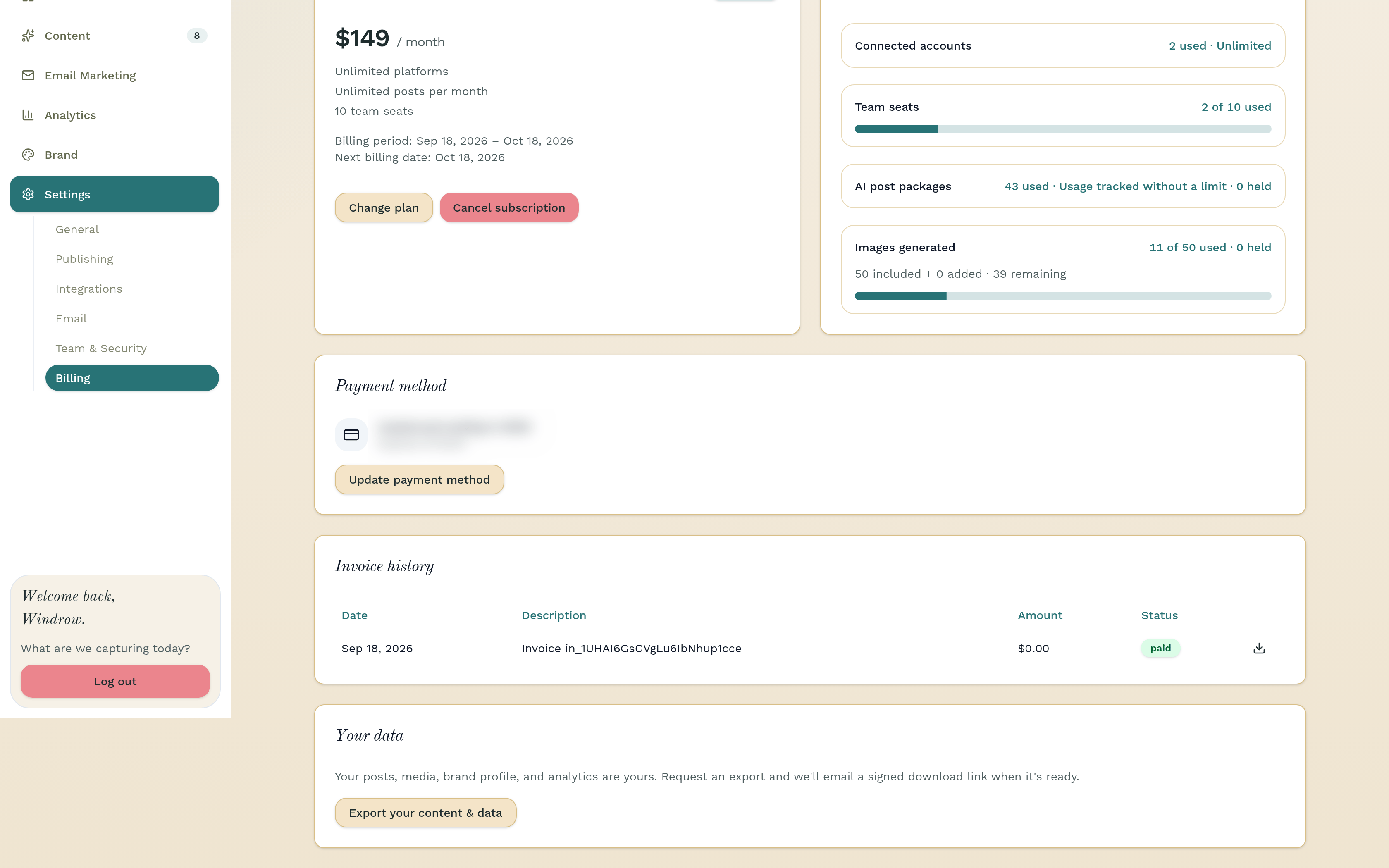
Under Invoice history, click Download next to any invoice.
Still stuck?
If you need more personalized support, send us an email and we will get back to you soon.