
Connect Instagram and Facebook
Connect once; posts publish where your customers are.
Connect your Facebook Page and Instagram account once. After that, Wallflower can publish your approved posts there on schedule.
Open Integrations in Wallflower
On this page
Before you start
- You're an Owner or Admin. Only owners and admins can connect social accounts.
- Facebook: a Page you can post to, and the Facebook account that manages it logged in to Facebook in this browser.
- Instagram: a professional account (Business or Creator). No Facebook Page is needed.
- Allow pop-ups for Wallflower. Sign-in opens in a pop-up window.
Open Integrations #
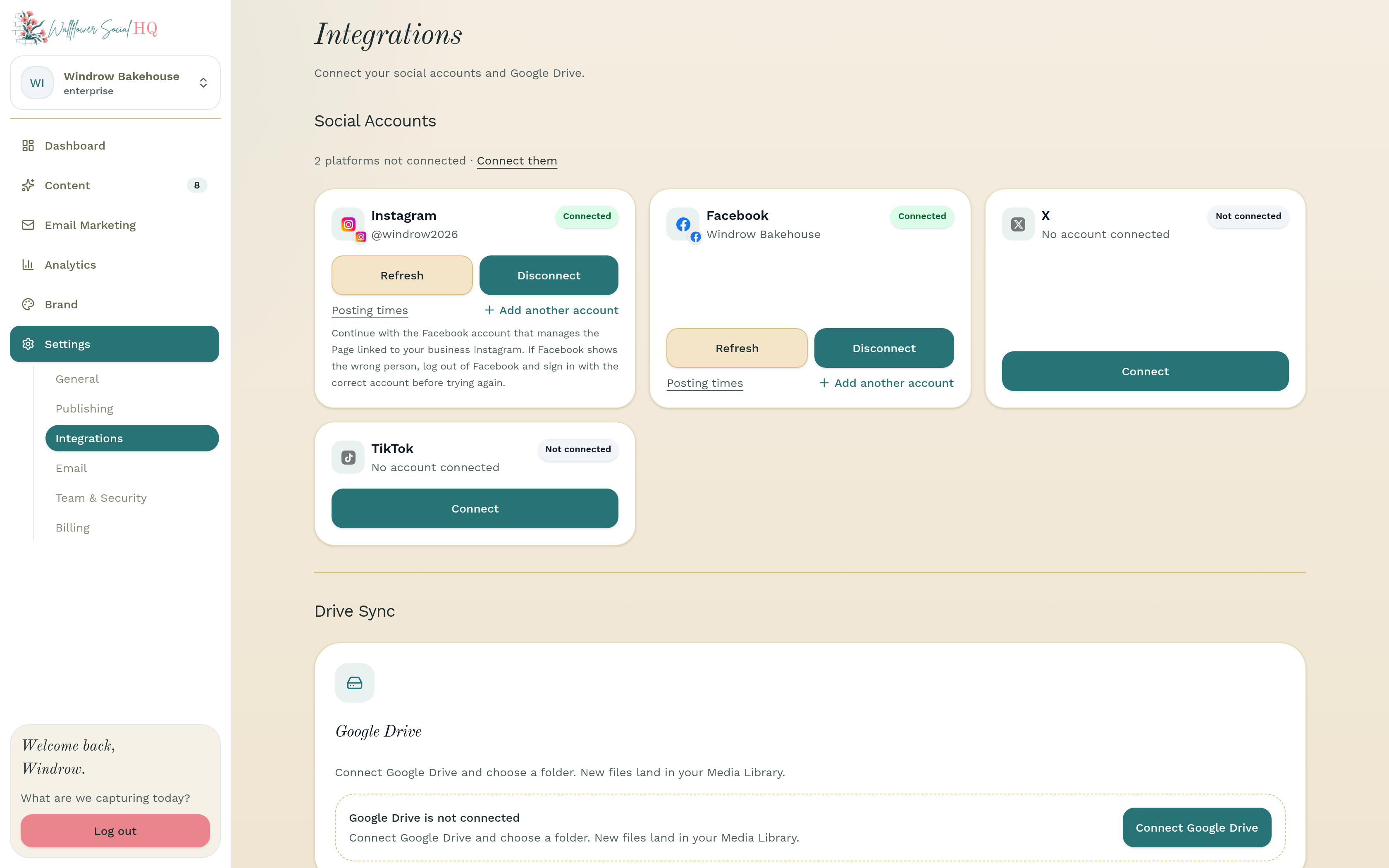
Go to Settings, then Integrations. Your channels are under Social Accounts. Each card says Connected or Not connected.
Connect Facebook #
On the Facebook card, click Connect. Facebook connects whoever is logged in to Facebook in this browser, so log in as the Page's manager first. In the pop-up, allow access and keep every Page selected.
No Pages listed?Click Connect again and keep every Page selected. If your account can't post to the Page, ask the Page's manager for posting access. A Page connected through another Facebook login shows Replace connection.TipClosed the pop-up by mistake? Click Reopen window.Choose your Page #
Back in Wallflower, pick the Page to post to under Choose your Facebook Page, then click Save Page.
Connect Instagram #
On the Instagram card, click Log in with Instagram. Log in with the professional Instagram account you want to connect.
Not sure it's professional? In Instagram, open your account type settings. It should say Business or Creator.
Check it's connected #
Both cards now say Connected. Your next approved posts will go to these accounts.
NoteEach Facebook Page and each Instagram profile counts as one connection toward your plan. See How pages and profiles are counted.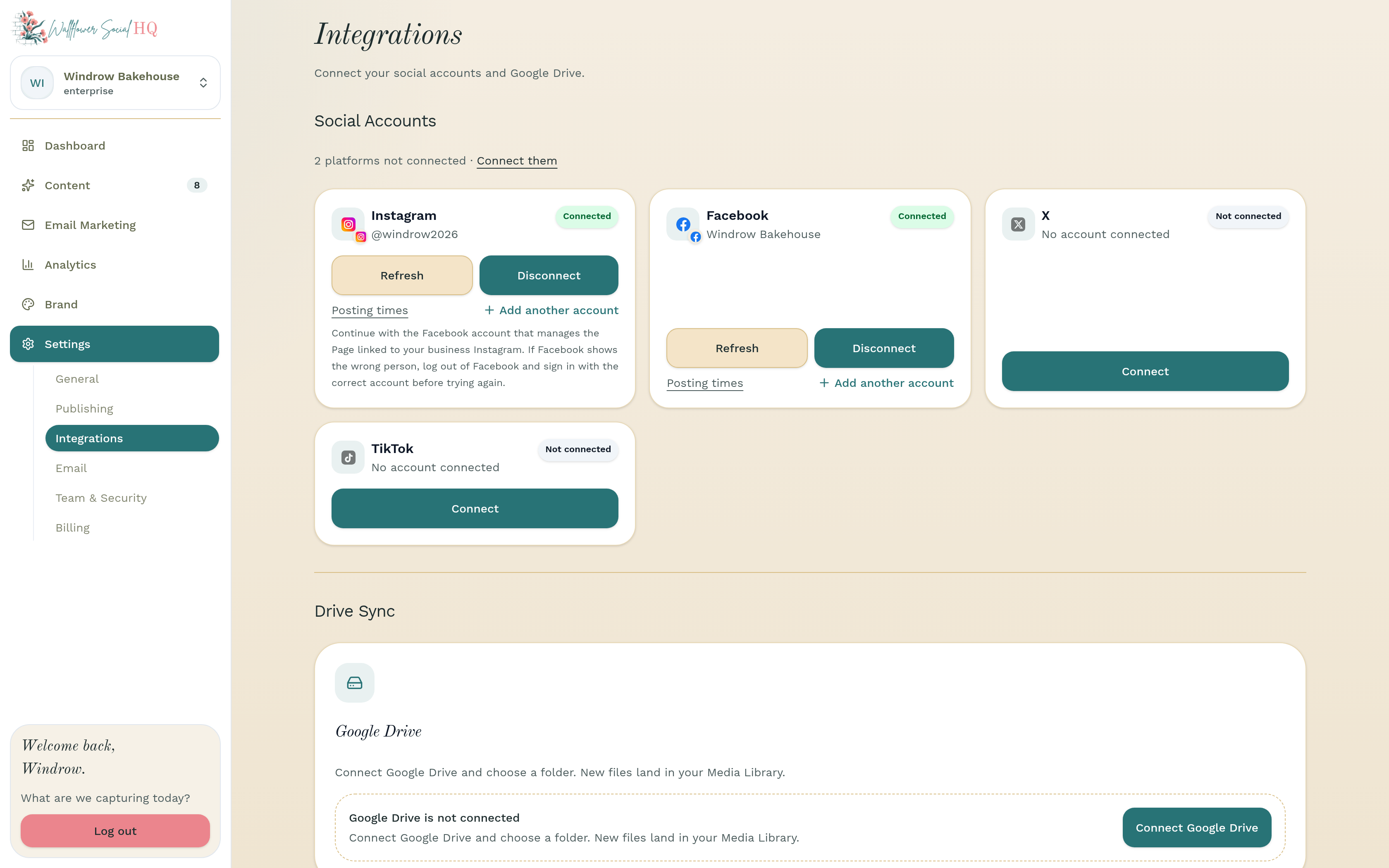
Still stuck?
If you need more personalized support, send us an email and we will get back to you soon.