
Roles explained: Owner, Admin, Editor, Companion
Who can do what, at a glance.
Everyone on your team has one role. It decides what they can do in Wallflower.
On this page
Before you start
- Nothing to set up. To change someone's role, you need to be an Owner or Admin.
The four roles #
- Owner: runs the workspace, top to bottom.
- Admin: manages everything except the workspace itself.
- Editor: creates and drafts. Approvals stay with owners and admins.
- Companion: works from the phone app, capturing photos and videos on the go.
Who can do what #
Owner Admin Editor Companion Take and send photos from the phone app Yes Yes Yes Yes View the library and brand Yes Yes Yes No Write and schedule posts, use Fill My Week Yes Yes Yes No Upload, edit and retouch media Yes Yes Yes No Edit the brand, draft email campaigns Yes Yes Yes No Approve and publish posts, delete media Yes Yes No No Approve and send email campaigns Yes Yes No No Manage the audience and signup forms Yes Yes No No Invite and manage the team Yes Yes No No Publishing and approval settings, billing Yes Yes No No Rename or delete the workspace Yes No No No Companion users work entirely from the Wallflower app on their phone. On the web, they see a single page pointing them there.
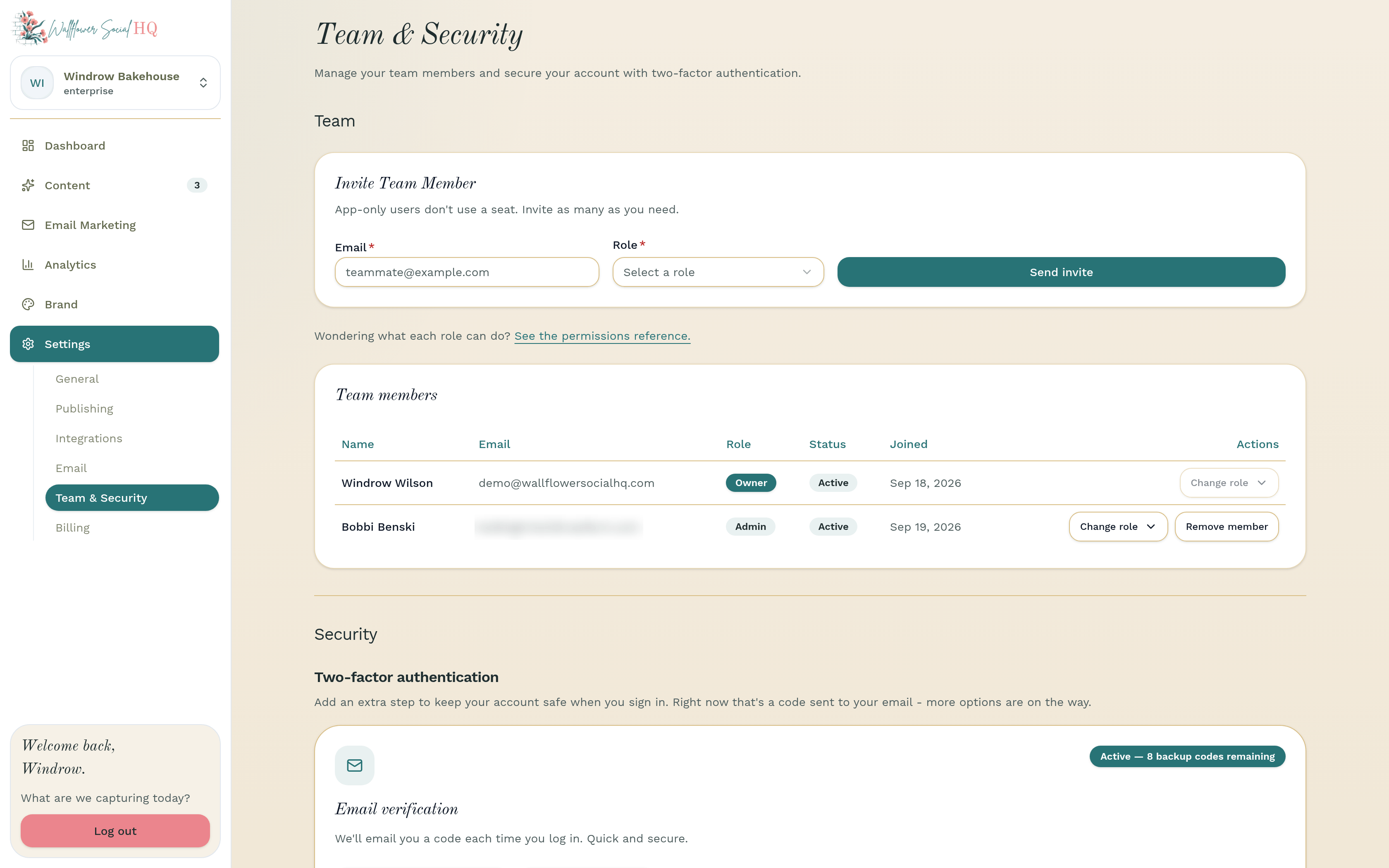
TipThe full list is on the Who can do what page. On the Team page, click See the permissions reference.Seats #
Owners, admins and editors each use a seat: 1 on Solo, 3 on Pro, 5 per workspace on Enterprise. Companion app users don't use a seat. Every plan includes unlimited companion app users.
Change someone's role #
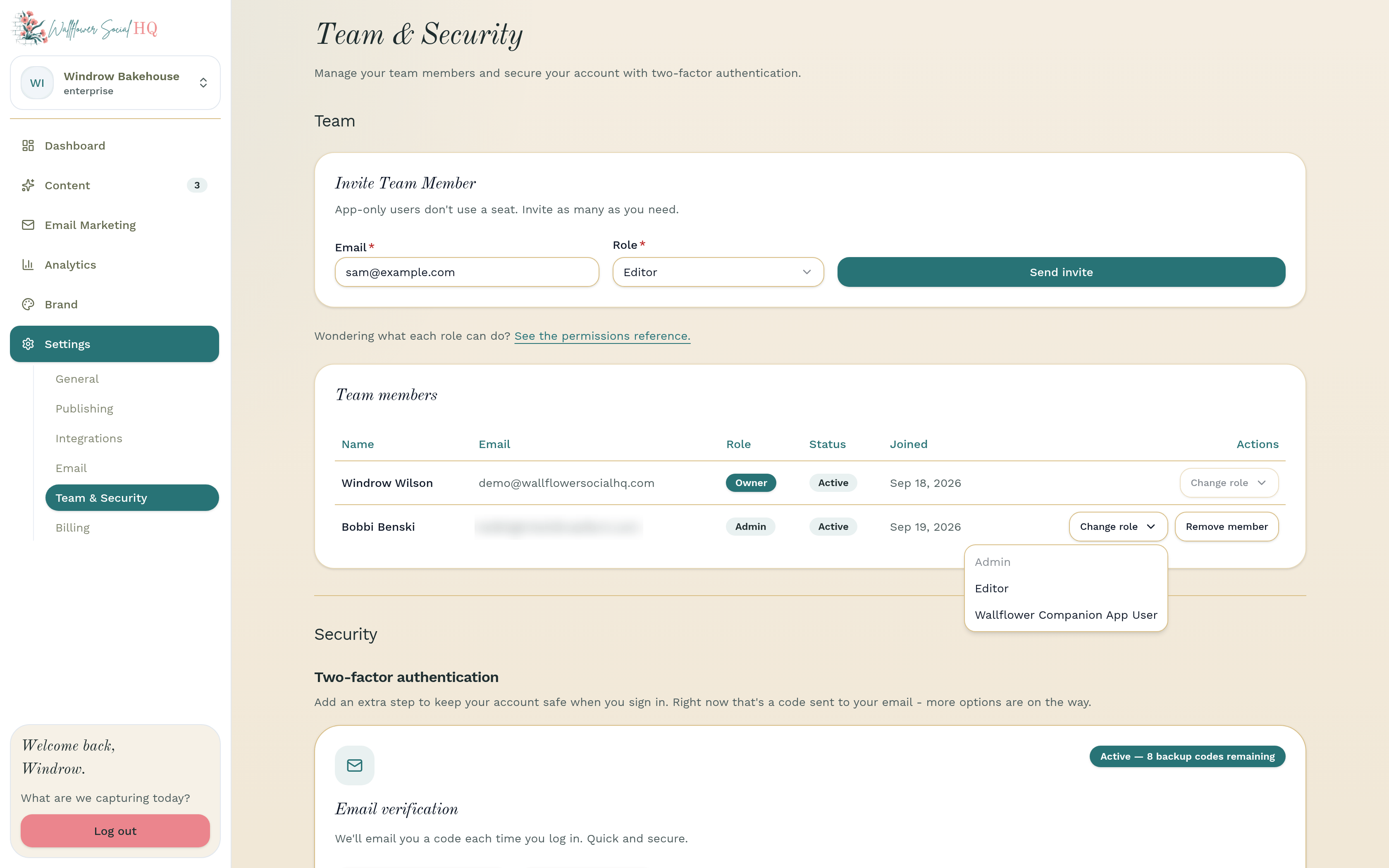
Go to Settings, then Team & Security. In the Team members table, click Change role on their row and pick the new role.
Still stuck?
If you need more personalized support, send us an email and we will get back to you soon.