
Invite a teammate
Owners and admins can invite and manage the team.
Bring in the people who help you post. They'll get an email, and they're in once they accept.
Open Team & Security in Wallflower
On this page
Before you start
- You're an Owner or Admin. Other roles see "Only workspace owners and admins can invite or remove teammates."
- You have a free seat for an admin or editor: 1 on Solo, 3 on Pro, 5 per workspace on Enterprise. Companion app users don't use a seat.
Open your team #
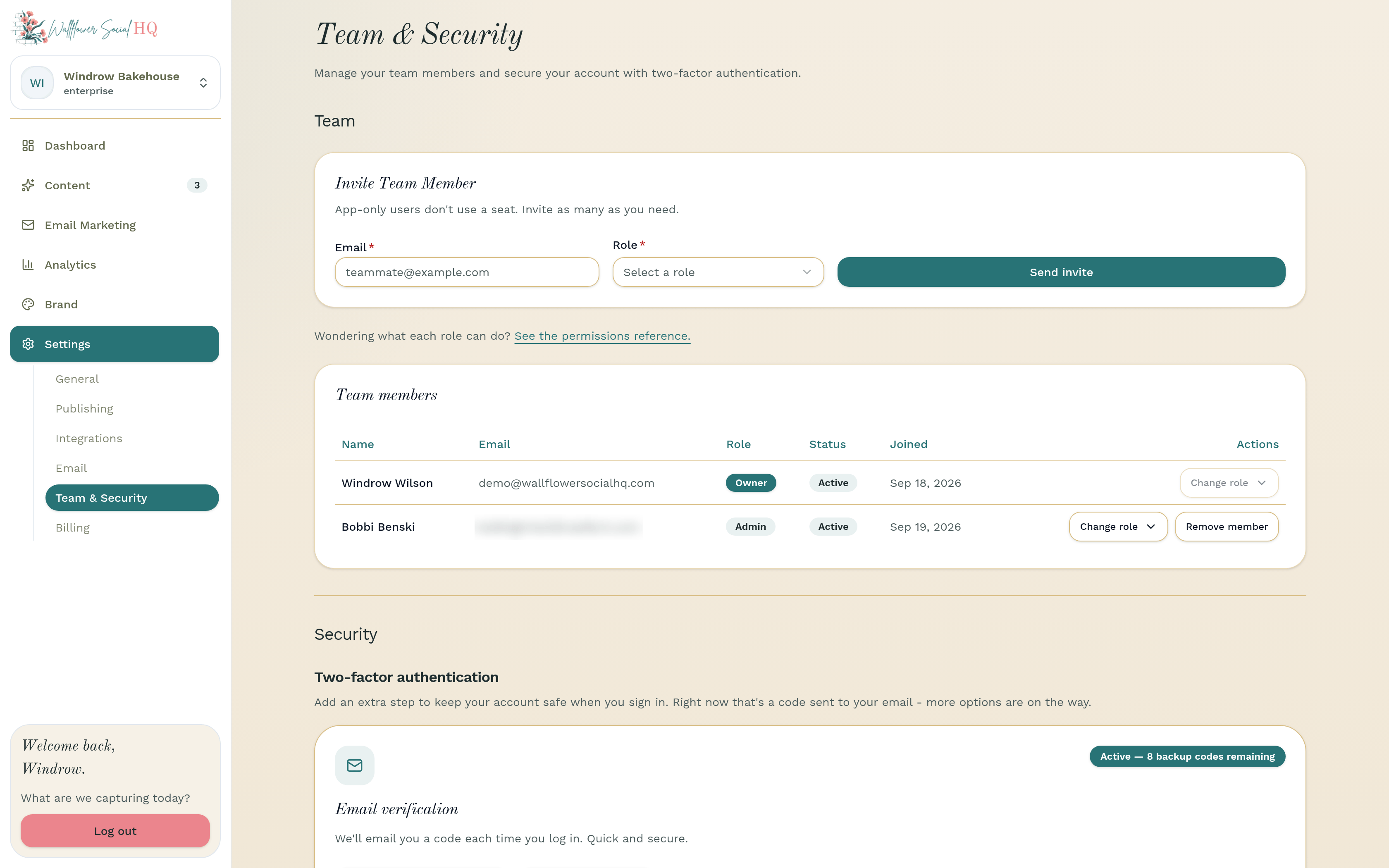
Go to Settings, then Team & Security.
Send the invite #
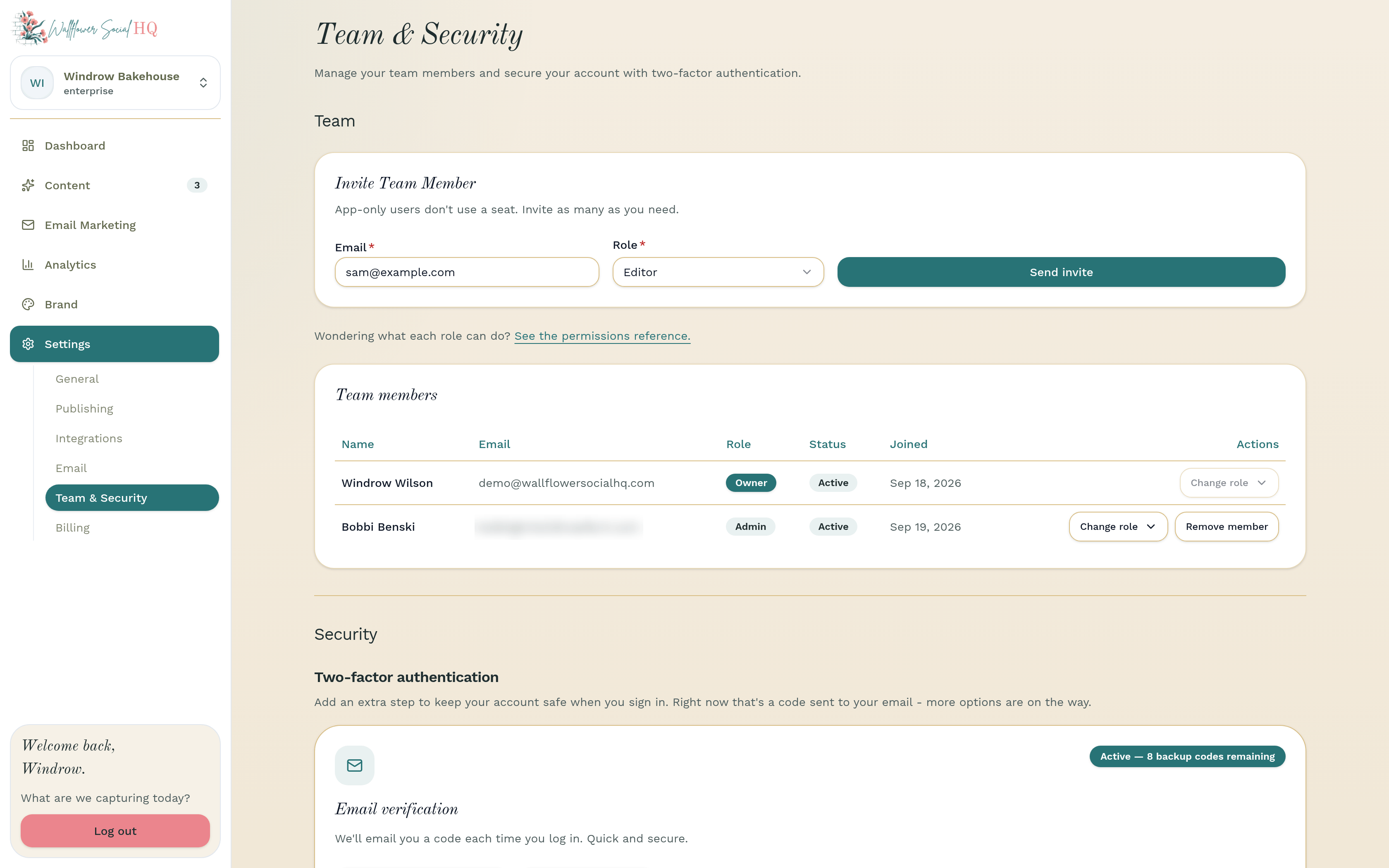
Under Invite Team Member, type their Email and pick a Role: Admin, Editor, or Wallflower Companion App User. Click Send invite. You'll see "Invitation sent." Not sure which role? See Roles explained.
They accept #
They get an email with a subject like "Sam invited you to join Windrow Bakehouse on Wallflower Social". They click Accept your invite in the email. If they aren't signed in yet, they click Sign in to continue or Create account first, then Accept invitation. Until then, their row shows Pending teammate.
TipIf they see an error, check they're signed in with the email you invited. Links also expire, so you may need to send a new one.Manage your team #
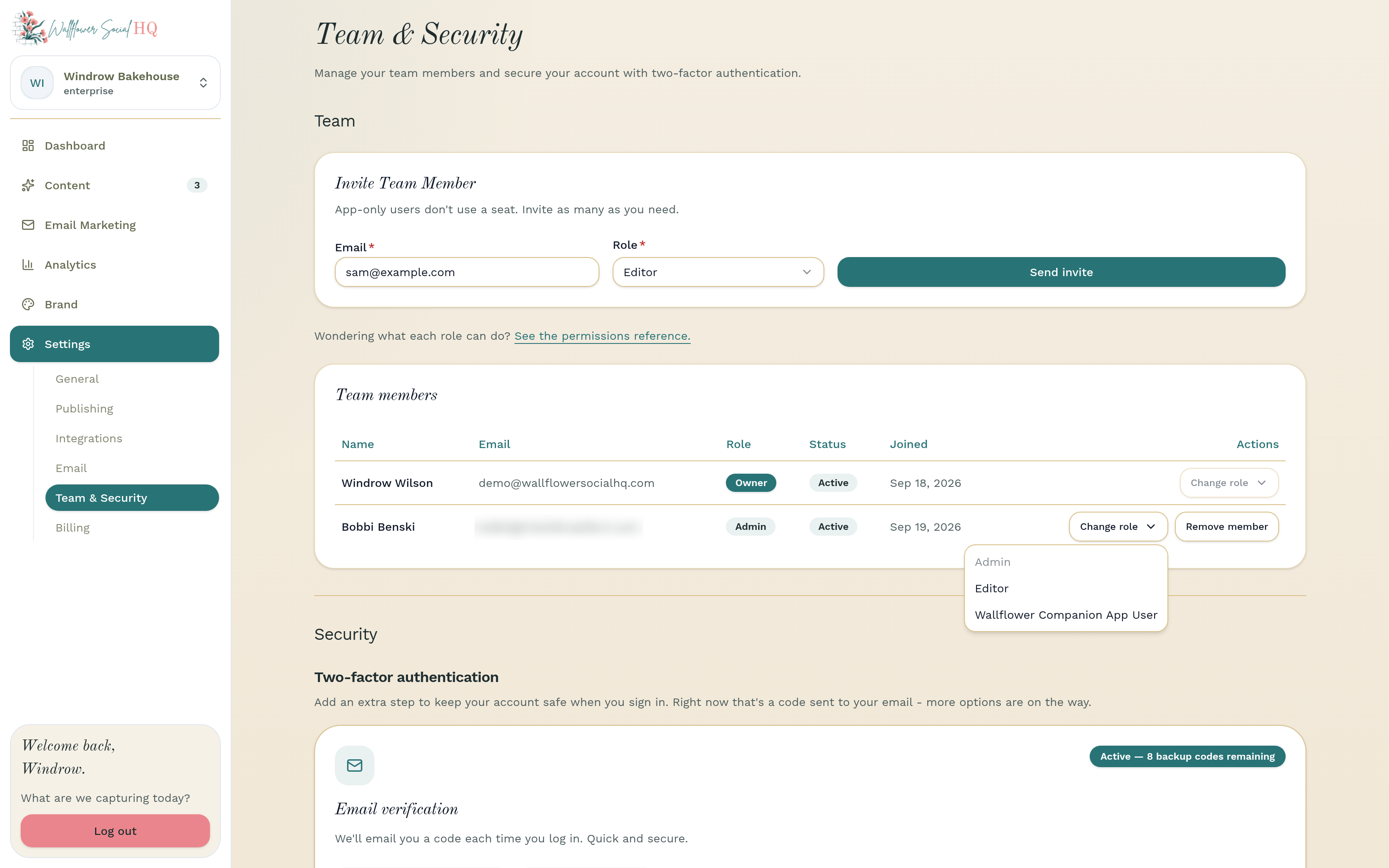
In the Team members table, use the row actions:
- Change role to give someone more or less access.
- Cancel Invite, then Confirm cancel, for an invite that hasn't been accepted.
- Remove member, then Confirm removal, to take someone off the team.
More in Team & roles
Still stuck?
If you need more personalized support, send us an email and we will get back to you soon.