
Run more than one brand (workspaces)
Enterprise includes three workspaces, each with 5 seats and 8 pages or profiles.
Running a second location or a sister brand? On Enterprise, each one gets its own workspace, with its own brand, team, channels and calendar.
On this page
Before you start
- You're on Enterprise. Solo and Pro include one workspace.
- You're signed in as an Owner.
What's included #
Enterprise includes 3 workspaces. Each one has:
- 5 seats
- 8 pages or profiles
- 50 made-for-you images a month
- 10 hours of video processing a month
Email subscribers are shared: 5,000 across all your workspaces, from one pool. Companion app users are unlimited.
Add a workspace #
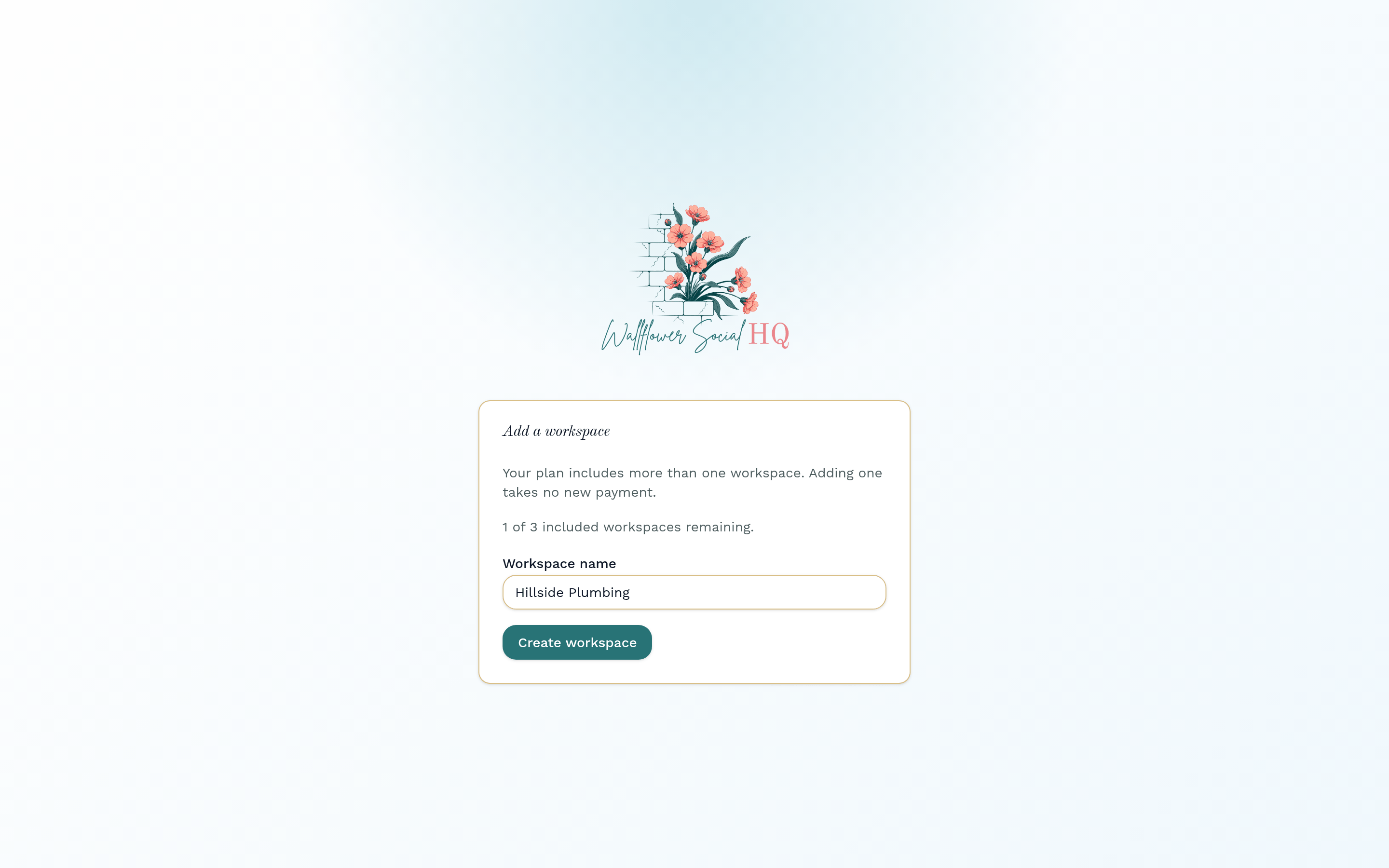
Open the workspace menu in the sidebar and click Create new workspace. Type a Workspace name and click Create workspace. Adding one within your plan takes no new payment.
Switch between them #
Open the workspace menu. Under Your Workspaces, click the one you want.
TipEach workspace has its own brand. Set it up first in a new workspace, before you plan any posts.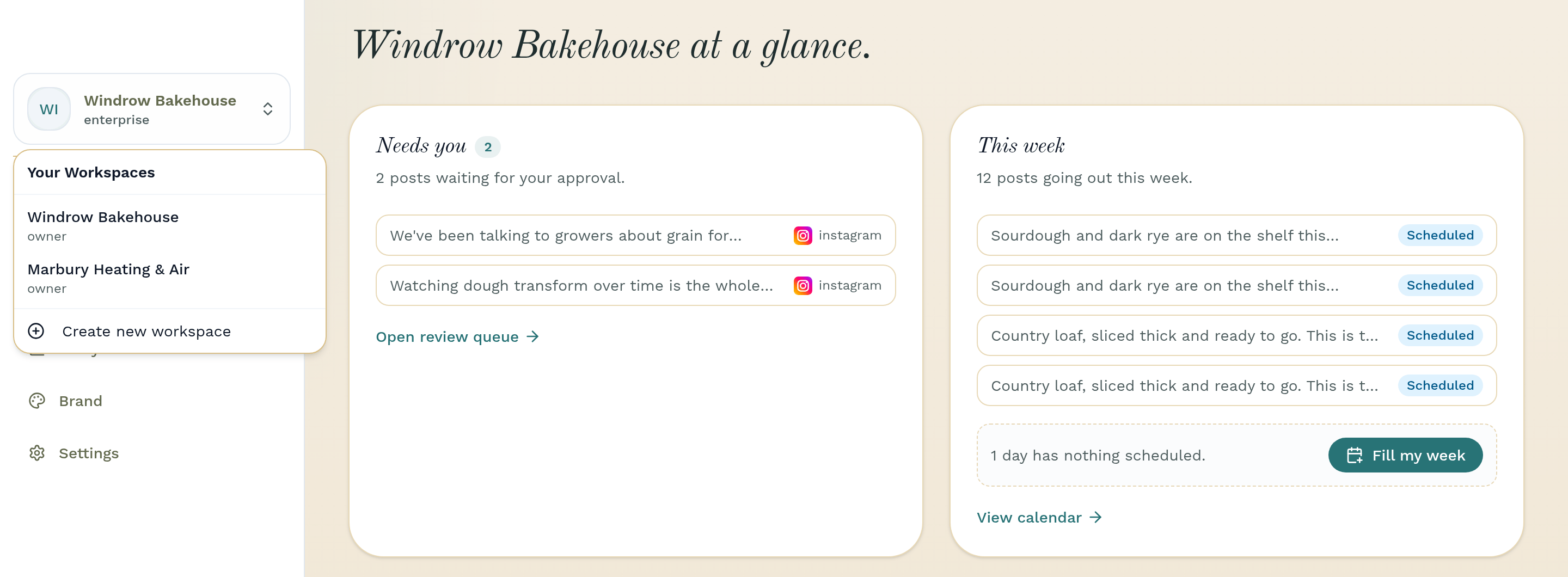
Need more than 3? #
When all 3 are in use, you'll see Workspace limit reached. For more, email sales@wallflowersocialhq.com about agency pricing.
NoteMoving from Enterprise to a smaller plan? You choose which workspace stays active. The others become read-only. See Change your plan.
Still stuck?
If you need more personalized support, send us an email and we will get back to you soon.