
Subscriber limits by plan
500 on Solo, 2,000 on Pro, 5,000 on Enterprise (shared across workspaces), and how to add more.
Every plan includes email subscribers. Here's how many, what counts, and what to do when you need more.
On this page
Before you start
- Nothing to set up. You can check your count in Email Marketing, then Audience, under Subscribers.
Email subscribers included #
Plan Email subscribers included Solo 500 Pro 2,000 Enterprise 5,000, shared across its workspaces 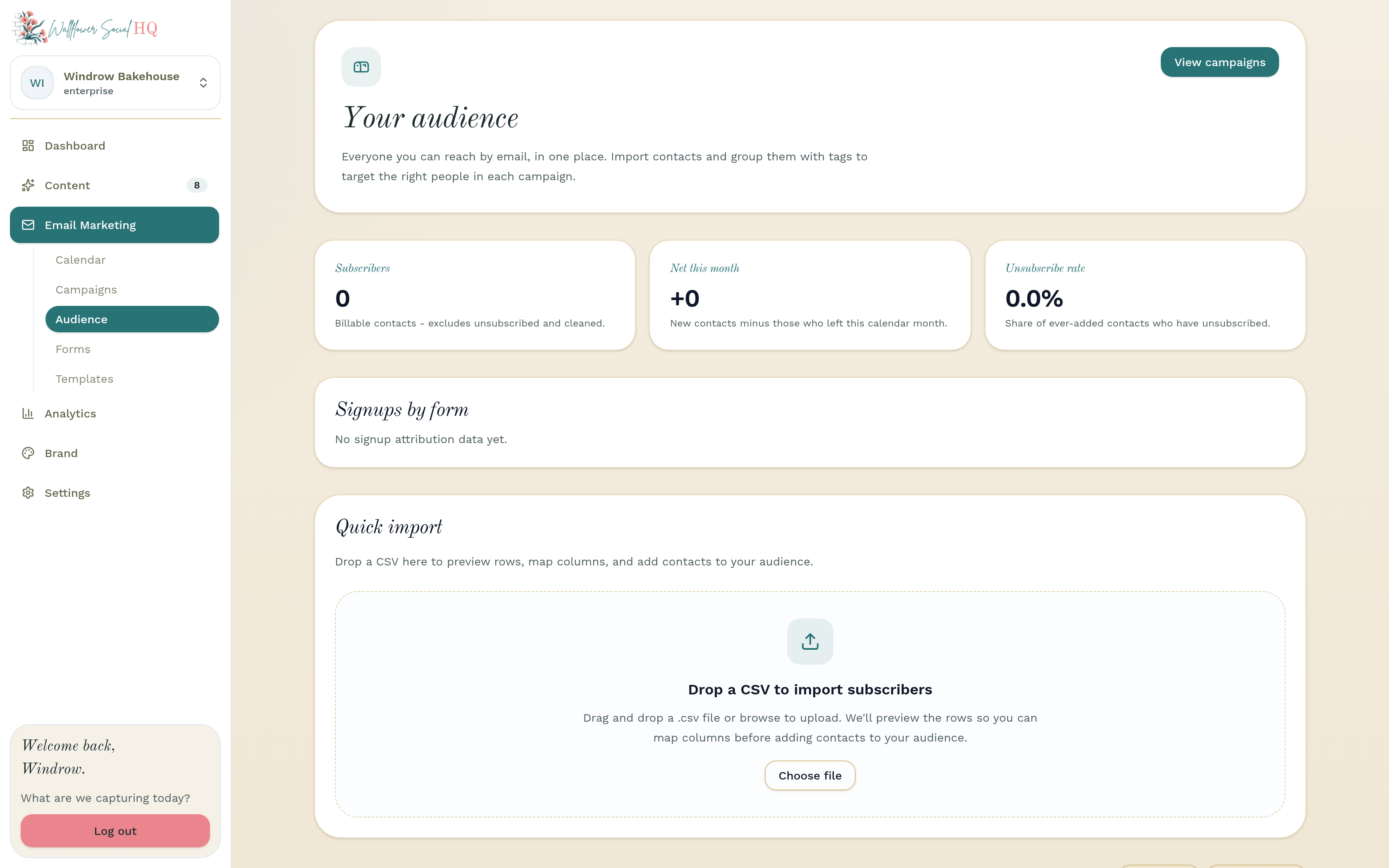
What counts #
Everyone who's subscribed to your emails counts. Contacts who unsubscribed, bounced or were deleted don't count.
Need more? Add email subscribers #
Add the Additional Email Subscribers add-on. It costs $15 per 1,000 subscribers a month. The email subscribers your plan includes stay included: you only pay for the ones you add.
Owners and admins can add them. In a workspace that's included in another account's plan, the account owner adds them from their own Billing page.
- Go to Settings, then Billing, and find Usage.
- On the Active email subscribers meter, click Add subscribers.
- In the Add email subscribers window, pick how many under Subscribers to add.
- Click Continue to secure checkout.
Just signing up? Choose your plan and start your trial first. Adding email subscribers during sign-up isn't available yet, so add them from Billing once you're in.
You can also move to a bigger plan instead. See Change your plan.
NoteIf your workspace has more email subscribers than your plan includes, campaigns won't send until you're back under the limit. You'll see a message when you try. Add email subscribers, remove some, or move to a bigger plan, then open the campaign again, review it, and send or schedule it.Pay at checkout #
Stripe's secure checkout shows Additional Email Subscribers as its own line, with how many you're adding and the monthly price. It renews every month, and it's billed monthly whichever way you pay for your plan. If you add subscribers during your free trial, they're free until the trial ends.
Once it goes through, the Active email subscribers meter shows them as added on top of what your plan includes.
Change or remove it #
To add more later, use Add subscribers again. To lower or remove Additional Email Subscribers, email support@wallflowersocialhq.com and we'll change it for you.
More in Email marketing
Still stuck?
If you need more personalized support, send us an email and we will get back to you soon.