
Manage your audience and signup forms
Owners and admins only.
Your audience is everyone you can email. Bring in the list you have, then use a signup form to grow it.
On this page
Before you start
- You're an Owner or Admin.
- Only add people who asked to hear from you.
- Your list is a CSV file, if you're importing one.
Open your audience #
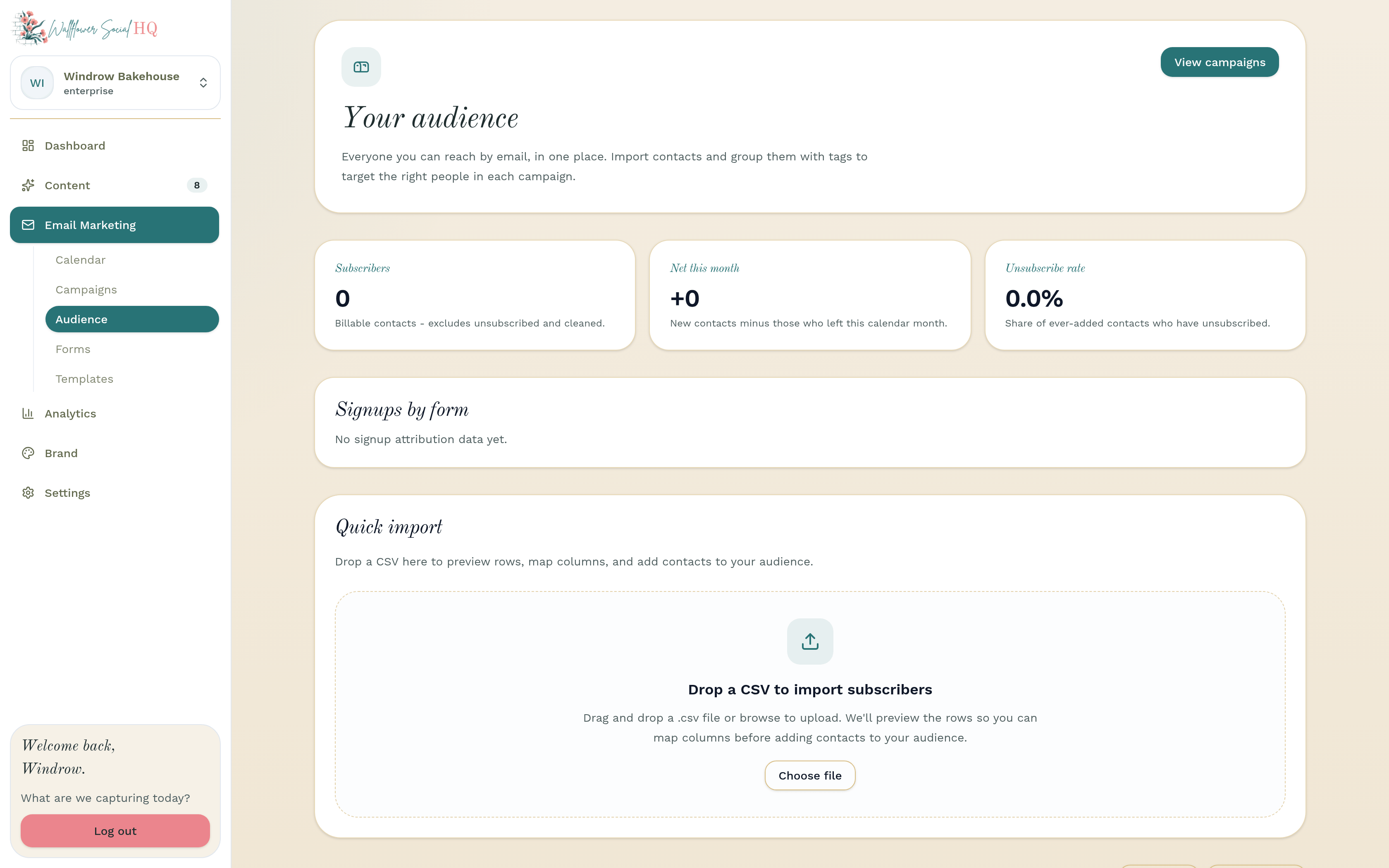
Go to Email Marketing, then Audience. You'll see Subscribers, Net this month, and Unsubscribe rate at the top.
Import contacts #
Drop a CSV into Quick import, or click Import contacts. Preview the rows, match the columns, and add them.
NoteOne list, tags only. Unsubscribed and cleaned contacts are never billed.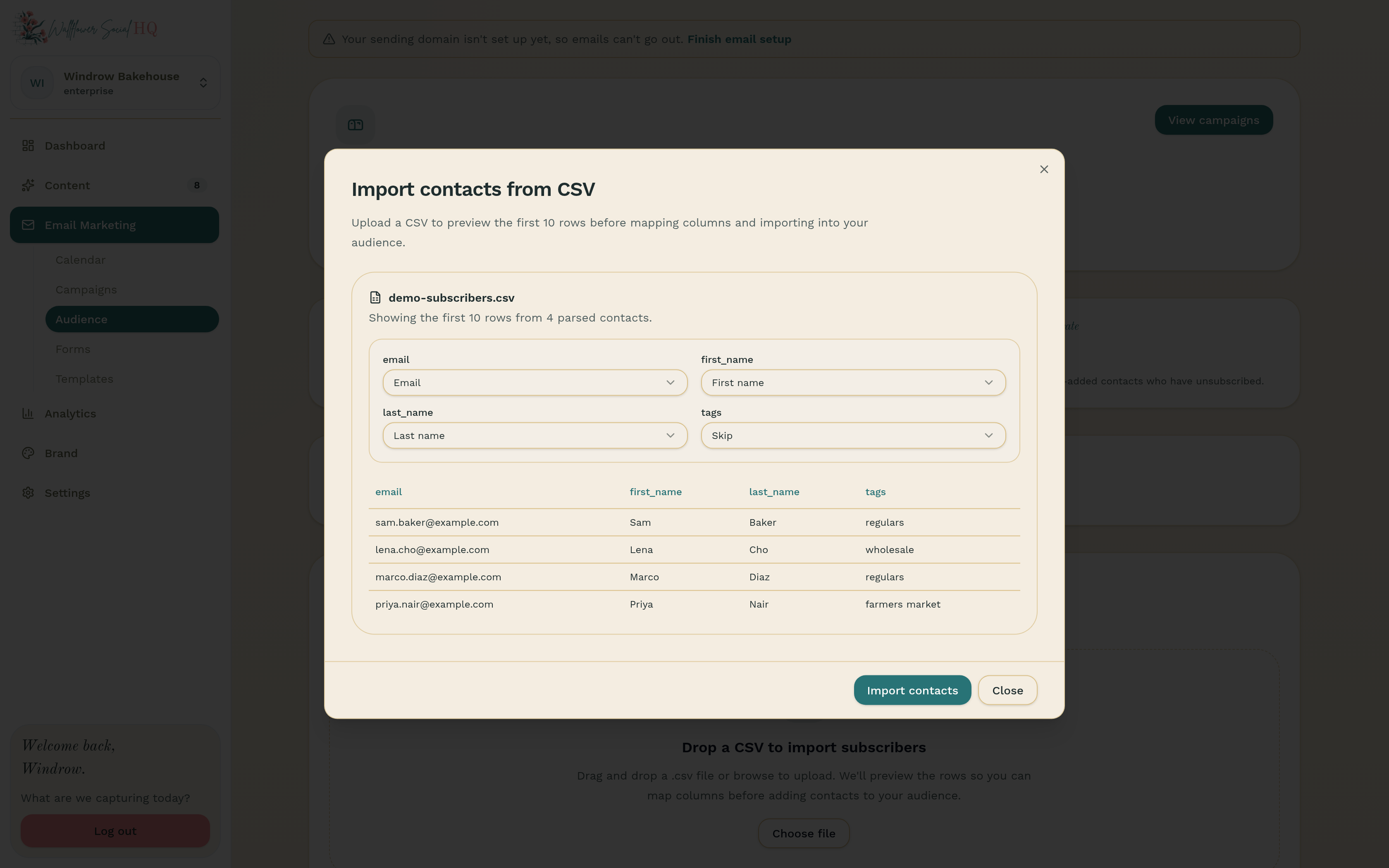
Make a signup form #
Go to Email Marketing, then Forms, and click New form. Choose Hosted page or Embed. Add a Form name, a Public headline and Button text. Email is always required. Name and phone are optional.
Under Tag new subscribers, pick a tag. Turn on Send a welcome email if you want one. Click Publish form.
NoteDouble Opt-in is on by default, so new subscribers confirm their email address before they're added to your list. It applies to all your forms. Only the workspace owner sees the setting, in Settings, then Email, under Email subscriptions. To turn it off, untick it and click Save changes.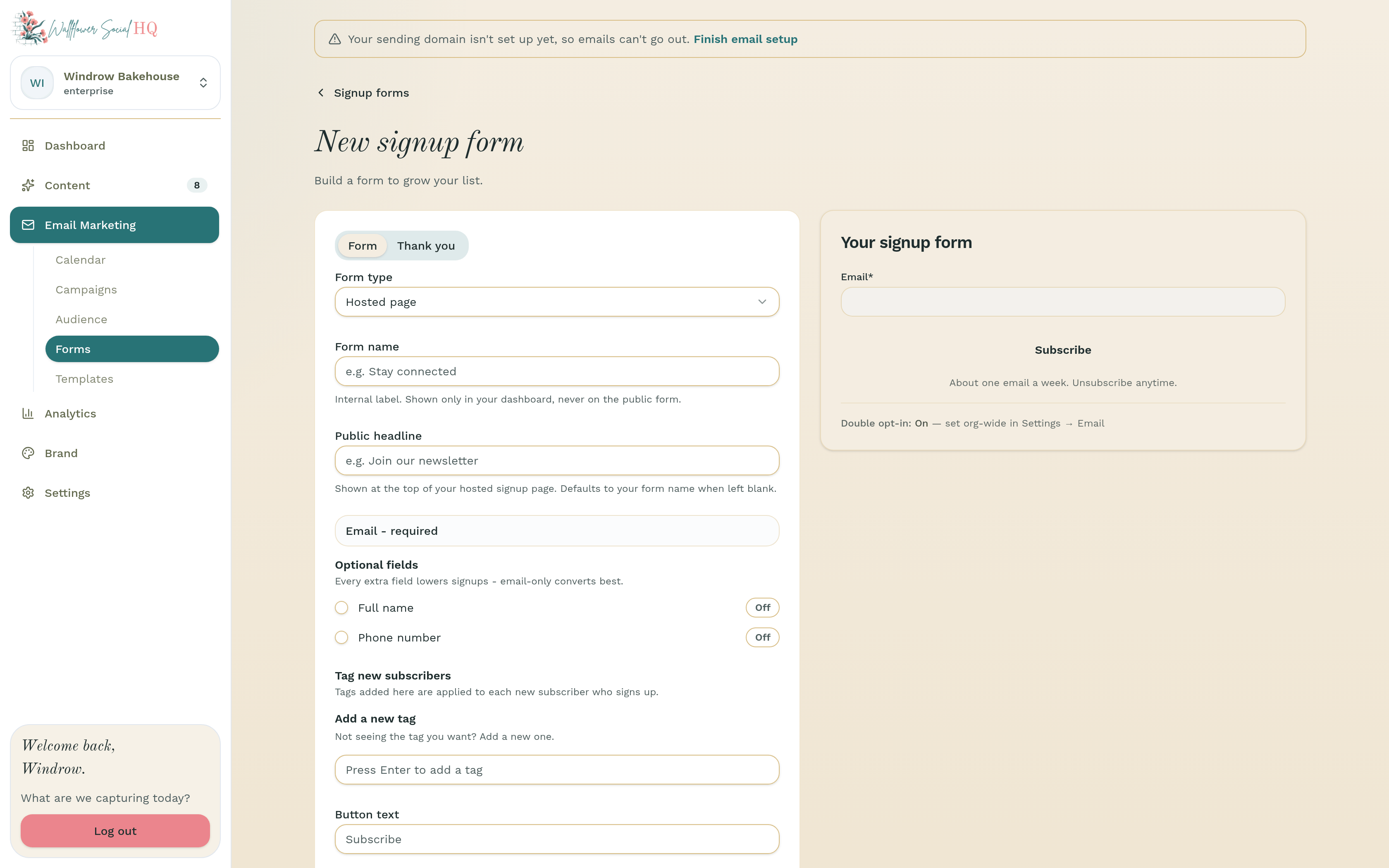
More in Email marketing
Still stuck?
If you need more personalized support, send us an email and we will get back to you soon.