
Send from your own domain
Set up your domain so emails come from your business.
Emails land better, and look more trustworthy, when they come from your own domain. You need a verified domain before you can send.
Open Email settings in Wallflower
On this page
Before you start
- You're an Owner or Admin.
- You can sign in to the place you manage your domain's DNS (where you bought the domain, or your web host).
- Plan for a wait. DNS changes can take a while to show up.
Fill in your sender profile #
Go to Settings, then Email. Under Sender profile, fill in Reply and sender address, Company name, Website URL, your mailing address and Timezone. Click Save changes.
NoteA mailing address is a legal requirement. It goes in the footer of every email.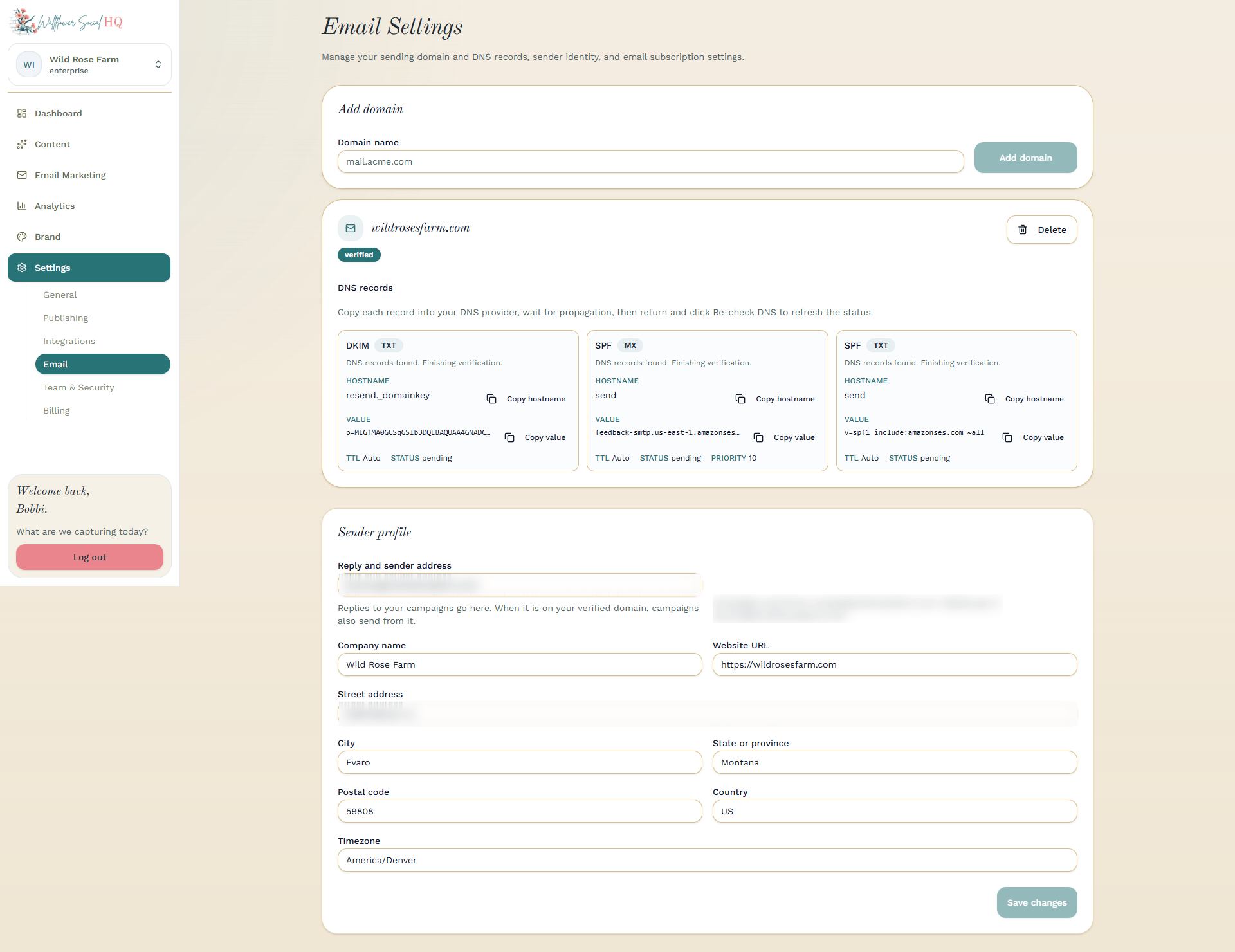
Add your domain #
Under Sending domains, click Add domain and type a domain name, like mail.yourbusiness.com.
TipA subdomain like "mail." keeps email settings separate from your website.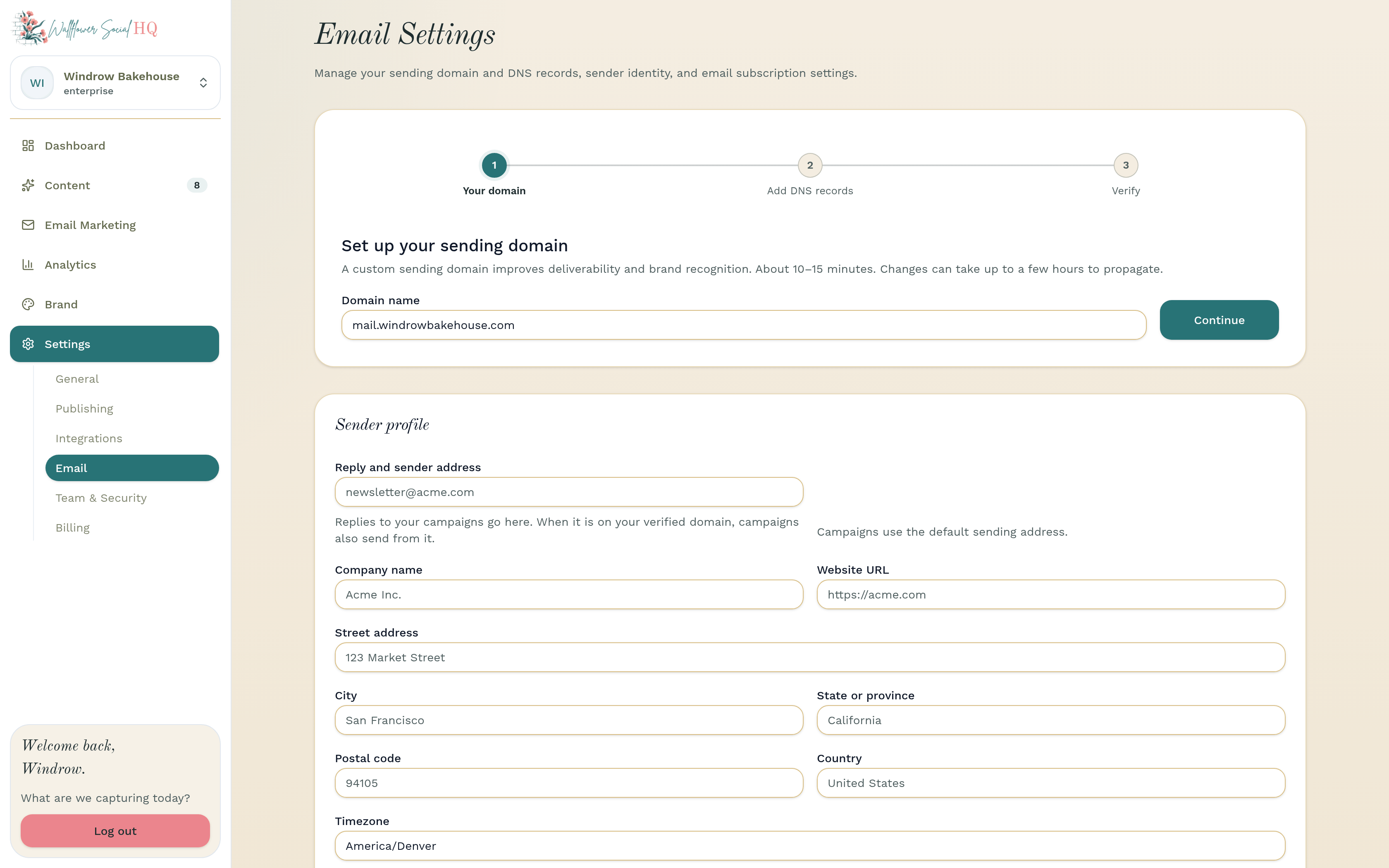
Copy the records to your DNS #
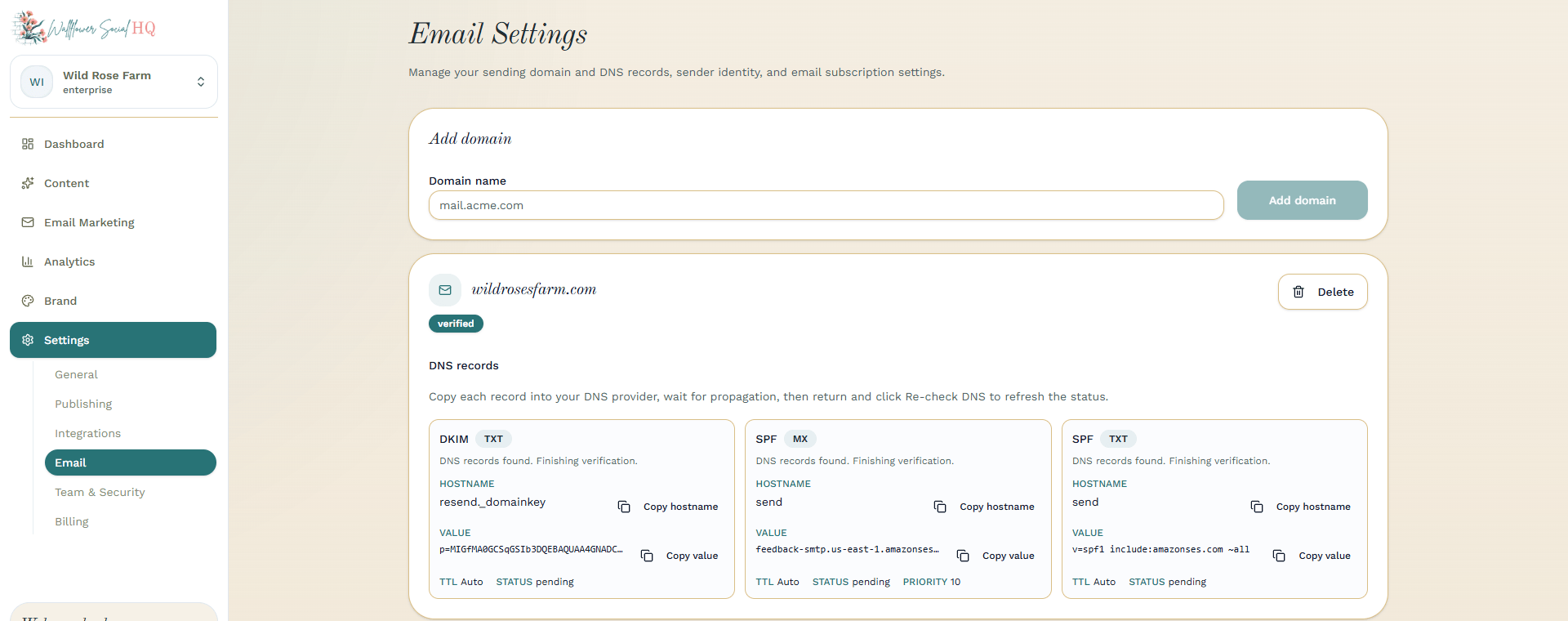
Wallflower shows a list of records, each with a Hostname, Value and Status:
- DKIM proves your emails are really yours.
- SPF lists who may send for you.
- Return-Path / MX handles bounces.
Use Copy hostname and Copy value to paste each record into your DNS provider.
Check it's verified #
Wait for the changes to go through, then come back and click Re-check DNS. When every record is verified, you're ready to send.
NoteStill pending? Check each value was pasted exactly, with no extra spaces. Then email support@wallflowersocialhq.com.
More in Email marketing
Still stuck?
If you need more personalized support, send us an email and we will get back to you soon.