
Use email templates
Start every campaign from a template that looks like you.
Every new campaign starts with a layout. Pick one, then make it yours.
On this page
Before you start
- Your brand is set up, so your name and logo appear in the email header. See Set up your brand profile.
- Use a computer. On small screens you'll see "Build on a bigger screen."
Start a new campaign #
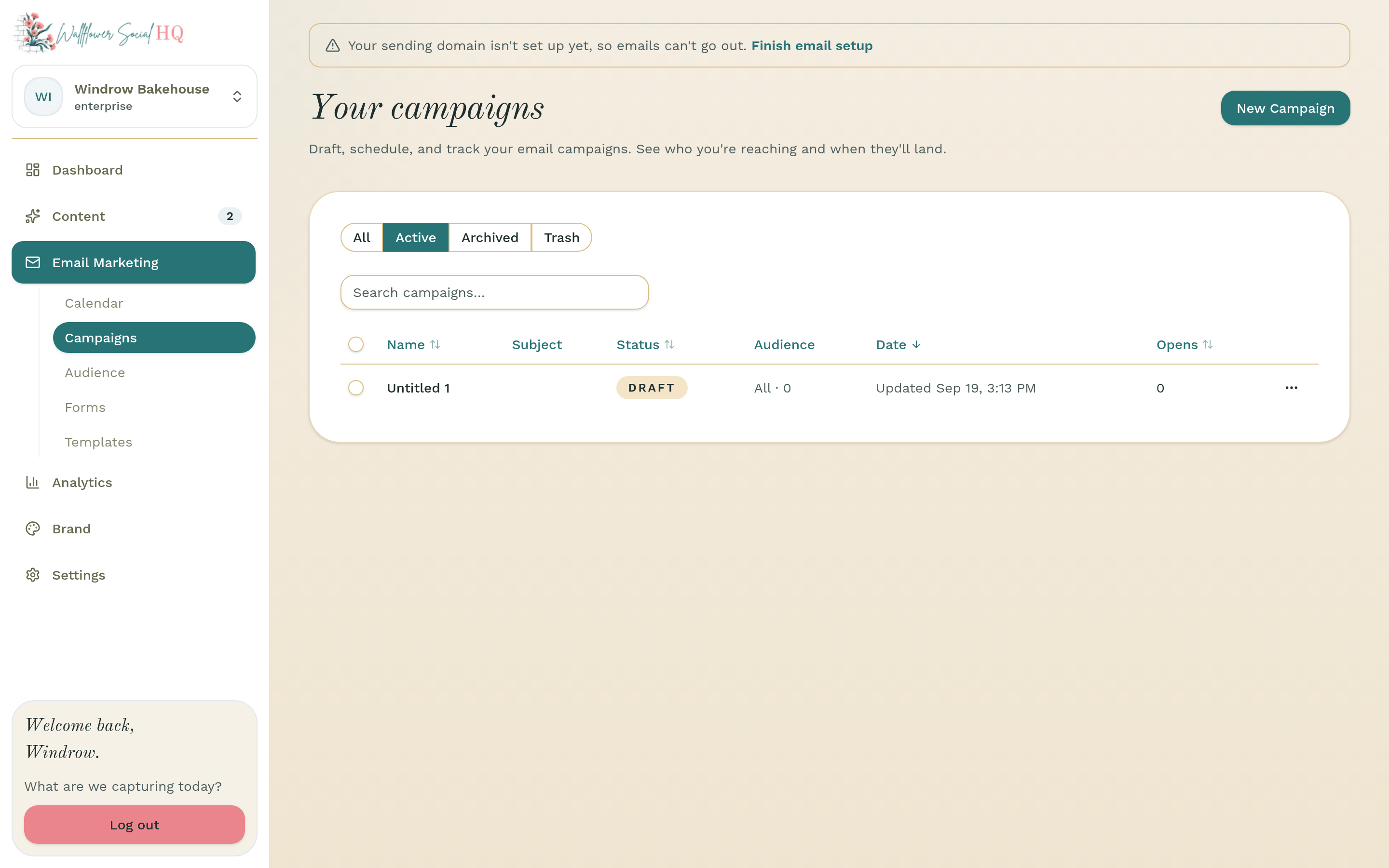
Go to Email Marketing, then Campaigns, and click New Campaign. You can also click New email on your email calendar.
Pick a template #
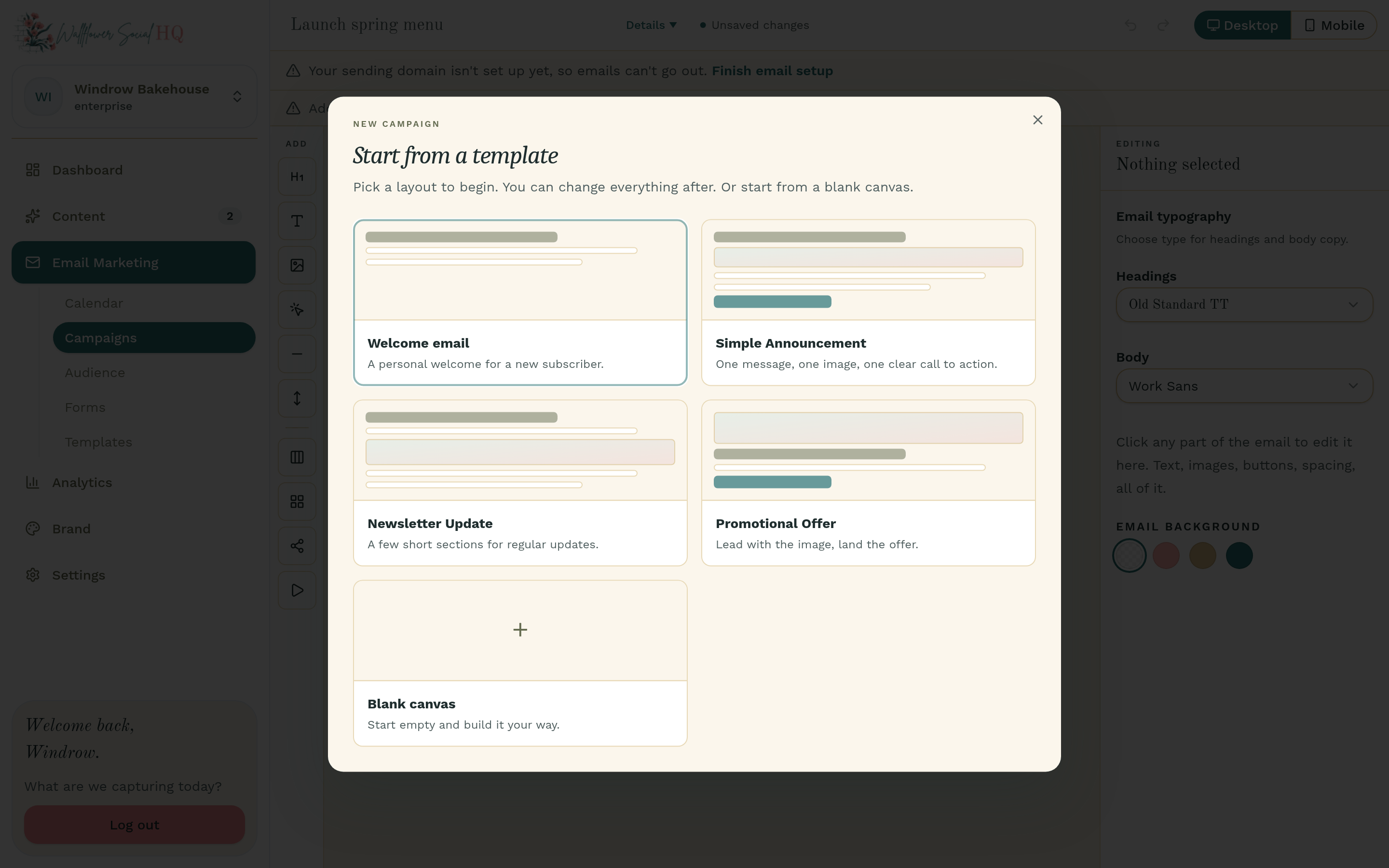
Under Start from a template, pick a layout: Welcome email, Simple Announcement, Newsletter Update, or Promotional Offer. Or choose Blank canvas and build it your way.
Make it yours #
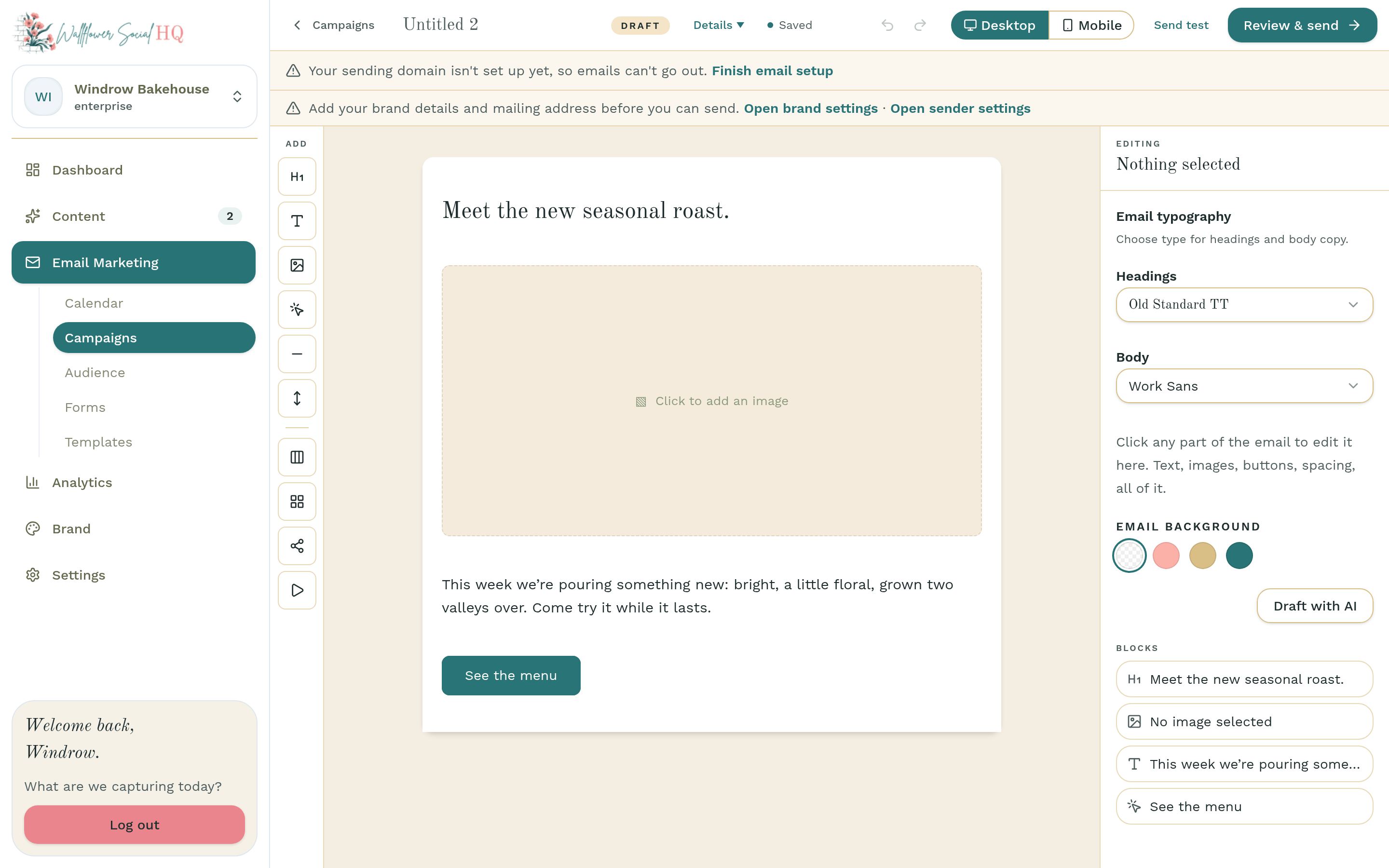
You can change everything. Click any part of the email to edit it. Drag in blocks like Heading, Text, Image, Button, Columns, or Social links. Your brand header and mailing address are added for you before it sends.
Saved templates are coming soon #
Saving your own layouts to reuse isn't ready yet. The Templates page says "Templates coming soon." For now, start from one of the layouts above.
More in Email marketing
Still stuck?
If you need more personalized support, send us an email and we will get back to you soon.