
Sync photos from Google Drive
Bring photos in from a Drive folder automatically.
Already keep your photos in a Google Drive folder? Connect it once, and new files in that folder show up in your Media Library on their own.
Open Integrations in Wallflower
On this page
Before you start
- You're an Owner or Admin. The Drive Sync section only shows for owners and admins.
- You can sign in to the Google account that has the folder.
Open Integrations #
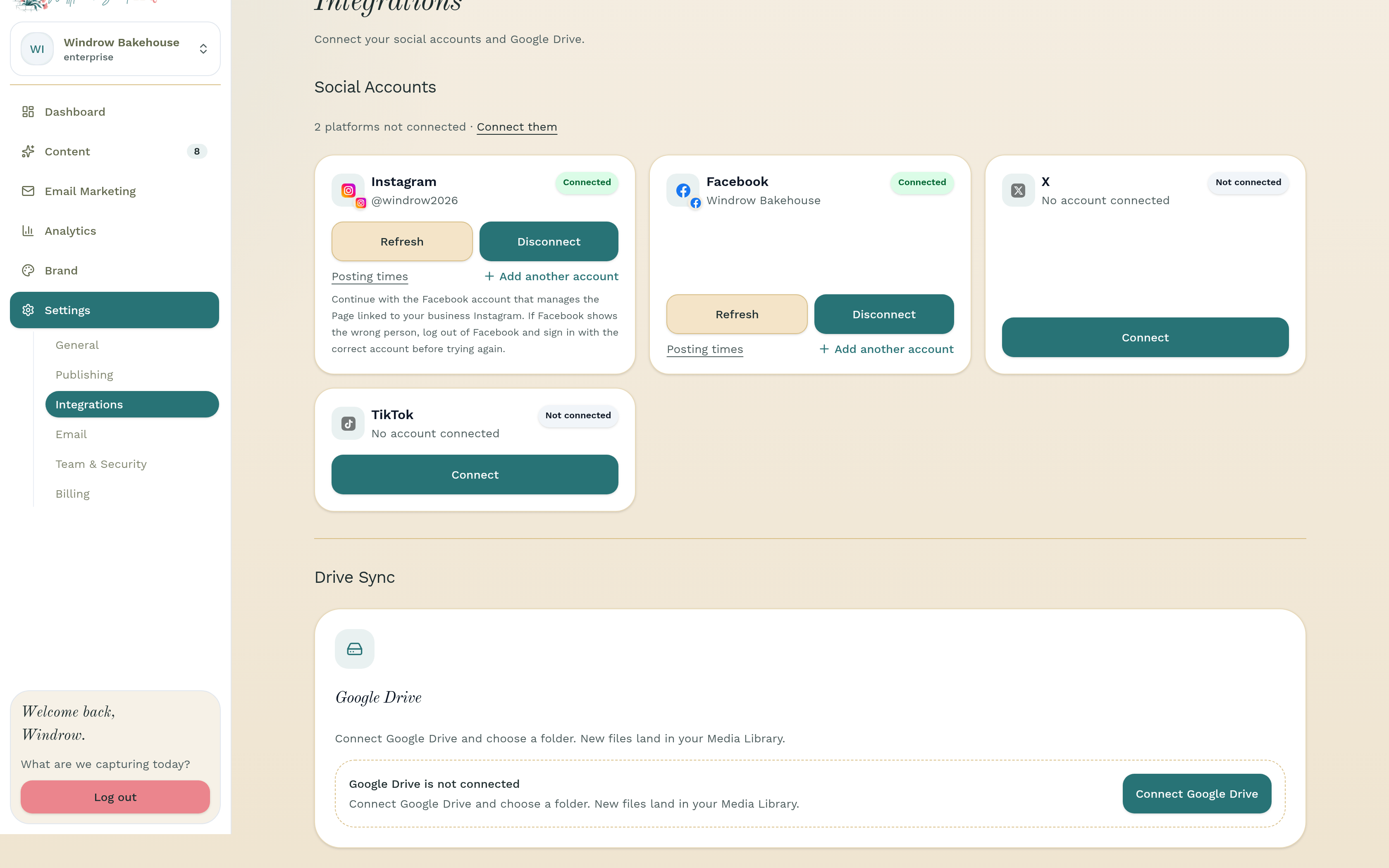
Go to Settings, then Integrations. Scroll to Drive Sync.
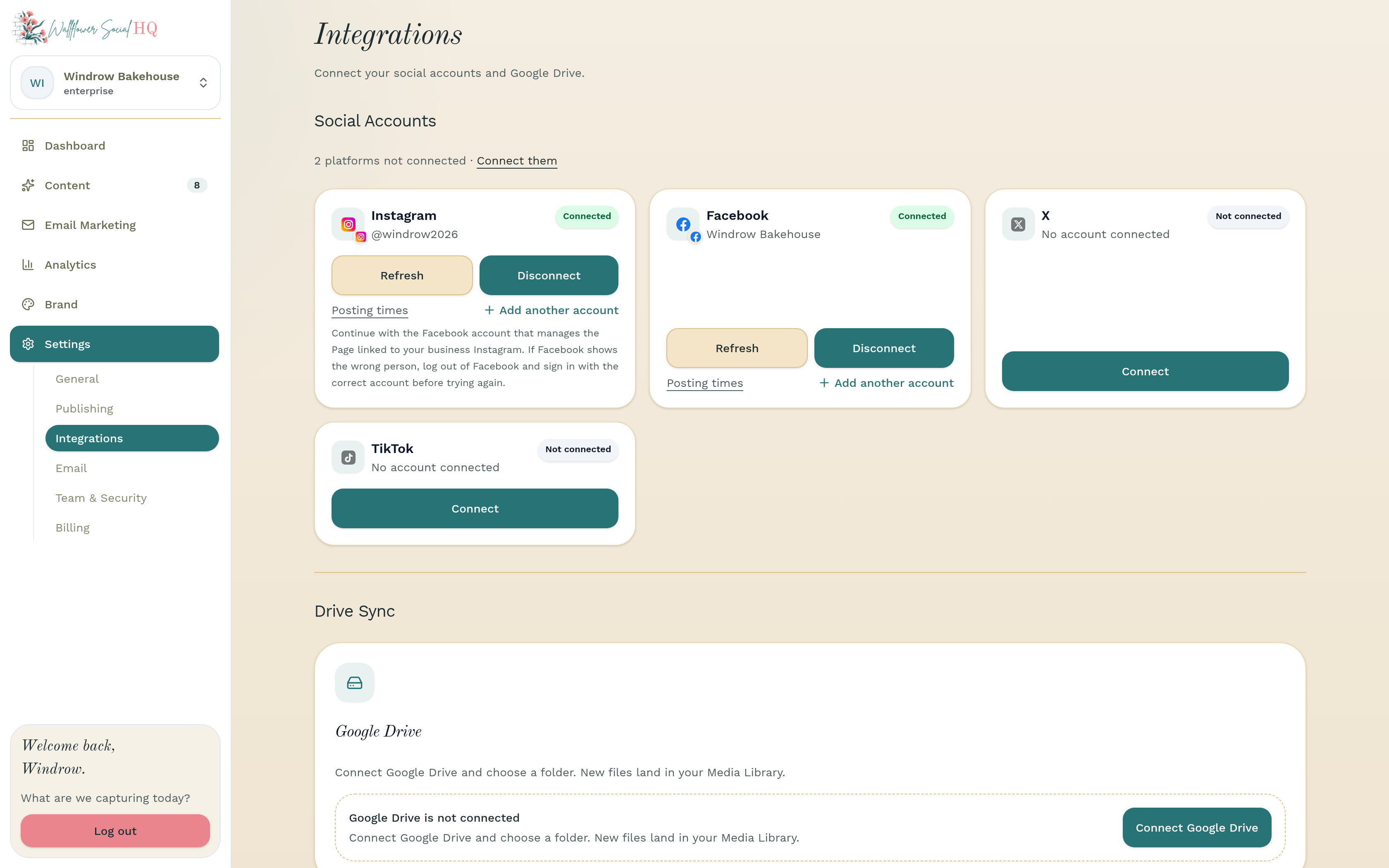
Connect Google Drive #
Click Connect Google Drive. Sign in with Google and allow access.
Choose a folder #
Click Select watched folder. In Select a Google Drive folder, pick the folder Wallflower should watch and click Select folder.
Confirm the import #
If Wallflower asks you to confirm, it shows how many files it found in the folder. Click Confirm import.
NoteDrive files are added to your Media Library only. No posts are drafted from the import. Use Fill My Week or Create Post when you're ready.Let it sync #
From now on, new files in the folder land in your Media Library. The Sync status card shows the Google account, Watch folder, and Last sync. Click Sync now anytime you don't want to wait.
To switch folders, click Change folder. To stop syncing, click Disconnect Google Drive.
Still stuck?
If you need more personalized support, send us an email and we will get back to you soon.