
Upload photos to your calendar
Add your own photos to your schedule and let Wallflower draft the posts.
Open Media Library in Wallflower
On this page
Before you start
- You're an Owner, Admin, or Editor. Companions don't need web access. Photos they send from the phone app go straight into this same media library.
- At least one channel is connected (Connect Instagram and Facebook).
- Your brand profile is filled in. It shapes how every drafted caption sounds.
- Your files are within the upload limits: photos up to 50 MB, videos up to 100 MB (file types).
Open your Media Library #
In Wallflower, click Content, then Media Library. It holds every photo in your workspace, including shots your team sent from the companion app.
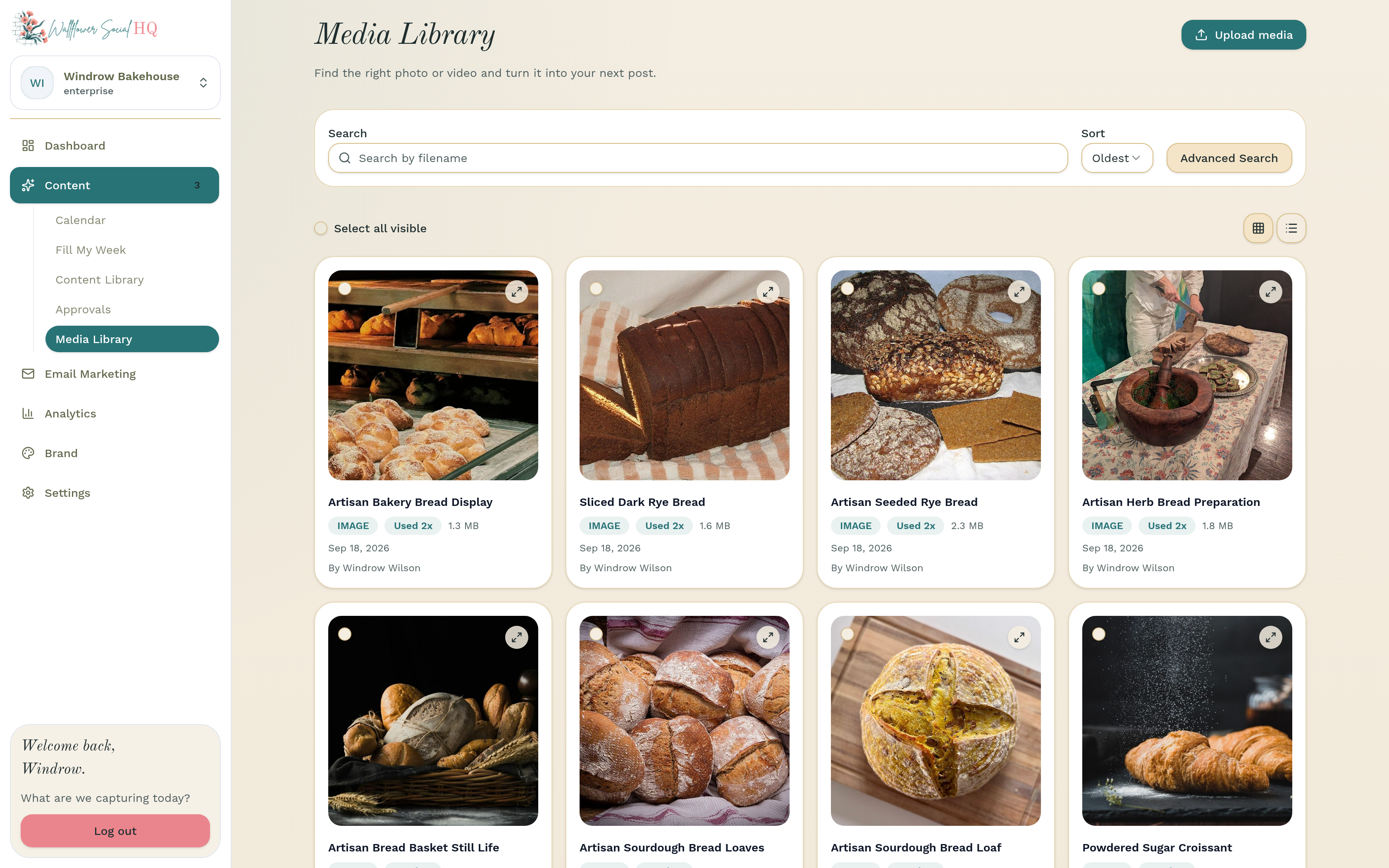
The Media Library, with photos from you and your team. Upload your photos #
Click Upload media and choose photos from your computer. You can pick several at once. They're added to the Media Library, ready to use.
There's no drag-and-drop here, so use the button.
What you can upload
Type Formats Max size Photos JPEG, PNG, WebP, GIF; HEIC from the phone app 50 MB Videos MP4, MOV, WebM 100 MB NoteiPhone photos (HEIC) upload from the phone app.TipCapturing on site? Send photos from the companion app instead. They land in the same library, and companion users don't take a seat.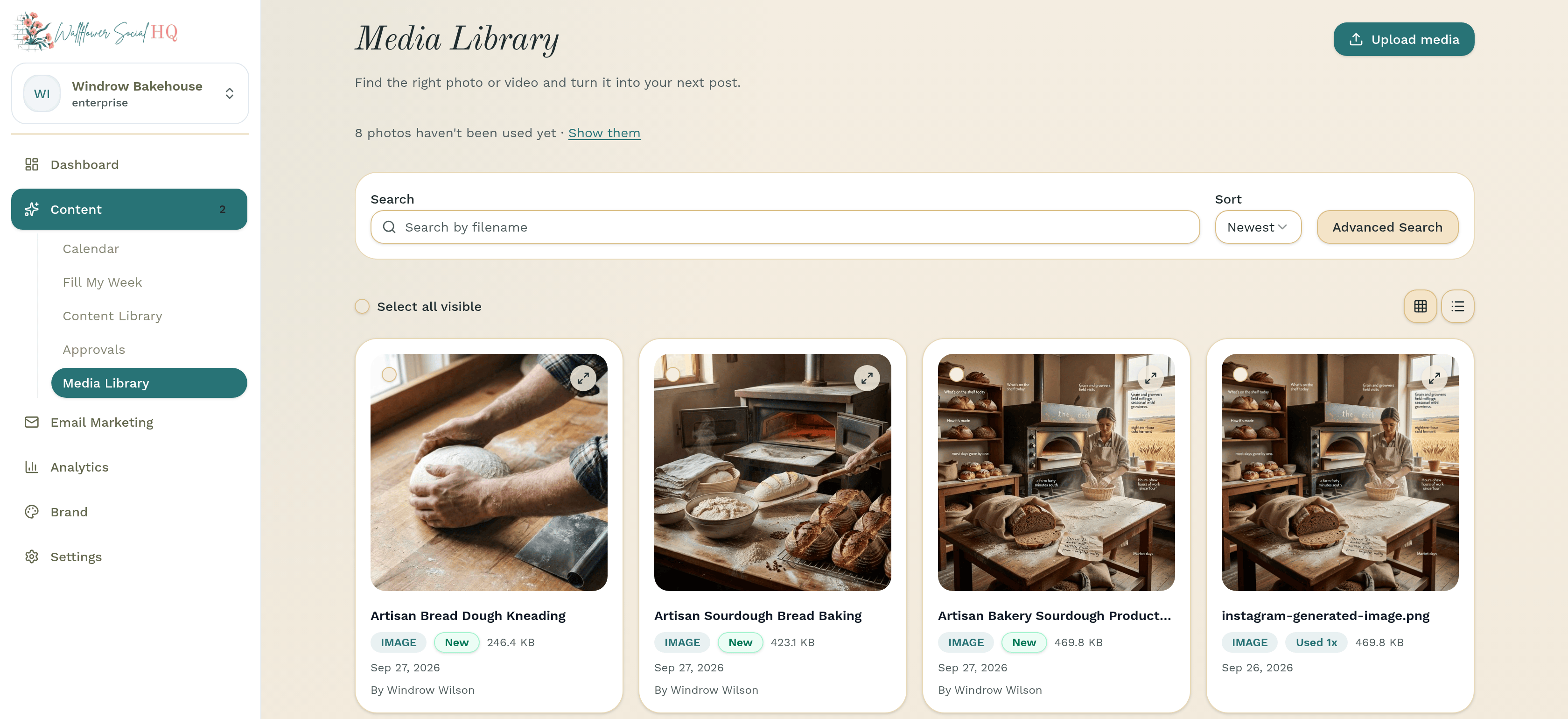
Click Upload media and choose your photos. Generate a post from a photo #
In the Media Library, click a photo, then click Generate a post. The Create a post page opens with your photo attached. Choose your platforms. Under Brief Your Assistant, write a few words about the post in Topic or brief, then click Generate.
Wallflower drafts the caption from your photo and your brand profile, so it sounds like you. Edit anything you like. Want the rest of the week filled too? Use Fill My Week.
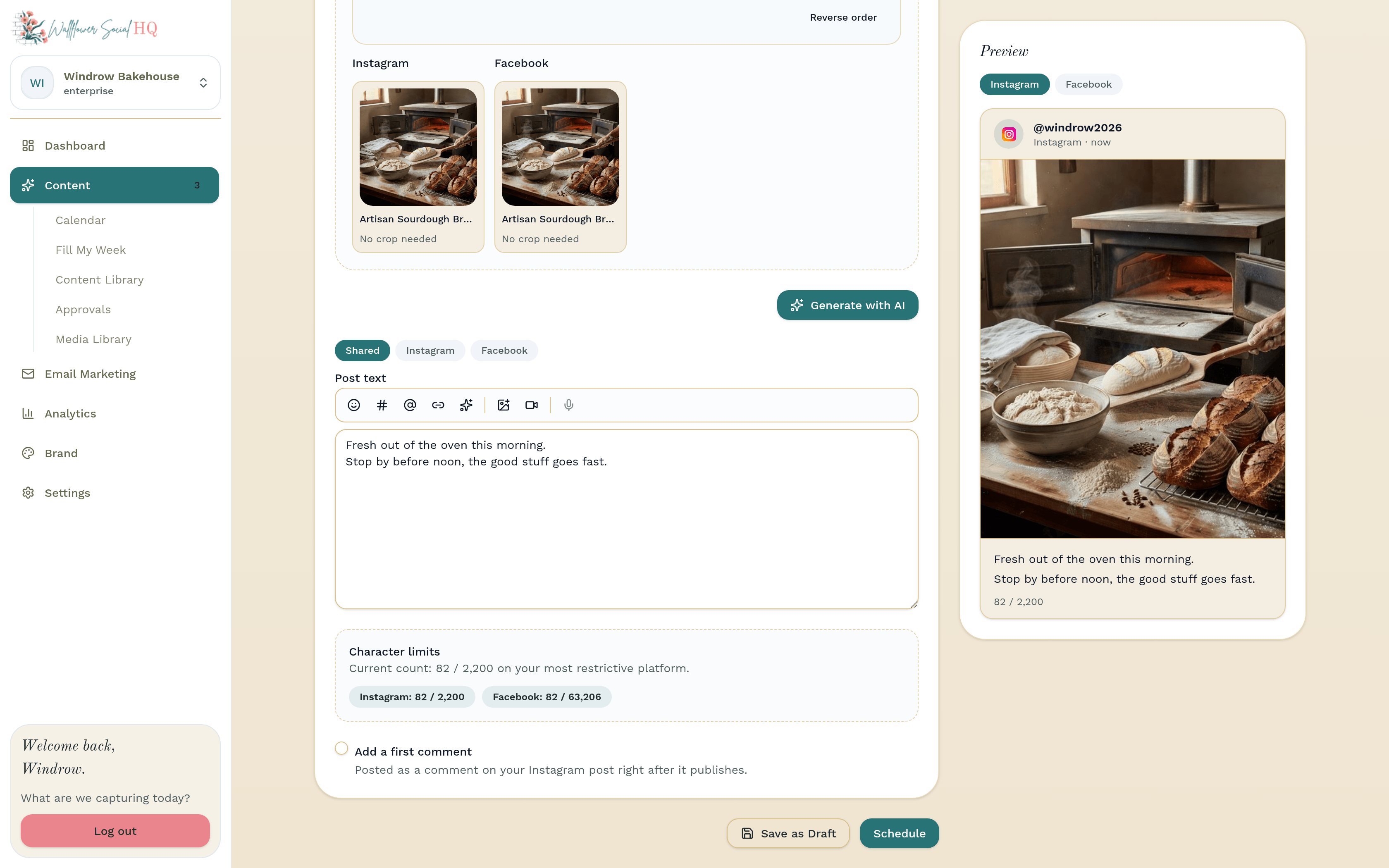
The draft: your photo plus a caption in your brand voice. Pick the day and time #
Once the caption is ready, click Schedule at the bottom of the page. In the Scheduling window, Next available time is ticked, so the post takes your next open slot. To pick a day yourself, untick it and set the Date and Time. Then click Schedule. The post shows up on that day in Content, then Calendar. To move it later, drag it to another day on the Calendar.
NoteYou can only post to channels you've connected. Solo covers Instagram and Facebook; Pro and Enterprise add TikTok and X.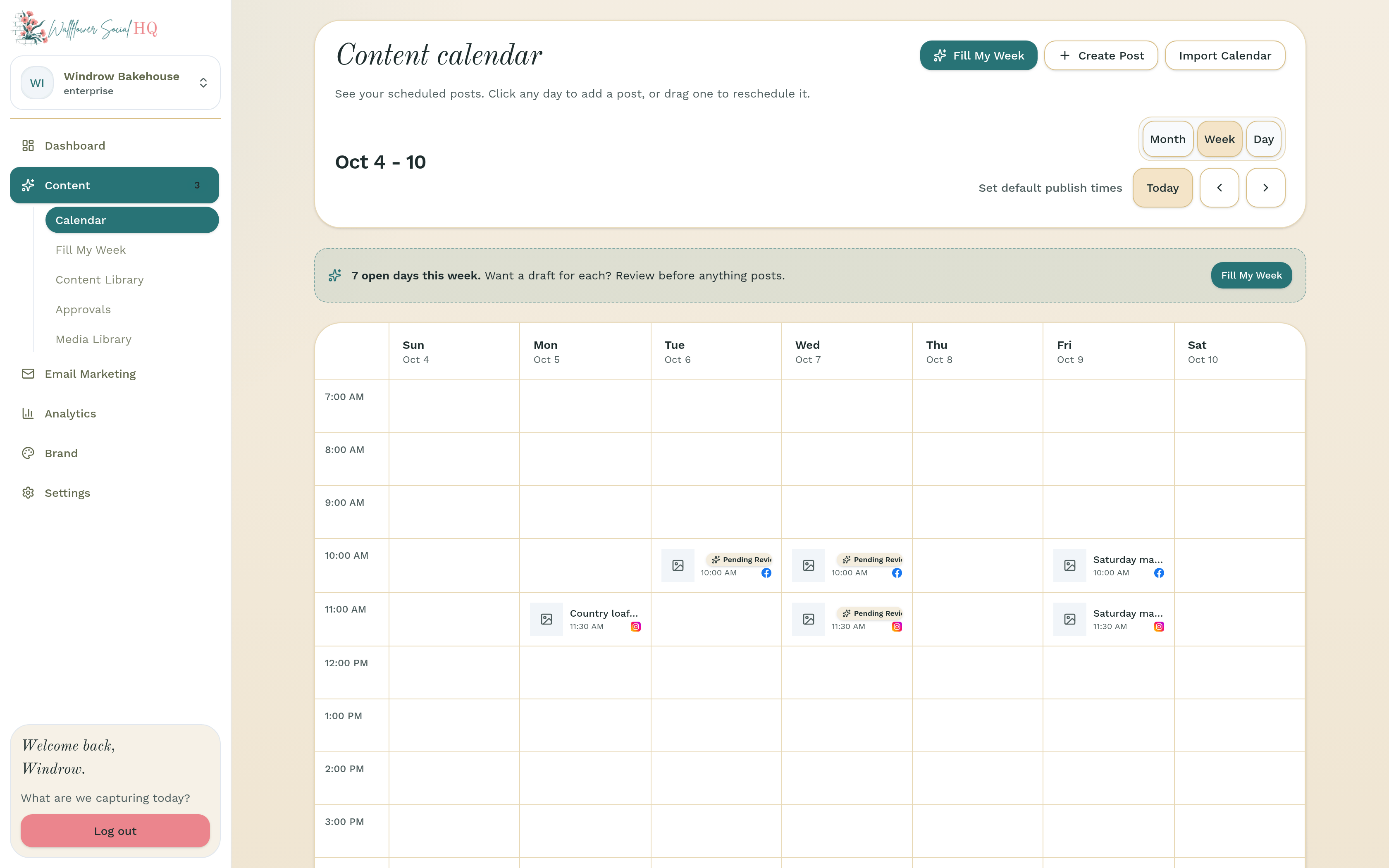
Keep the next available time or pick your own, then click Schedule. Review and approve #
Scheduled posts wait in Content, then Approvals until an owner or admin clicks Approve. Editors can draft and schedule, and approvals stay with owners and admins. If your workspace lets posts go out on their own, they skip this step (Let posts go out on their own).
Check before you approveDouble-check the date, time, and platform. Once approved, the post goes out at its scheduled time.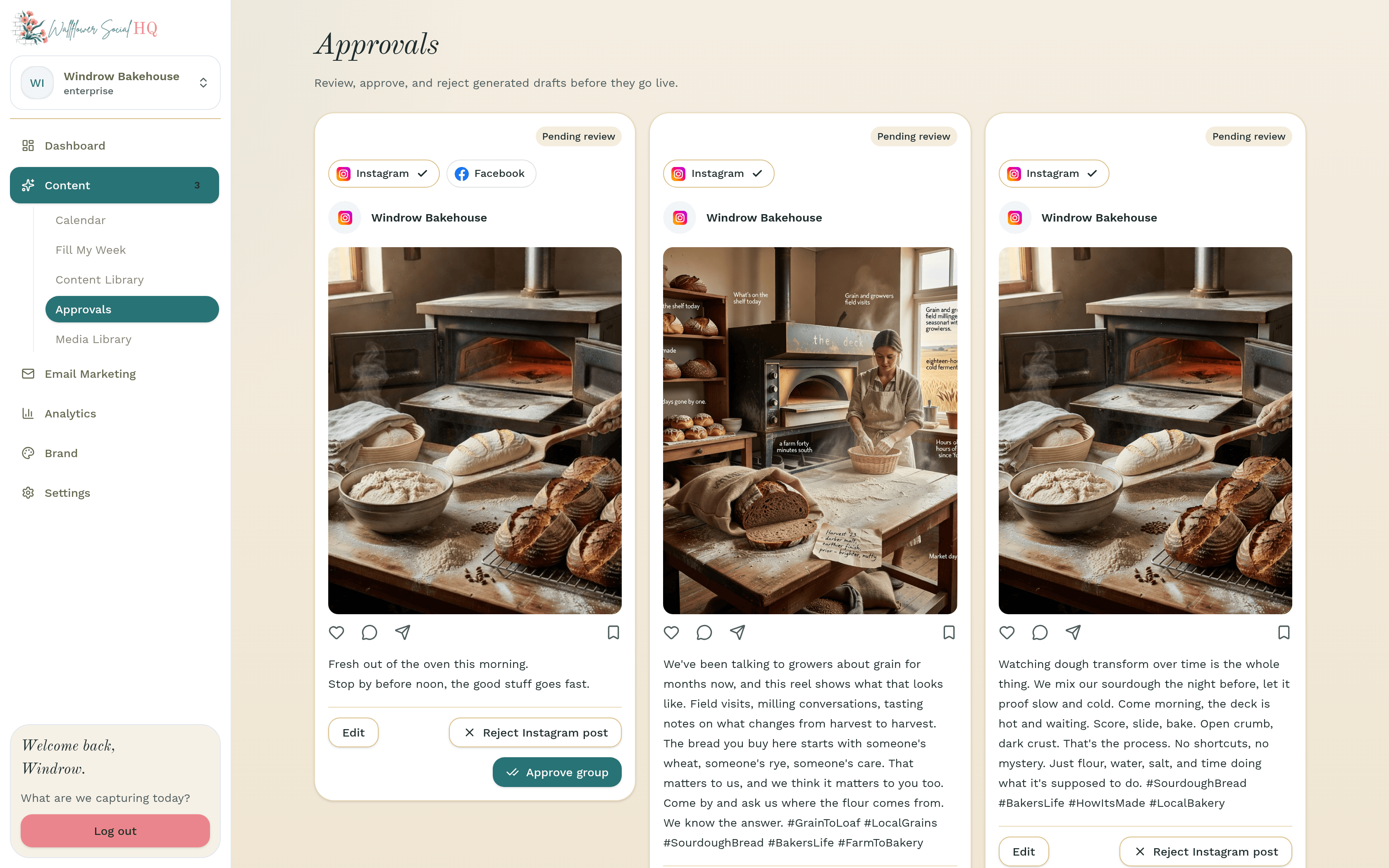
Approve, and it goes out at its scheduled time.
More in Calendar, approvals & publishing
- Let posts go out on their ownSkip the approval tap when you trust it.
- Reschedule or edit a scheduled postMove a post to a different day or time.
- See what landed (analytics)Plain-number results, and how much history each plan keeps.
- Approve from your phone (Review tab)Approve waiting posts from the phone app’s Review tab.
Still stuck?
If you need more personalized support, send us an email and we will get back to you soon.