
Import a content calendar (.xlsx or .csv)
Upload a filled-in calendar and each row becomes a draft on your calendar.
Already keep a content calendar in a spreadsheet? Upload it, and each row lands on your calendar as a draft post.
On this page
Before you start
- You're an Owner, Admin, or Editor.
- The platforms in your calendar are connected (Connect Instagram and Facebook).
- Your file is an .xlsx or .csv.
Open the importer #
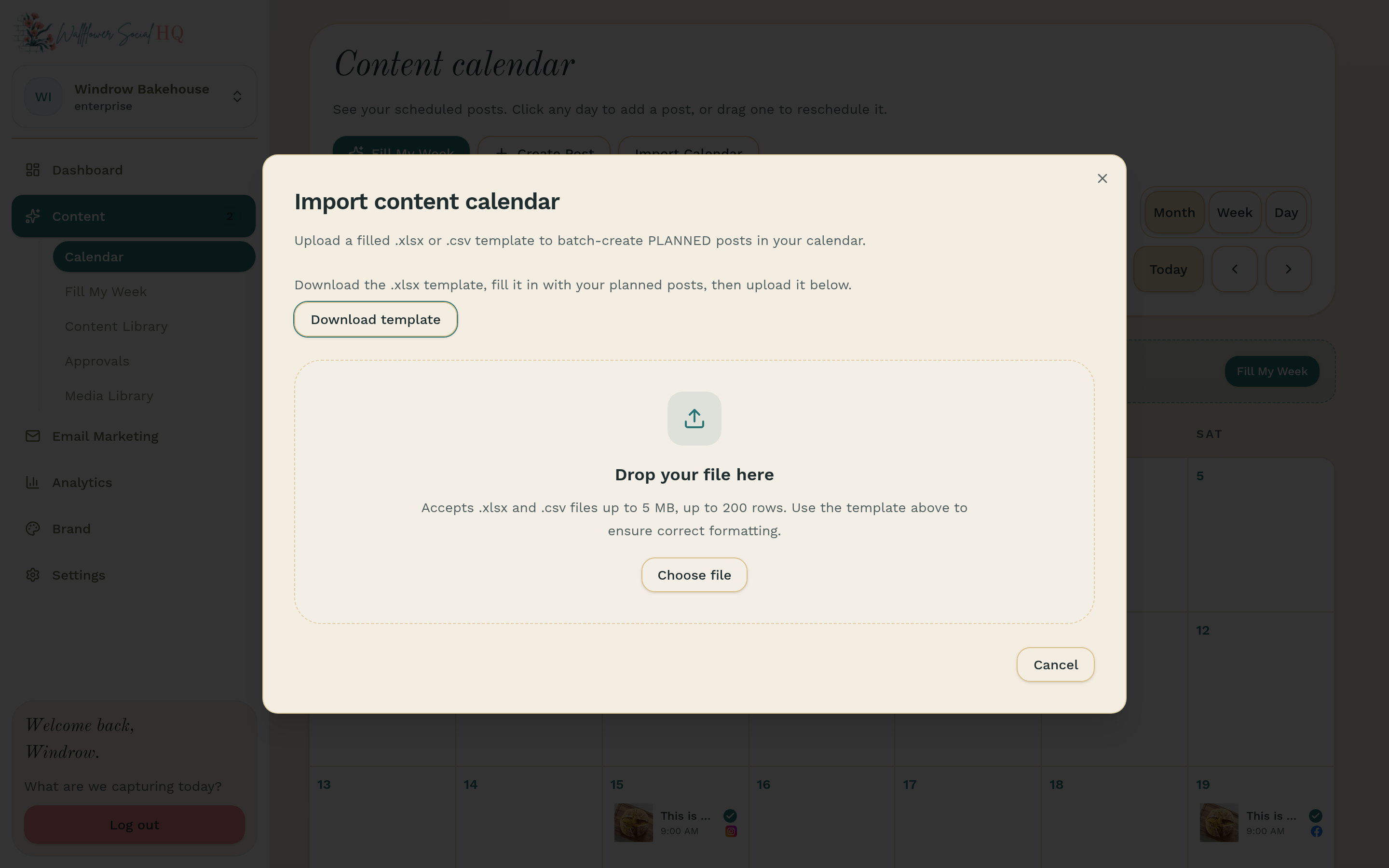
Open Content, then Calendar, and click Import Calendar. The Import content calendar dialog opens. You can also get there from Fill My Week with Import content calendar.
Download the template #
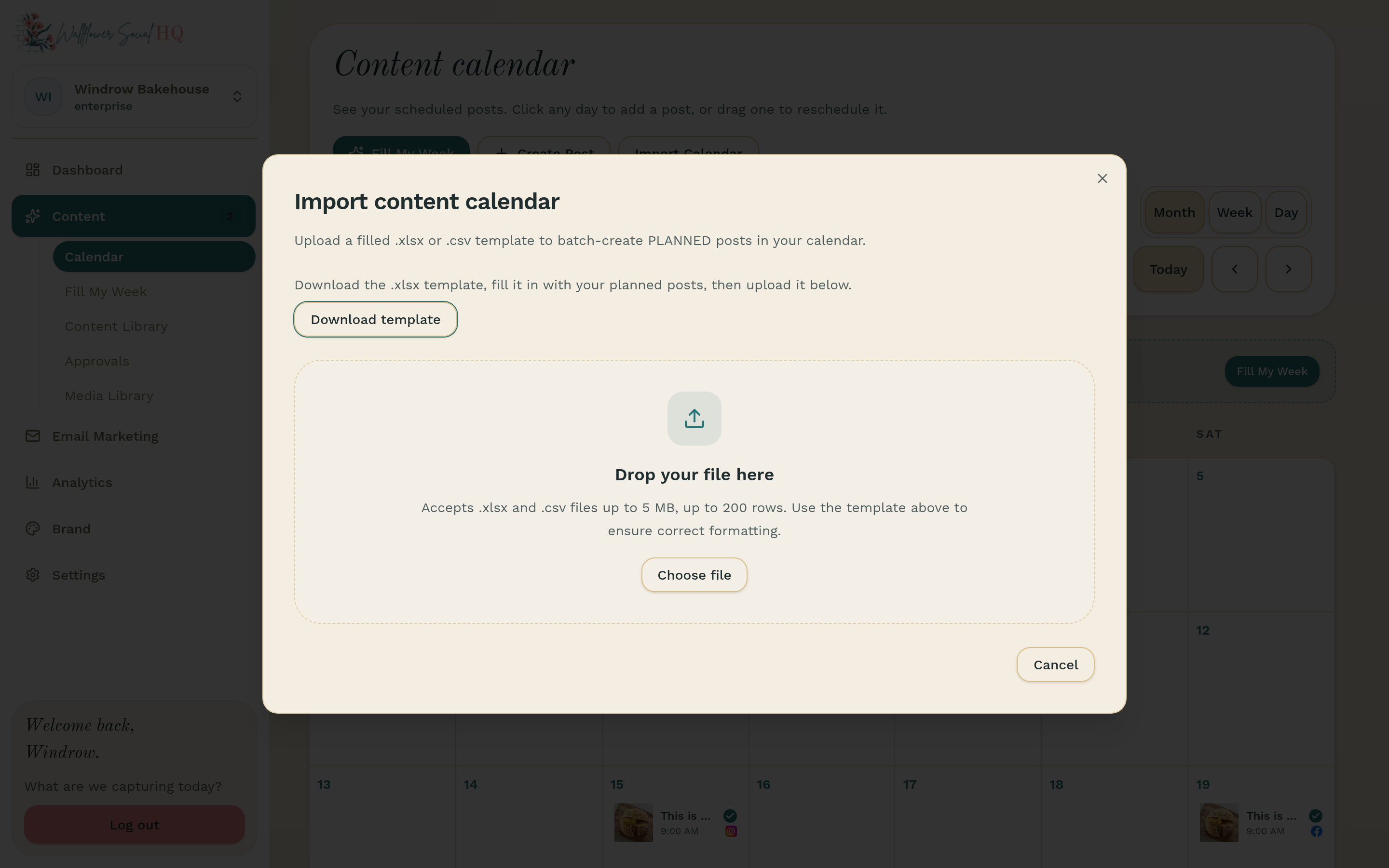
In the dialog, click Download template. It's an .xlsx file with the right columns already set up.
Fill in the columns #
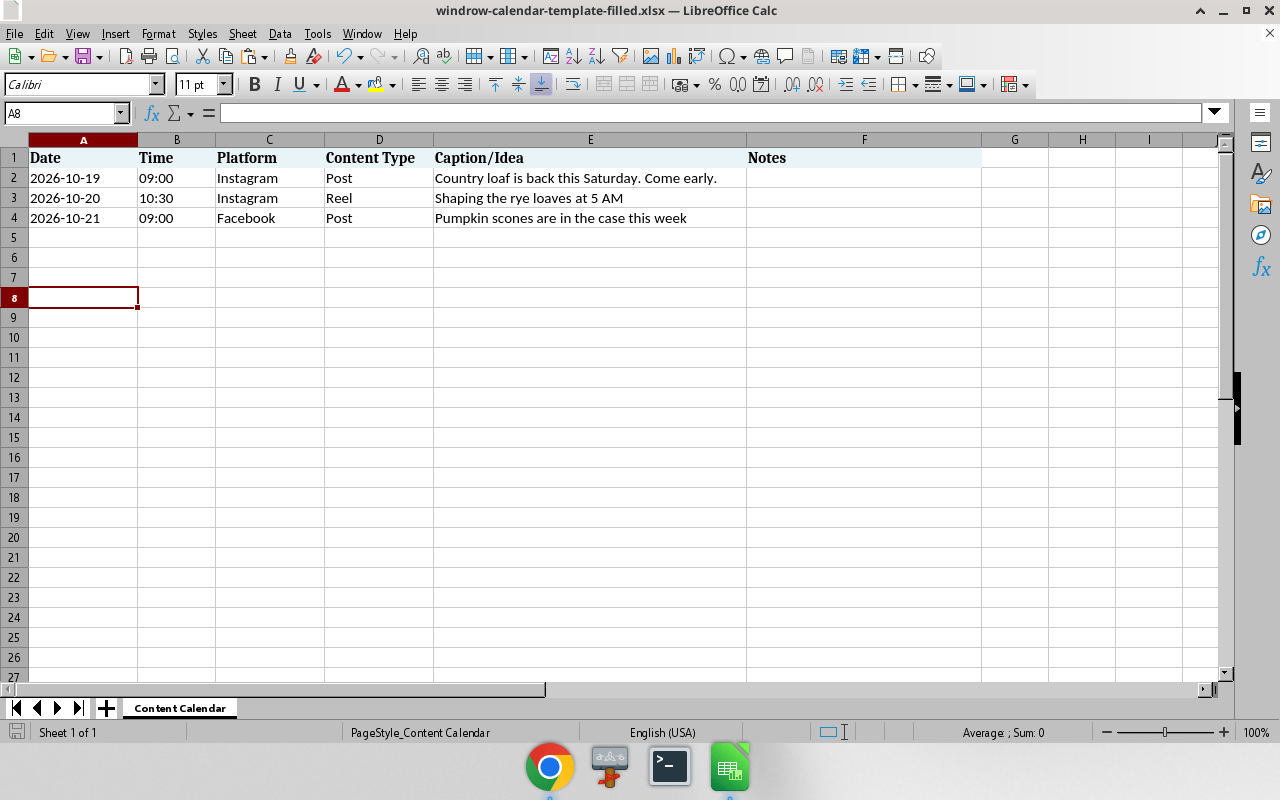
Each row needs:
- Date: when the post should go out.
- Time: what time it should go out.
- Platform: which connected platform it's for.
- Content Type: the kind of post it is.
- Caption/Idea: what the post says. The optional Notes/Prompt column keeps a note for yourself on the post.
Don't leave the caption blank. Wallflower doesn't write captions for imported rows, and a row without one won't import.
Upload and check the preview #
Drop the filled-in file on the dialog or click Choose file. It can be an .xlsx or .csv, up to 5 MB and 500 rows. Before anything is created, you'll see a preview. Rows that need a date, time or column fixed are flagged. Match any columns Wallflower didn't recognise, set the Date format if needed, and skip rows you don't want.
A row with a blank caption is marked Needs attention. Type a caption in Fix caption, or skip the row.
NoteIf the whole file can't be read, you'll see "File could not be imported." Fix the file and click Upload a different file.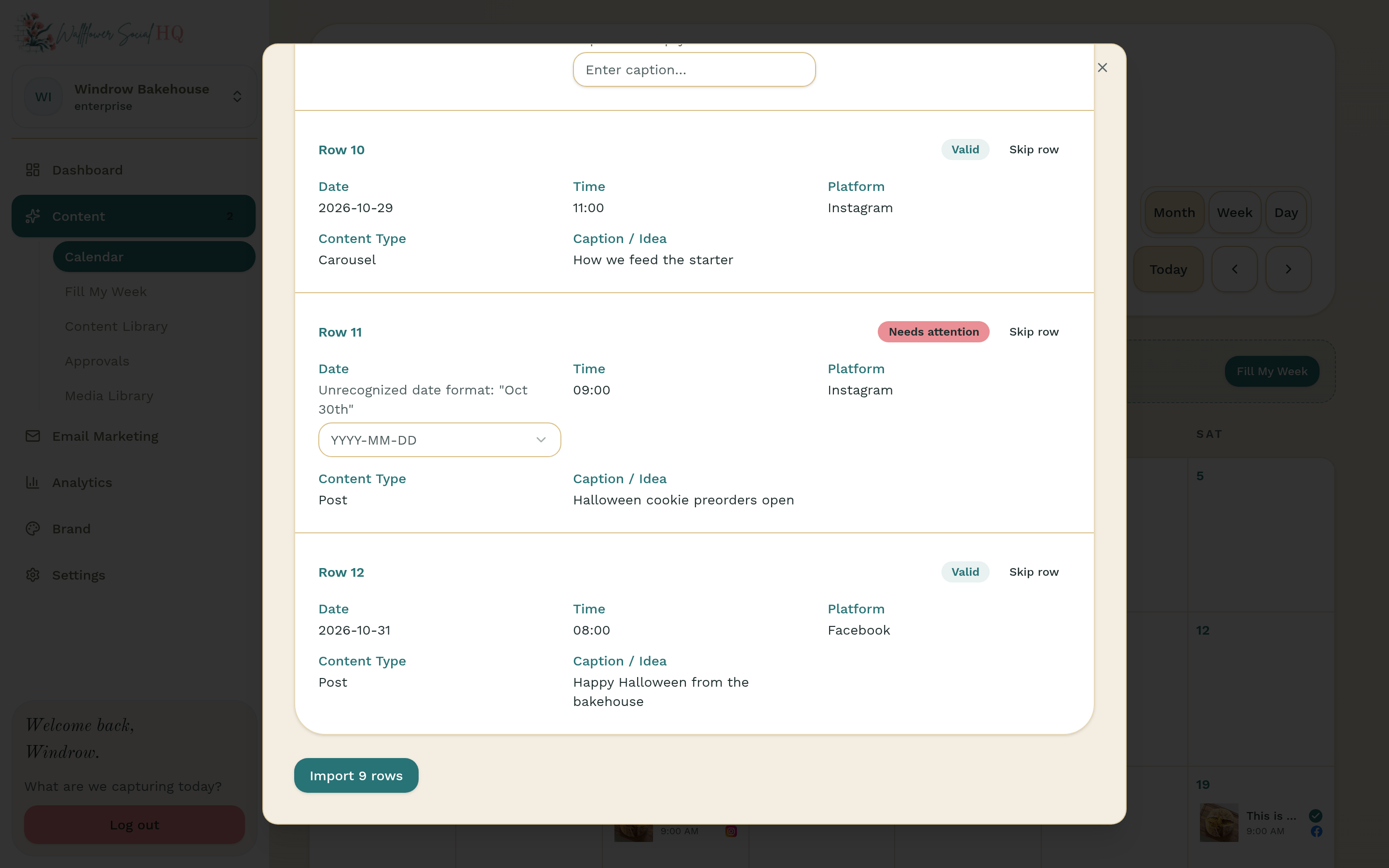
Import #
When the preview looks right, click Import (it shows the number of rows, like "Import 12 rows"). Each accepted row is saved as a draft on its date.
You'll find them on your Calendar, and in the Content Library under the Draft filter. Drafts don't show in Approvals. Click one on the Calendar to open it, check it, and schedule it.
More in Calendar, approvals & publishing
- Let posts go out on their ownSkip the approval tap when you trust it.
- Reschedule or edit a scheduled postMove a post to a different day or time.
- See what landed (analytics)Plain-number results, and how much history each plan keeps.
- Approve from your phone (Review tab)Approve waiting posts from the phone app’s Review tab.
Still stuck?
If you need more personalized support, send us an email and we will get back to you soon.