
Approve from your phone (Review tab)
Approve waiting posts from the phone app’s Review tab.
Between jobs or on your lunch break, you can clear the week's drafts from your phone. Swipe right to approve, left to pass.
On this page
Before you start
- You're an Owner or Admin. The Review tab only shows for owners and admins.
- The companion app is installed and you're signed in (Install the companion app).
Open the Review tab #
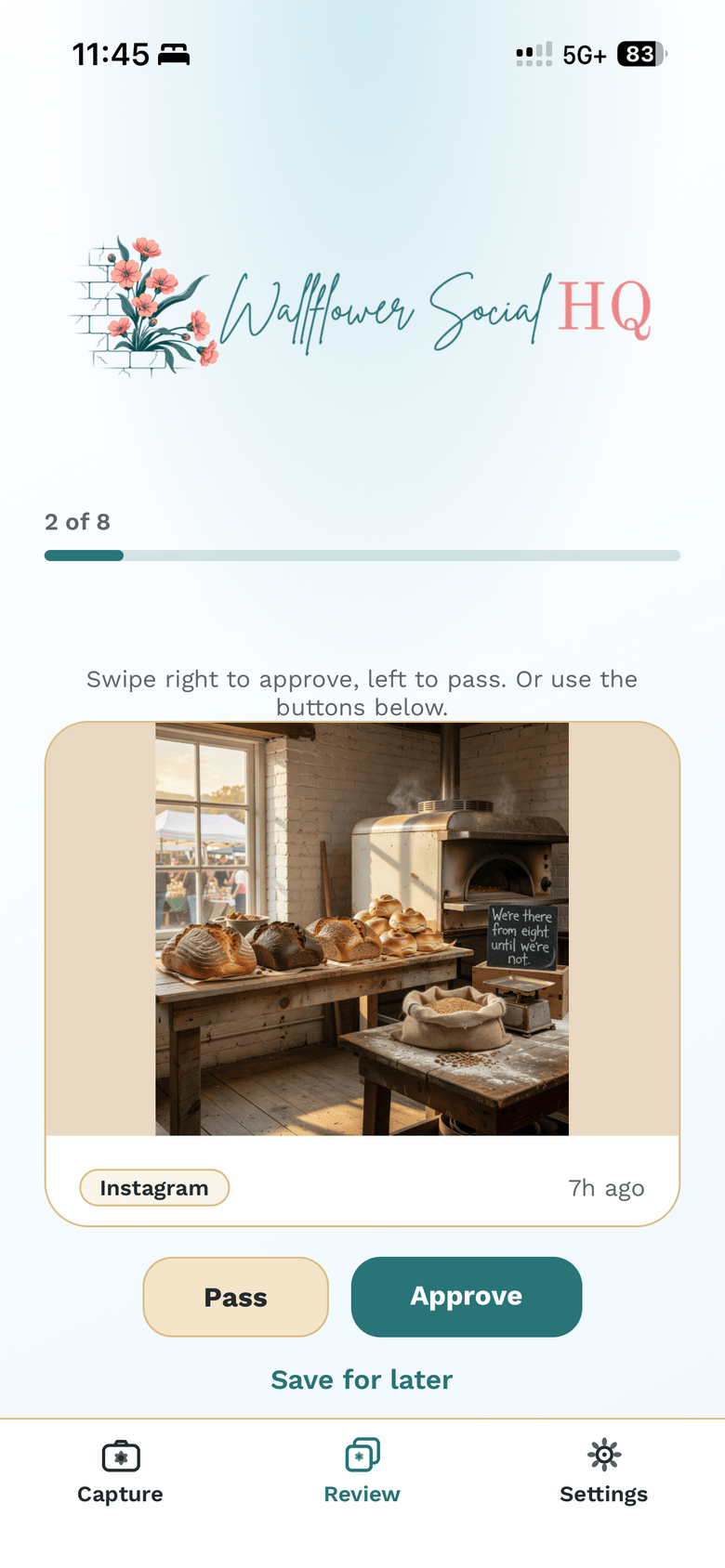
Tap Review at the bottom of the app. Posts waiting for approval show as a stack of cards.
Read the post #
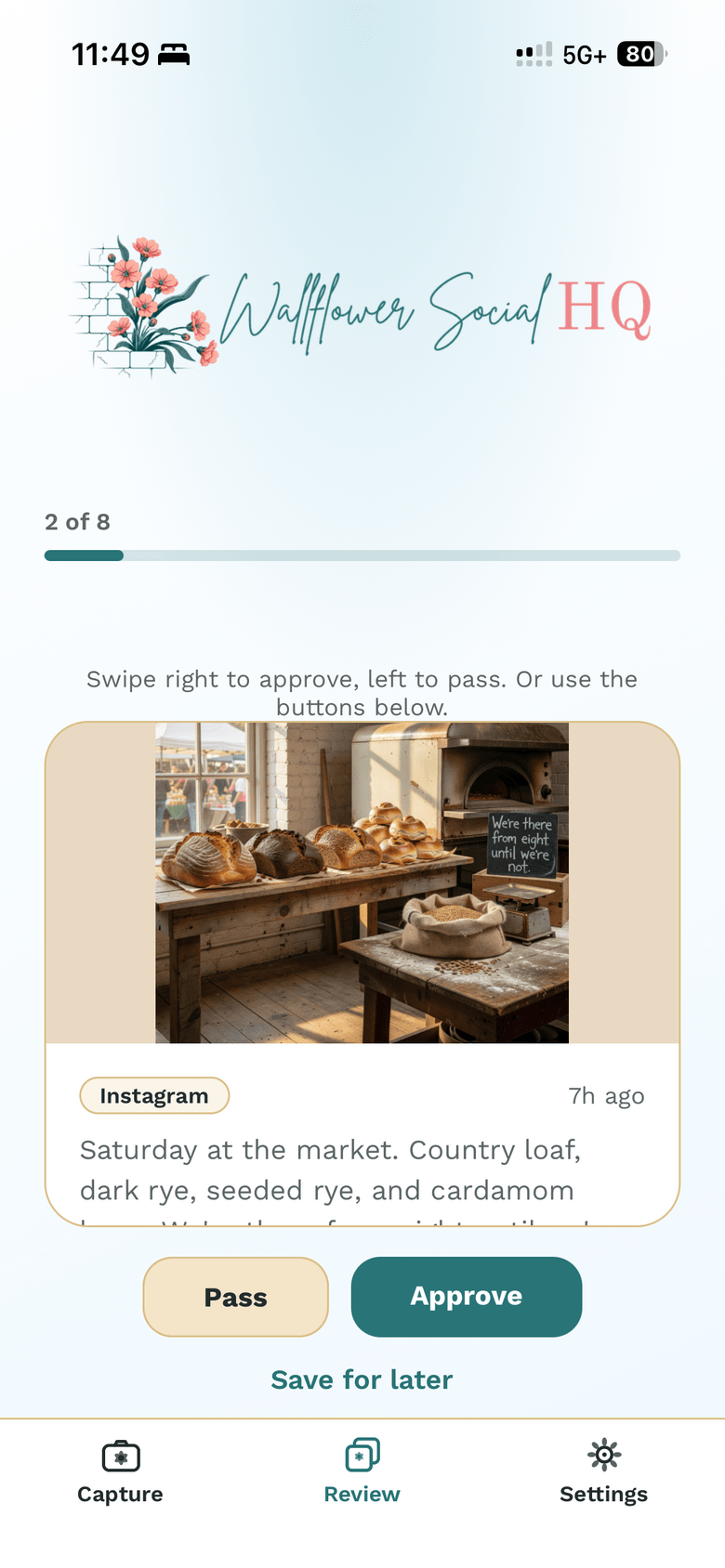
Each card shows the photo and the full caption. Scroll the card to read all of it.
Approve #
Swipe right, or tap Approve. The post goes on the calendar at its scheduled time.
Check before you approveApproved posts go out on schedule. Check the day and channel before you swipe.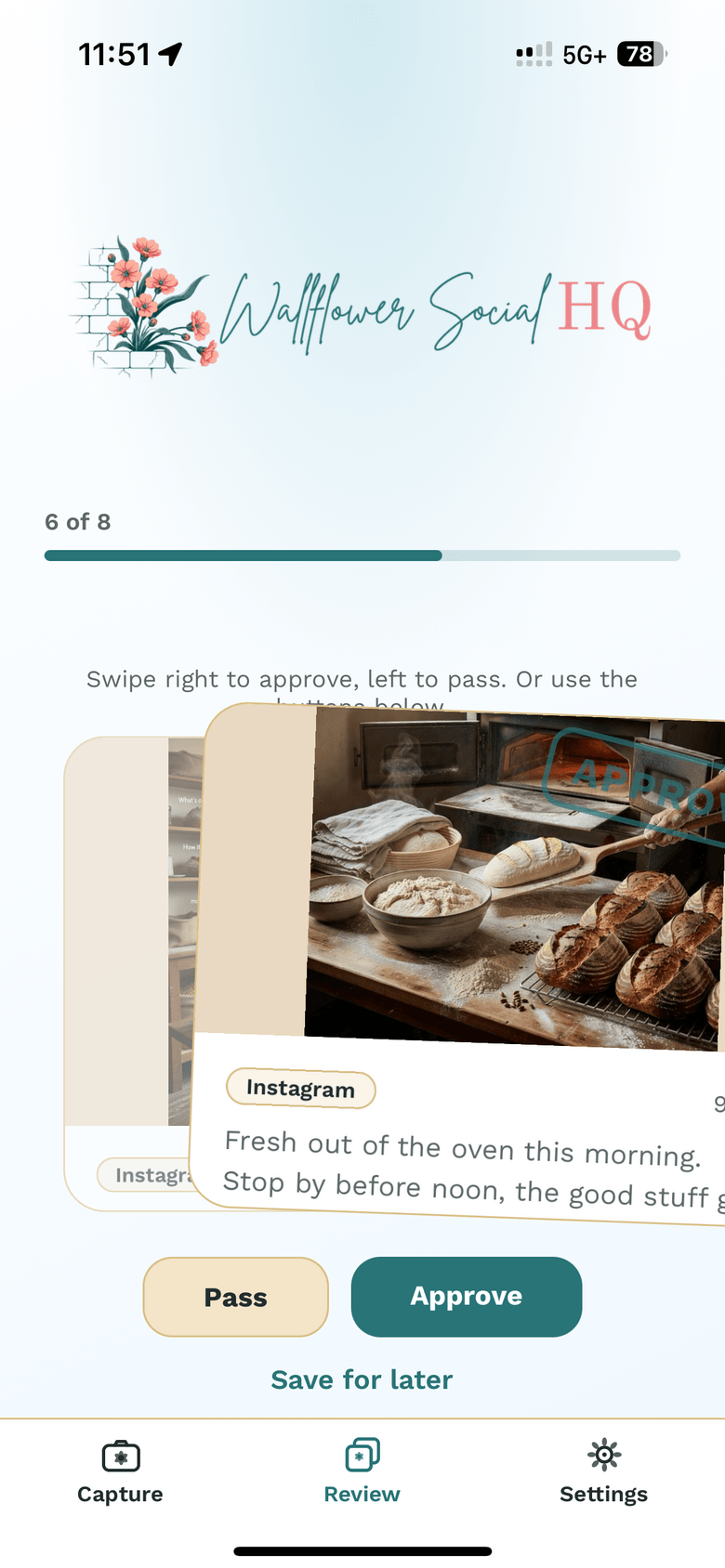
Pass, or save for later #
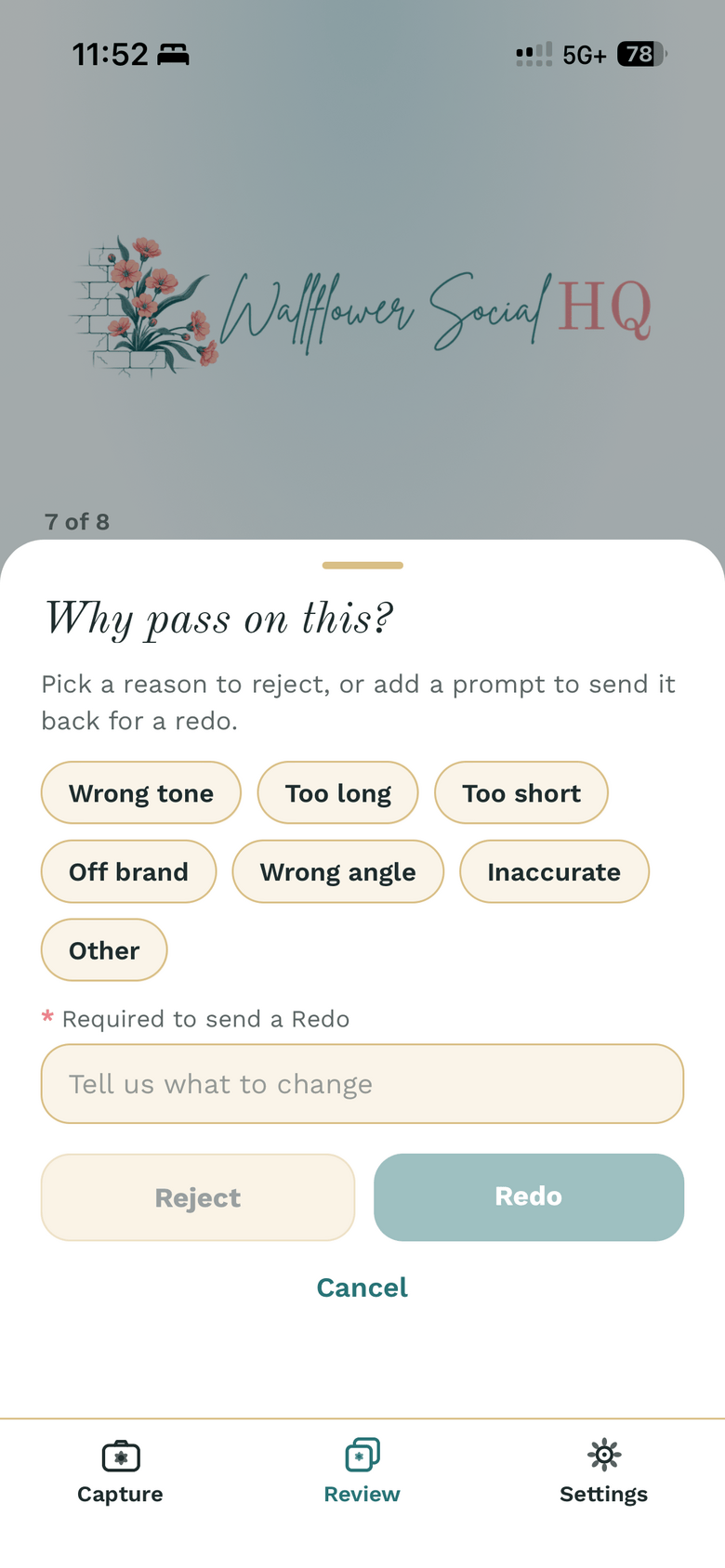
Swipe left, or tap Pass. Why pass on this? opens:
- Reject: pick what's off and tap Reject.
- Redo: tell us what to change and tap Redo. A note is required for a redo.
Not sure yet? Tap Save for later and it stays in the queue.
All caught up #
When the stack is empty, you'll see All caught up and how many you approved.
TipWant a heads-up when drafts are ready? In the app's Settings tab, turn on New content to review.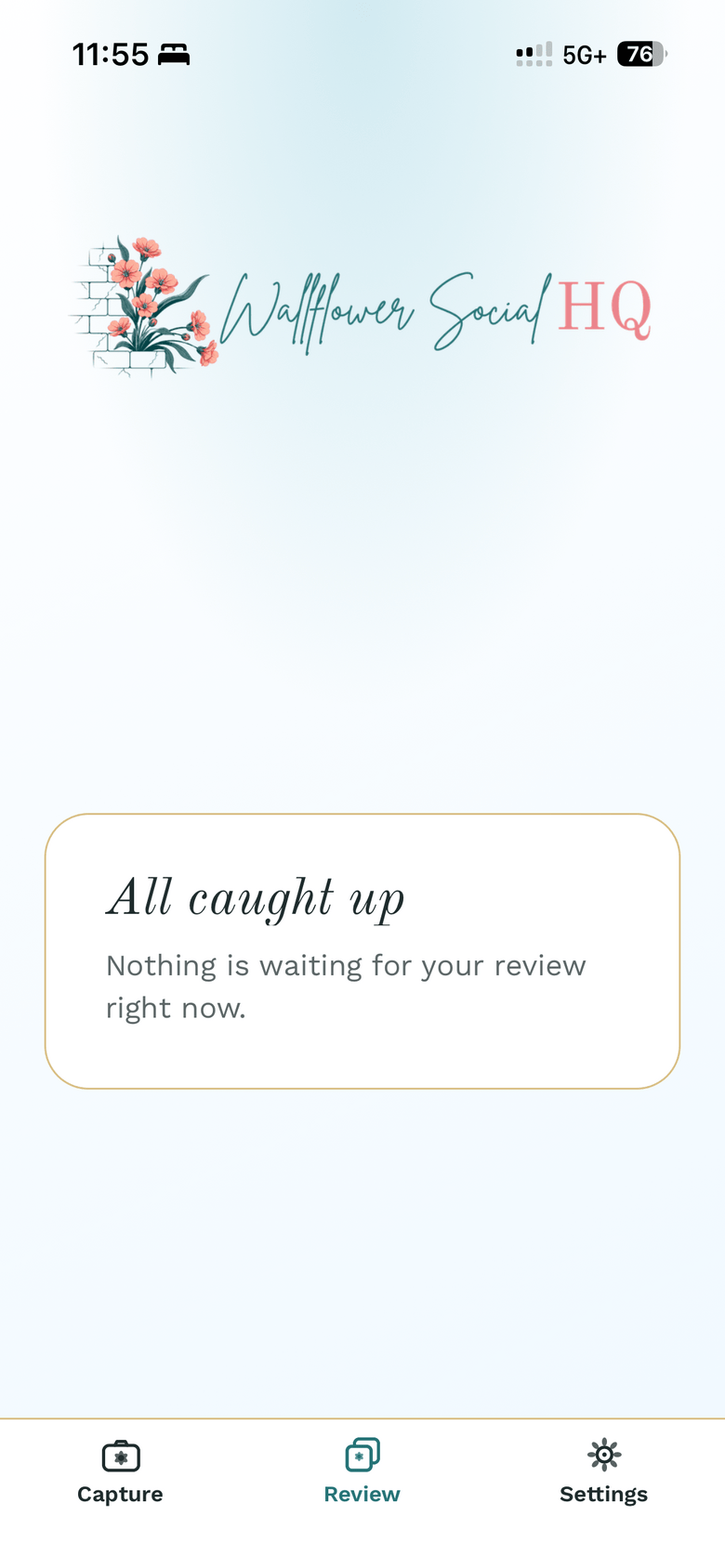
More in Calendar, approvals & publishing
- Upload photos to your calendarAdd your own photos to your schedule and let Wallflower draft the posts.
- Import a content calendar (.xlsx or .csv)Upload a filled-in calendar and each row becomes a draft on your calendar.
- Reschedule or edit a scheduled postMove a post to a different day or time.
- See what landed (analytics)Plain-number results, and how much history each plan keeps.
Still stuck?
If you need more personalized support, send us an email and we will get back to you soon.