
Install the companion app
Get the capture app on iPhone or Android.
The companion app is how you and your team get photos into Wallflower from wherever you are. It's the same app for owners and for anyone you invite to capture.
On this page
Before you start
- You have a Wallflower account, or someone sent you an invite. If you were invited, use the email address the invite went to.
Get the app #
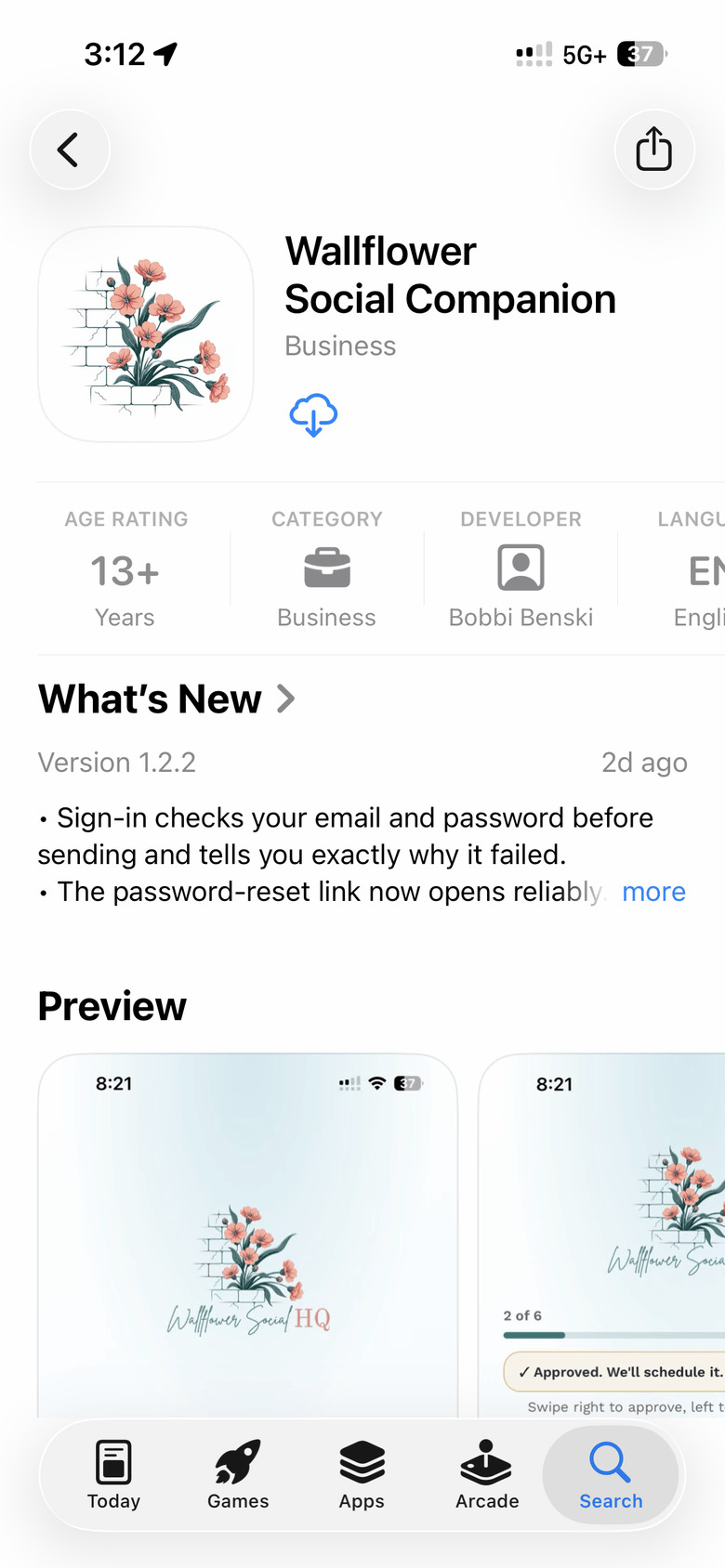
On your phone, open app.wallflower.social/get-app in your browser. It takes you to the App Store on an iPhone or Google Play on Android. Install the app from there. It's listed as Wallflower Social Companion App on the App Store and Wallflower Social HQ Companion on Google Play.
Sign in #
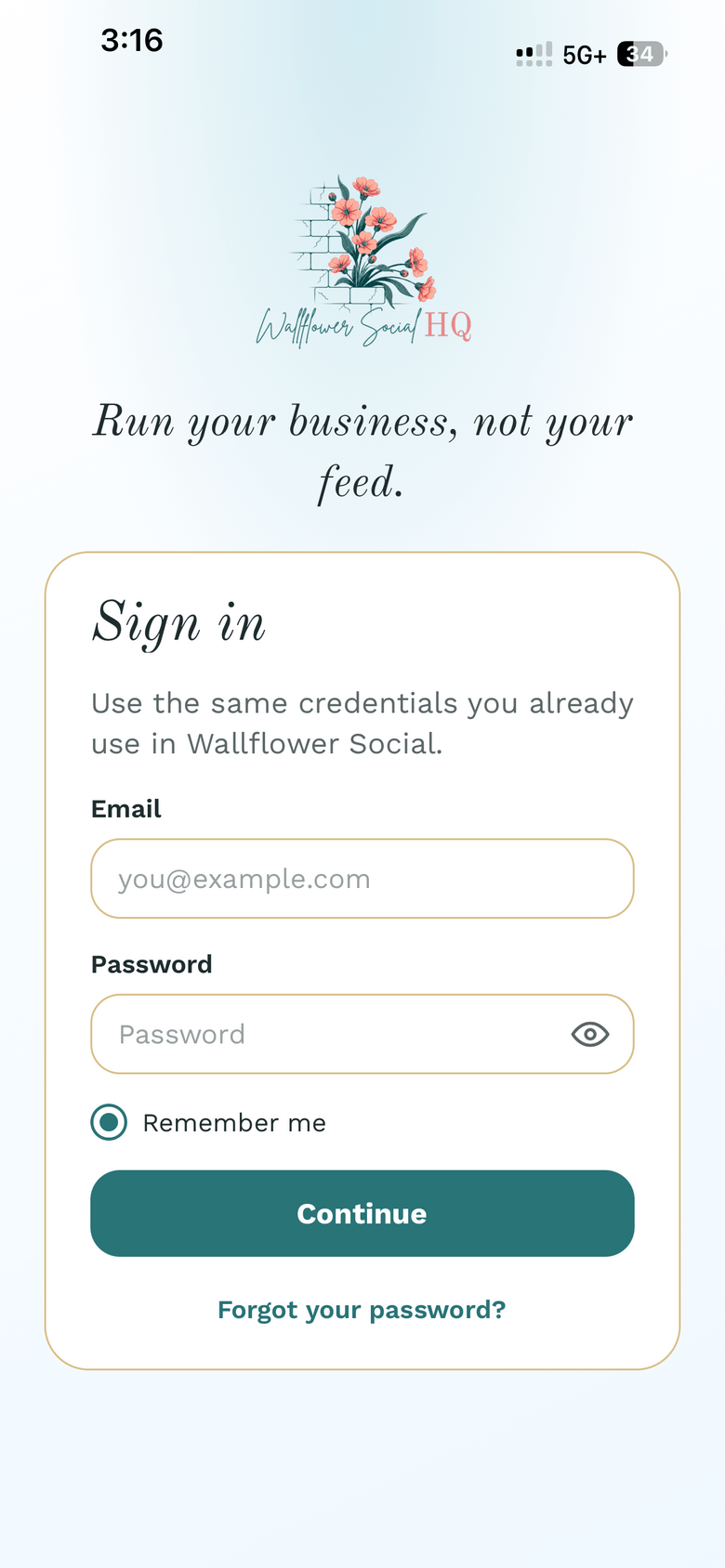
Open the app. On the Sign in screen, enter the Email and Password you use for Wallflower, then tap Continue.
Forgot it? Tap Forgot your password?
Allow the camera #
If you see the welcome screen, tap Start capturing. Your phone asks to use the camera next. Allow it so you can take photos from inside the app.
NoteiPhone photos (HEIC) upload from the phone app, so there's no need to convert them.Check your workspace #
The app has three tabs: Capture, Review, and Settings. Open Settings to see who you're signed in as and which Workspace you're in. If you belong to more than one, pick the right one there.
The Review tab only shows for owners and admins. It's where they approve posts from the phone.
TipCompanion users are unlimited on every plan and don't take a seat, so invite anyone who takes photos for you.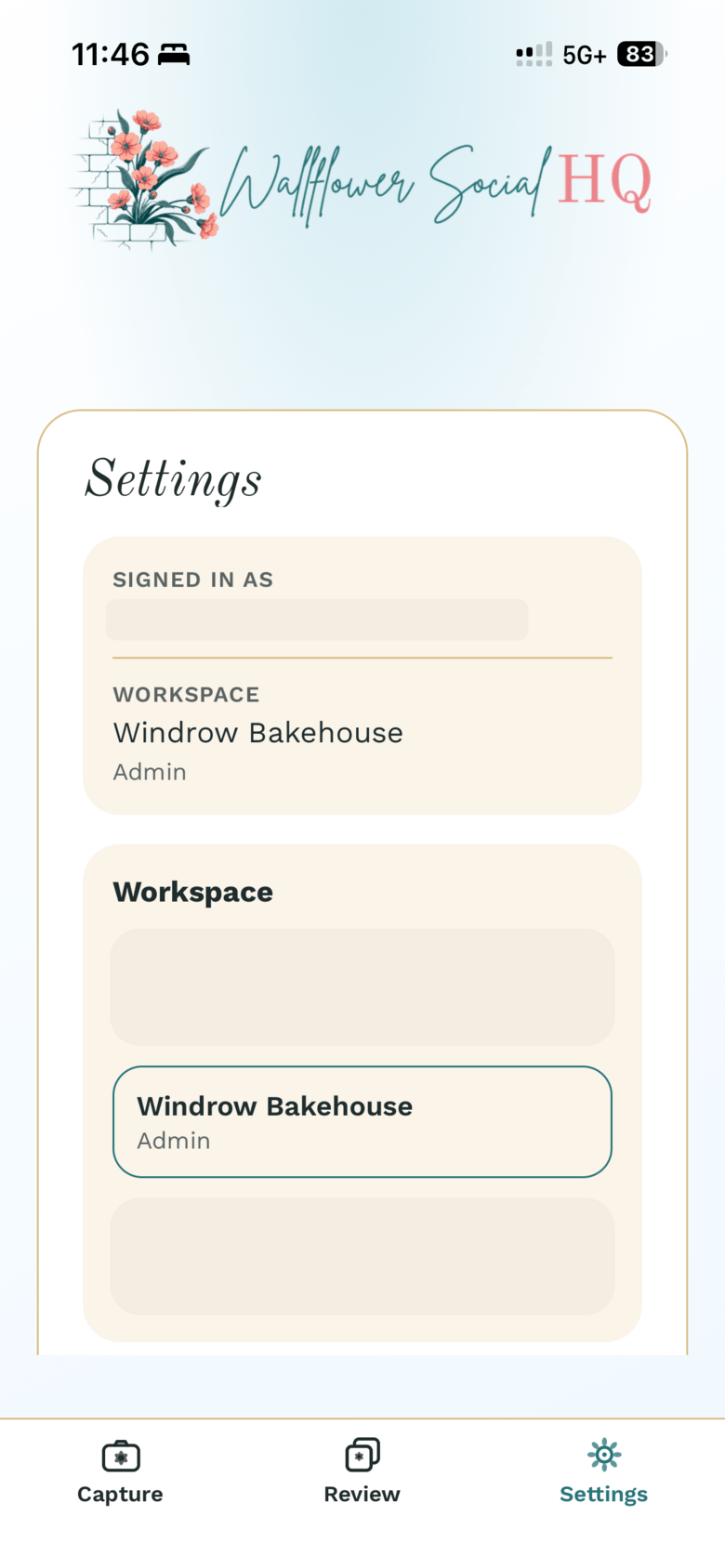
More in Getting started
Still stuck?
If you need more personalized support, send us an email and we will get back to you soon.