
Take and send photos from the companion app
Every shot lands straight in your workspace.
Take a photo or video in the companion app, or pick one you already have. It goes straight to your workspace's shared library, ready to become a post.
On this page
Before you start
- The companion app is installed and you're signed in. See Install the companion app.
- Your files are within the upload limits below.
Open the Capture tab #
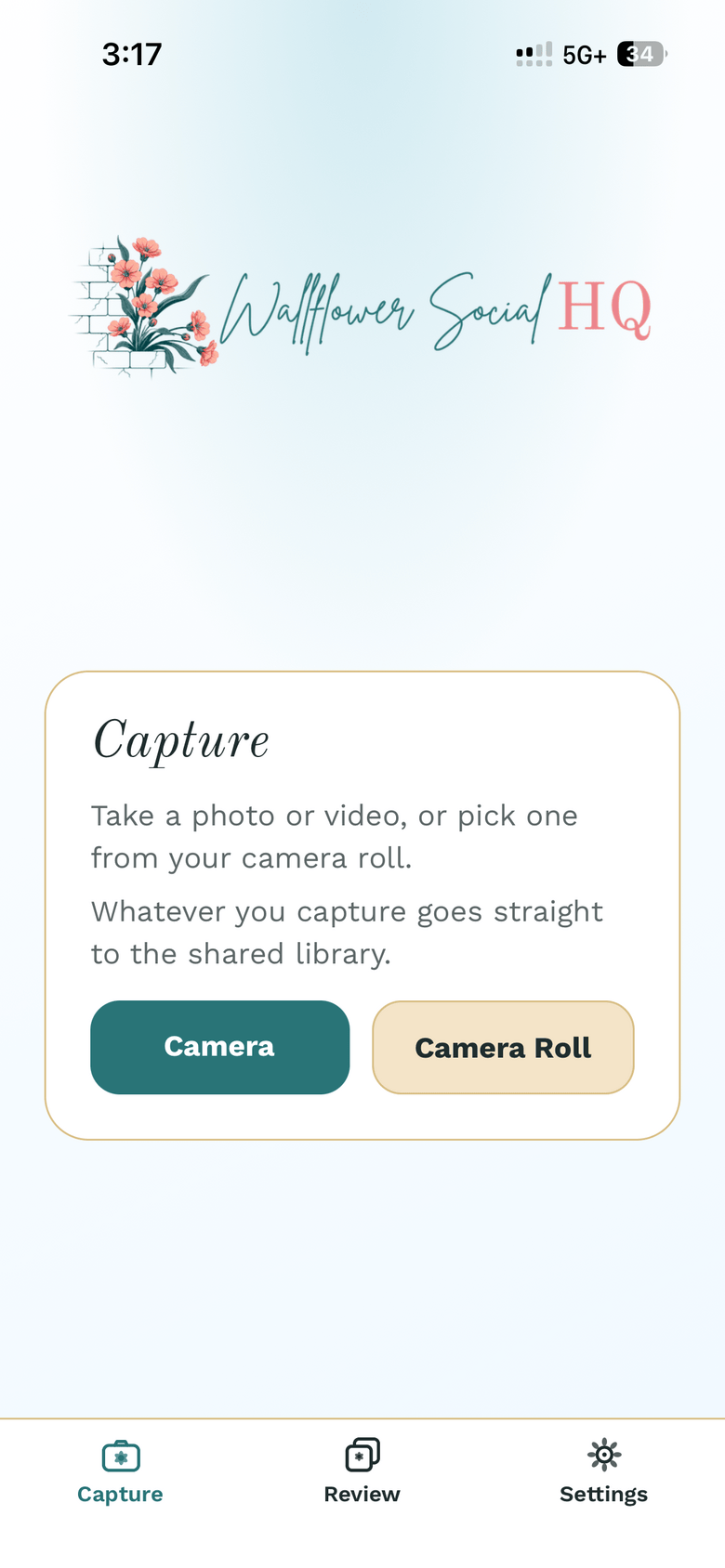
Tap Capture at the bottom of the app.
Take a photo or pick one #
Tap Camera to take a photo or video now, or Camera Roll to pick from your phone.
If you pick several at once, they show as a list under Add to library. Remove any you don't want, then send them all together.
Type Formats Max size Photos JPEG, PNG, WebP, GIF, HEIC 50 MB Videos MP4, MOV, WebM 100 MB 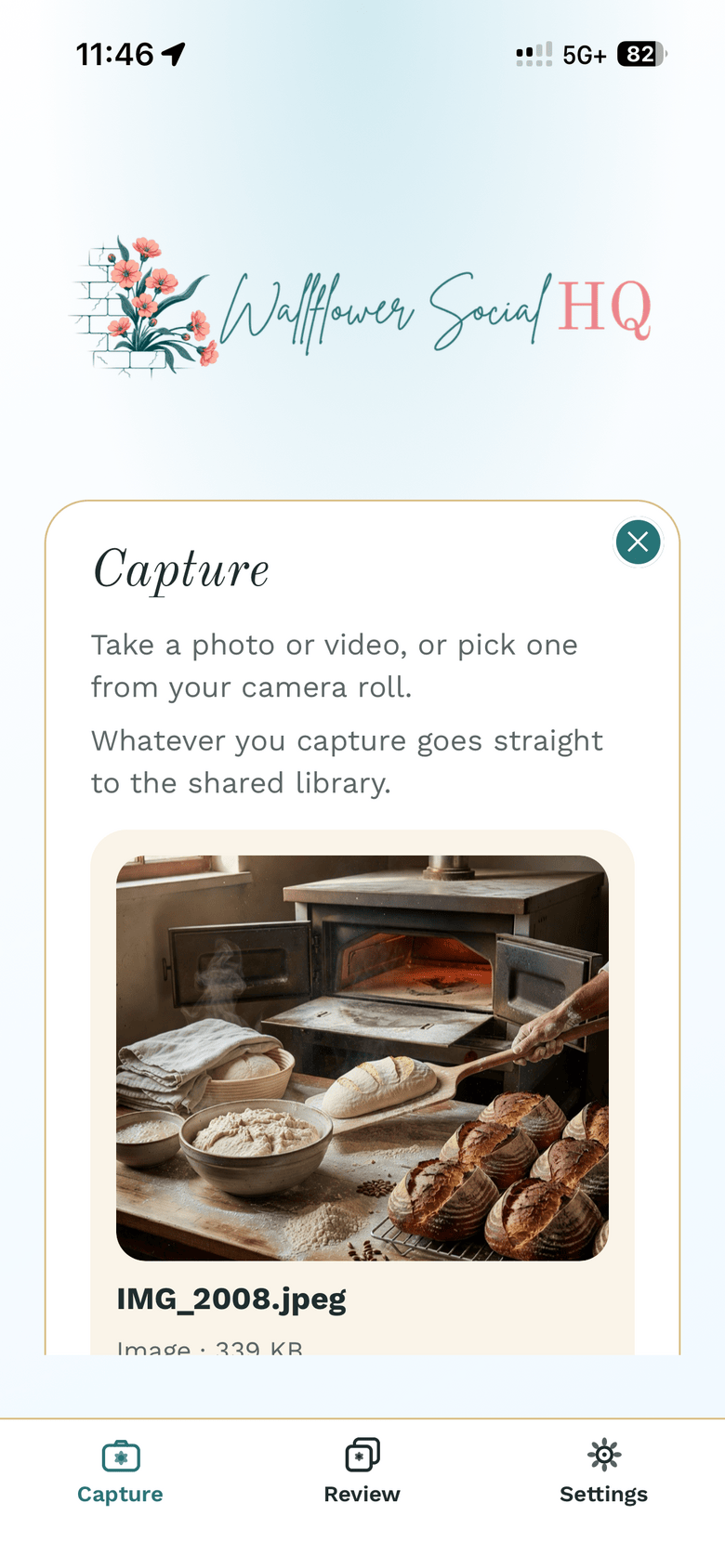
Add a note (optional) #
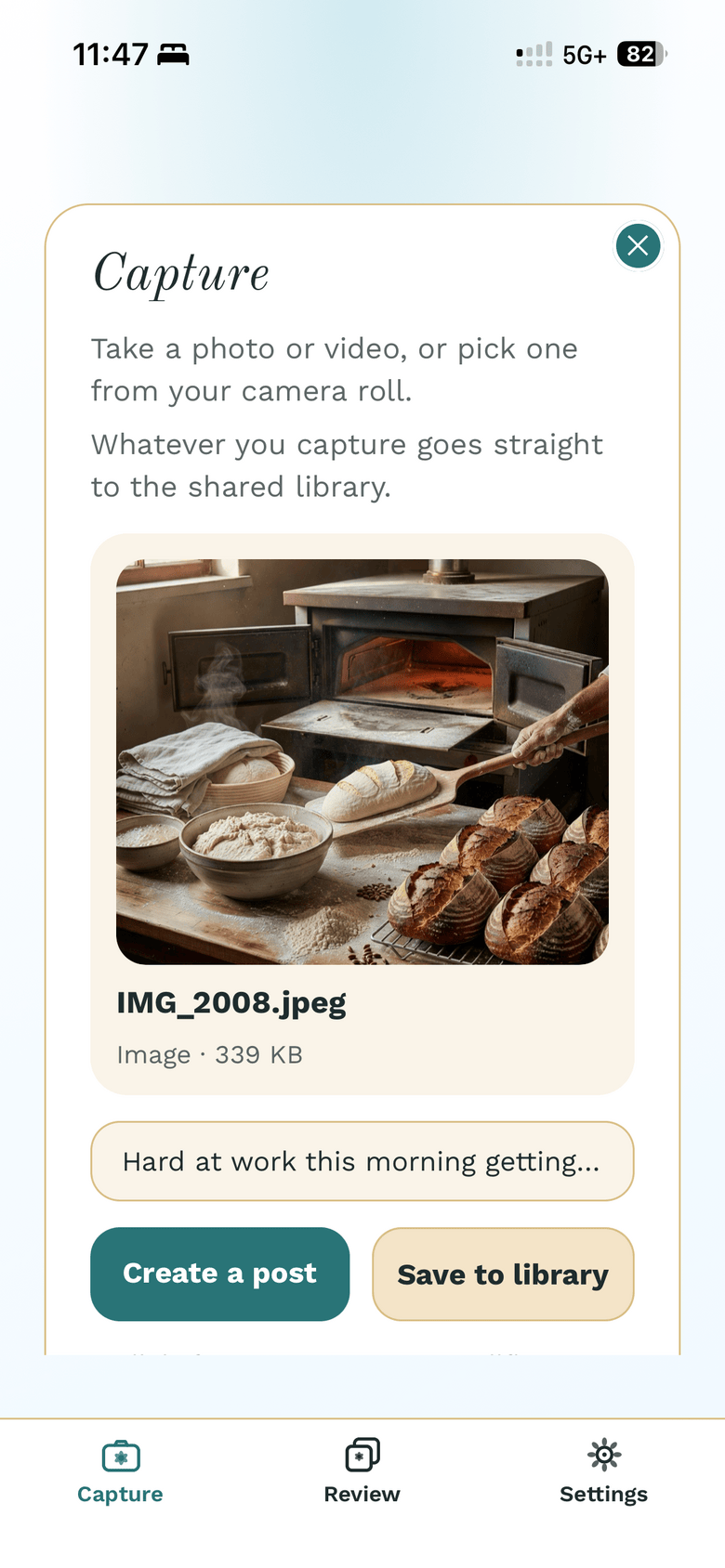
Tap Add a note about this one (optional) and type a line about the photo, like "first batch of rye this fall." It helps Wallflower when it drafts a post from the photo.
Send it #
What you see depends on your role:
- Companion users tap Send to library.
- Owners, admins and editors choose Create a post or Save to library.
Create a post asks Wallflower to draft a post from the photo. The line under the buttons tells you what happens next, based on your workspace's approval setting. For example: "We'll draft your post. Log in to Wallflower Social HQ to review and publish it."
NoteIf your workspace lets posts go out without review, Create a post can write and schedule a post with no approval step. See Let posts go out on their own.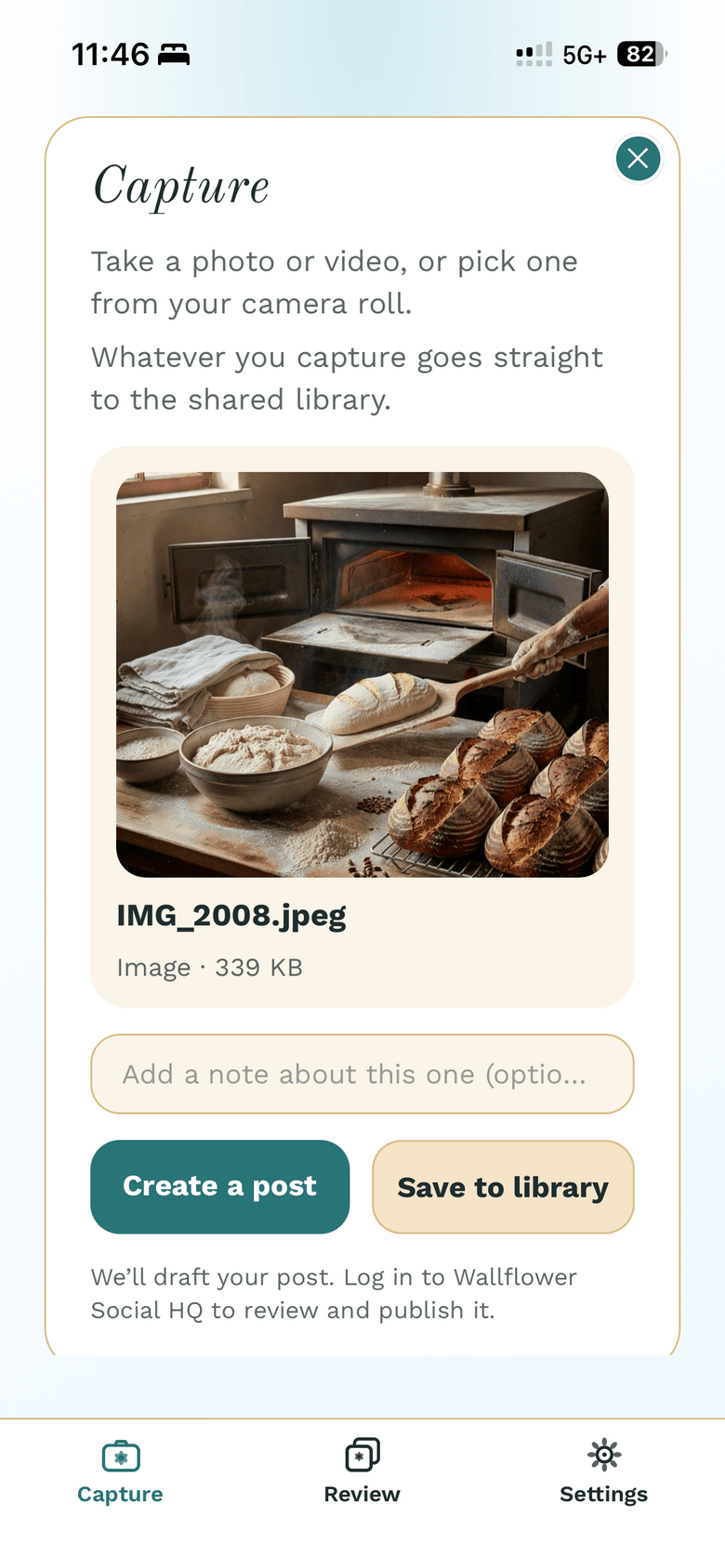
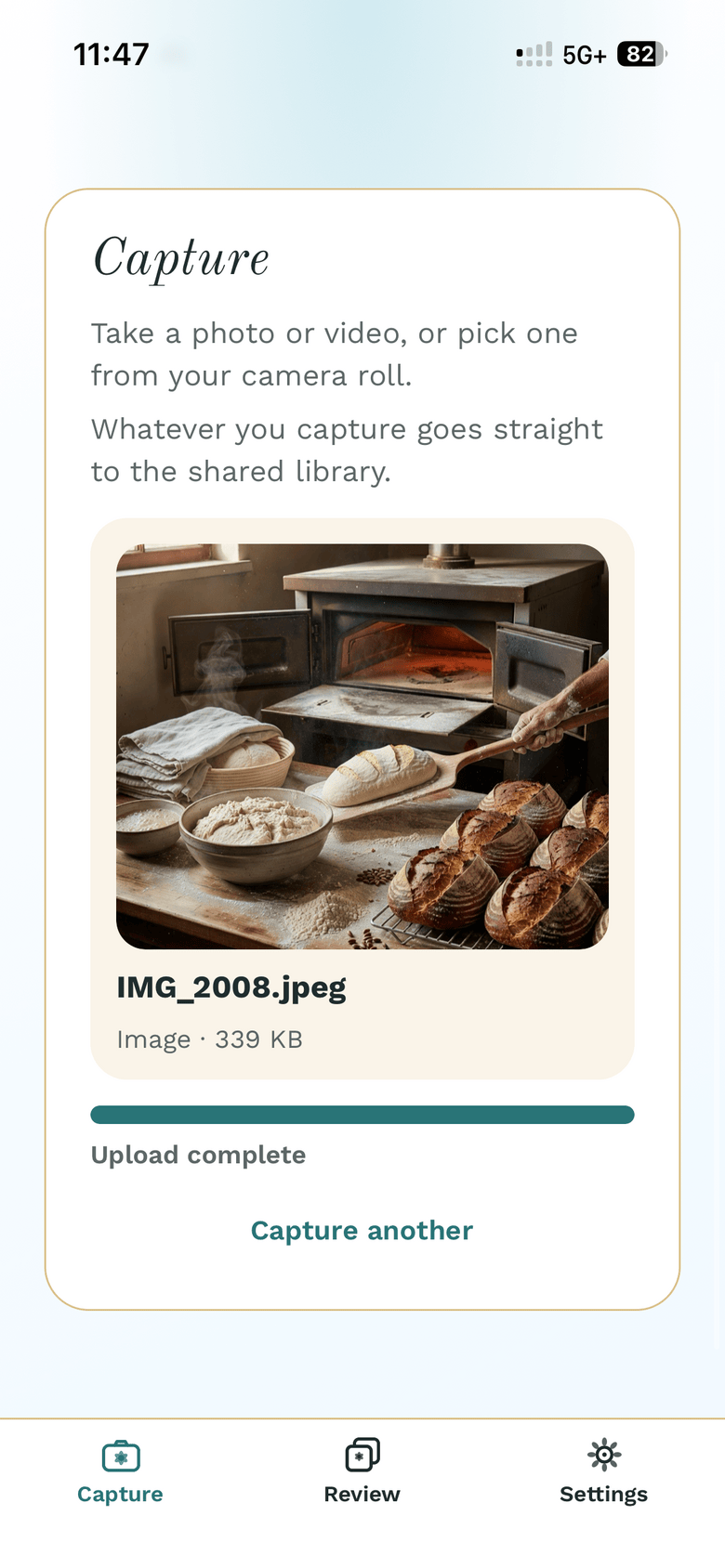
Wait for "Upload complete" #
A progress bar shows while the file uploads. When it says Upload complete, tap Capture another to keep going.
If the upload fails, tap Retry upload. If you close a photo before sending it, the app asks first: tap Keep editing to save it, or Discard.
Still stuck?
If you need more personalized support, send us an email and we will get back to you soon.