
Let posts go out on their own
Skip the approval tap when you trust it.
By default, every post waits for you. Once you trust the drafts, you can let the strong ones go out on their own, or all of them.
Open Publishing settings in Wallflower
On this page
Before you start
- You're an Owner or Admin. The Publishing settings only show for owners and admins.
Open Publishing settings #
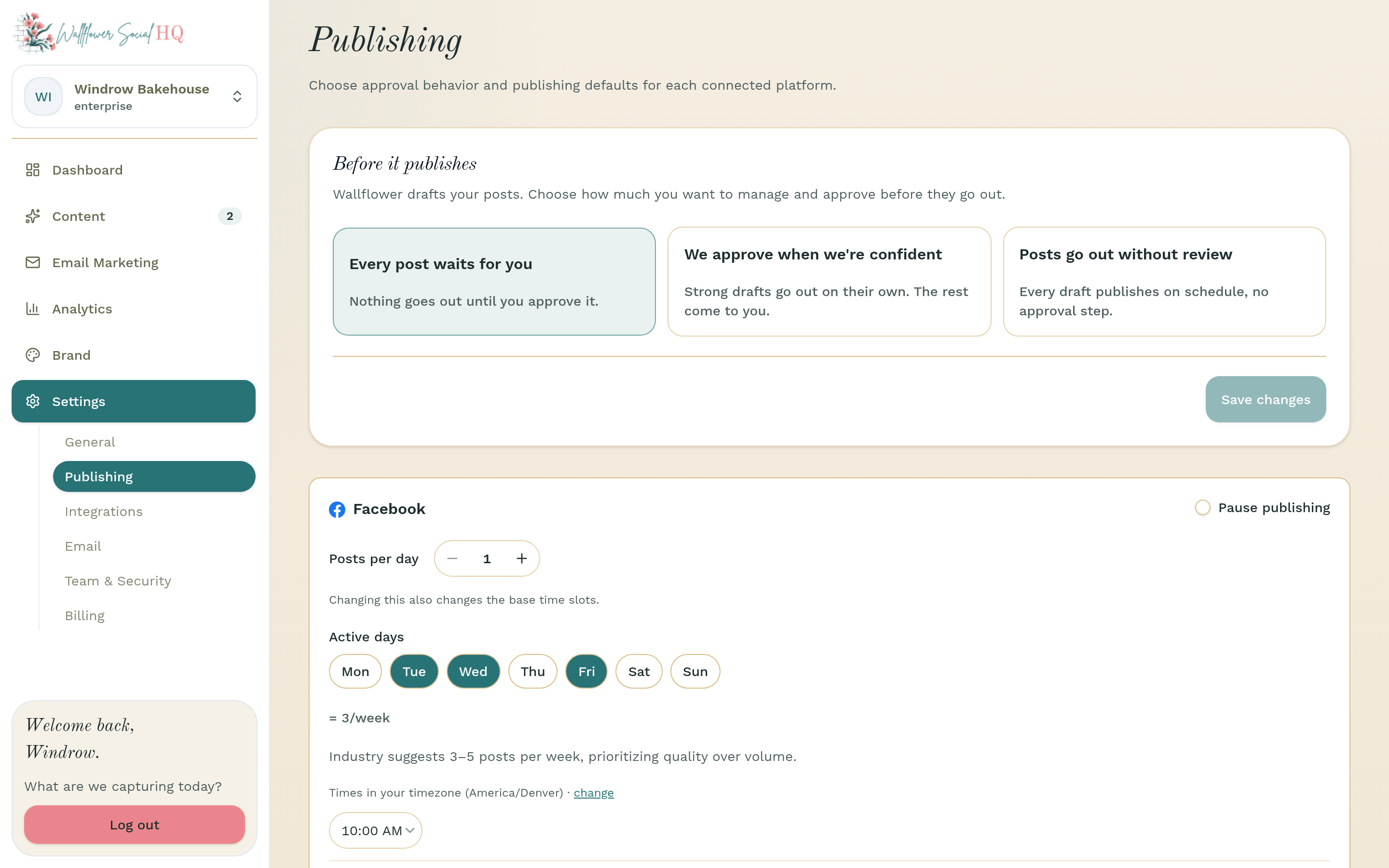
Go to Settings, then Publishing. Find Before it publishes.
Pick how much you approve #
Choose one:
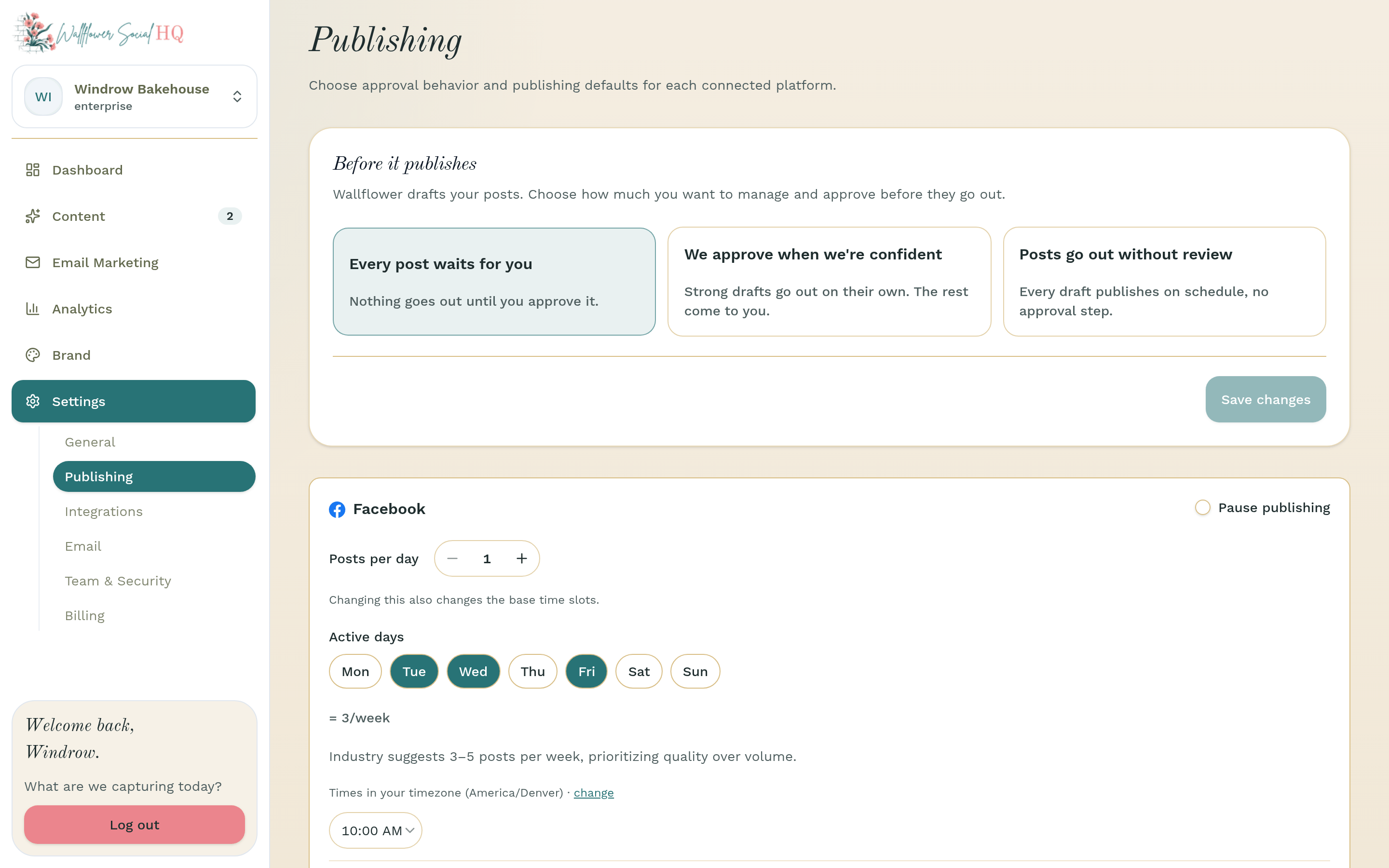
- Every post waits for you: nothing goes out until you approve it. This is the safest setting.
- We approve when we're confident: strong drafts go out on their own. The rest come to you.
- Posts go out without review: every draft publishes on schedule, with no approval step.
WarningWith Posts go out without review, drafts publish without anyone checking them. Wallflower asks you to confirm with Turn it on.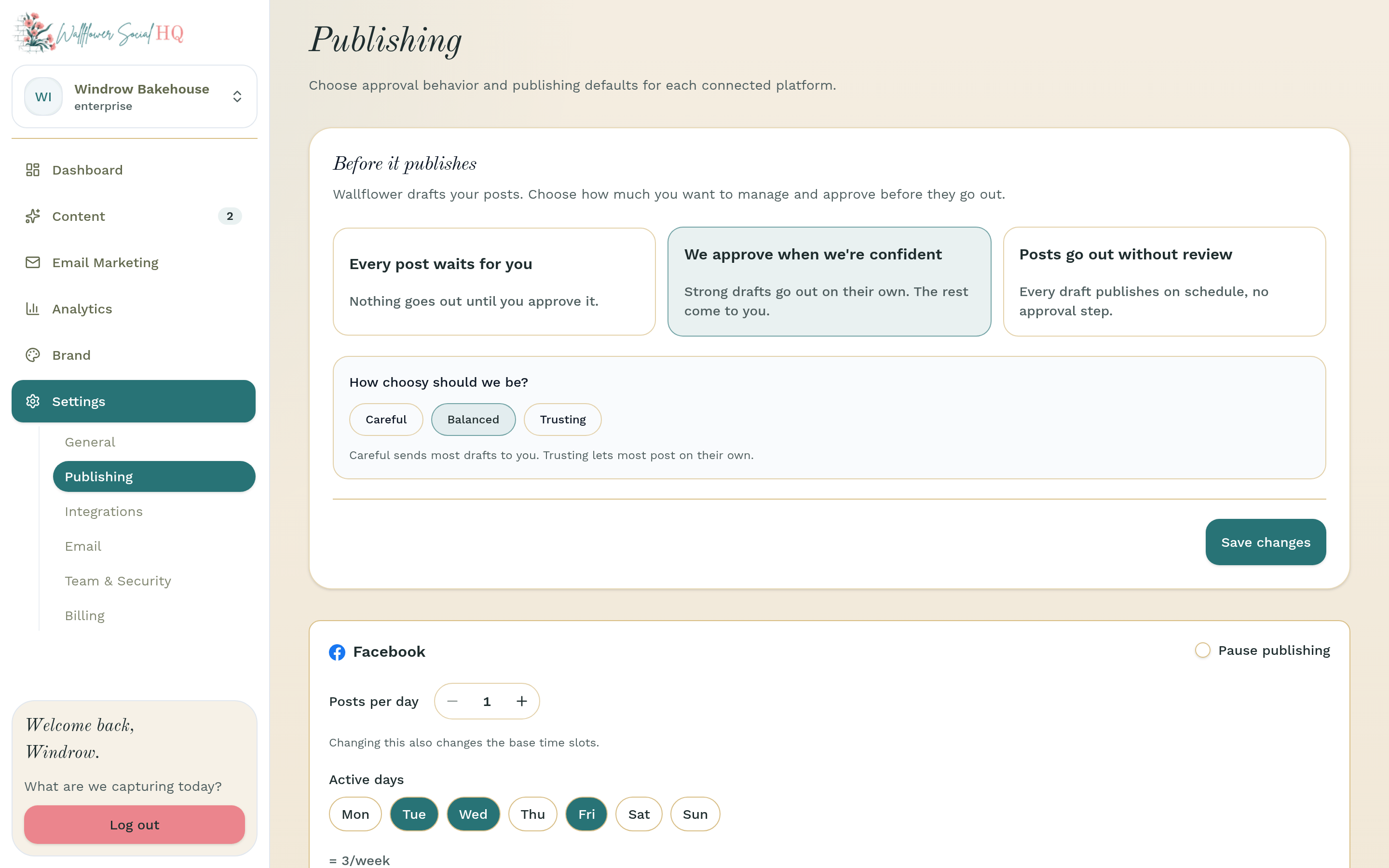
Set how choosy to be #
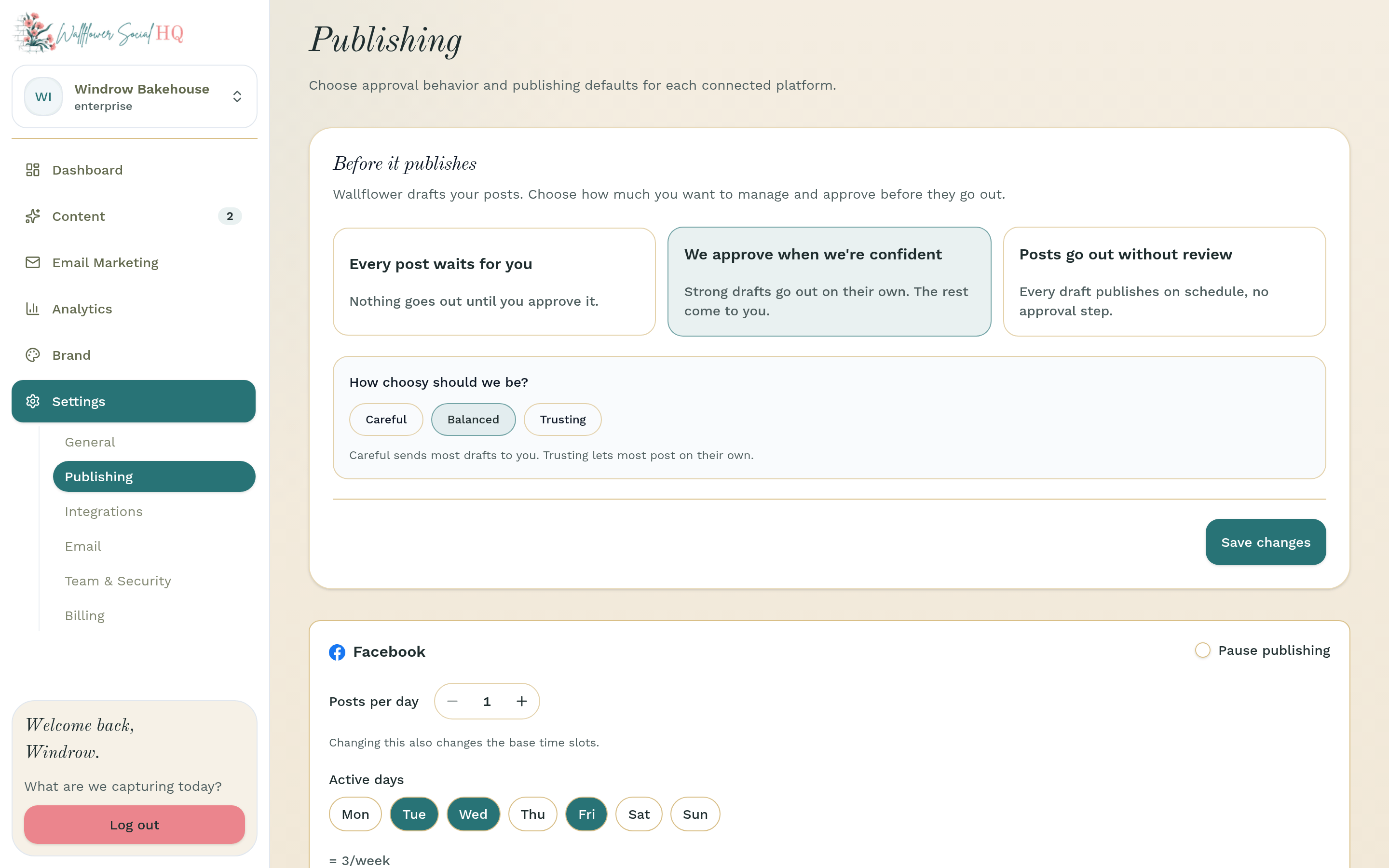
If you picked We approve when we're confident, choose under How choosy should we be?: Careful, Balanced, or Trusting. Careful sends most drafts to you. Trusting lets most post on their own.
Save #
Click Save changes. Fill My Week and Create a post in the phone app both follow this setting.
You can switch back to Every post waits for you anytime.
More in Calendar, approvals & publishing
- Upload photos to your calendarAdd your own photos to your schedule and let Wallflower draft the posts.
- Import a content calendar (.xlsx or .csv)Upload a filled-in calendar and each row becomes a draft on your calendar.
- Reschedule or edit a scheduled postMove a post to a different day or time.
- See what landed (analytics)Plain-number results, and how much history each plan keeps.
Still stuck?
If you need more personalized support, send us an email and we will get back to you soon.