
Plan a week with Fill My Week
Plan a week of posts across your connected platforms in a few minutes.
Fill My Week drafts one post a day for seven days, in your brand voice, for each platform you pick. Nothing goes out until it's approved, unless you've set your workspace to approve on its own.
Open Fill My Week in Wallflower
On this page
Before you start
- At least one social account is connected (Connect Instagram and Facebook).
- Your brand profile has at least one go-to topic (Set up your brand profile).
- A few photos in your Media Library help. Send some from the companion app first.
Open Fill My Week #
In the sidebar, open Content, then click Fill My Week. You can also click Fill My Week at the top of your Calendar.
Choose the week and platforms #
In Start Fill My Week, check the Brand and pick the Week starting date. Under Platforms, keep on each platform you want posts for. Every draft is written for each platform you keep on.
Have something going on that week? Add it in the brief box, like "pumpkin loaves are back Thursday."
NotePosts are timed using your default publishing times. You can change them in Settings, then Publishing.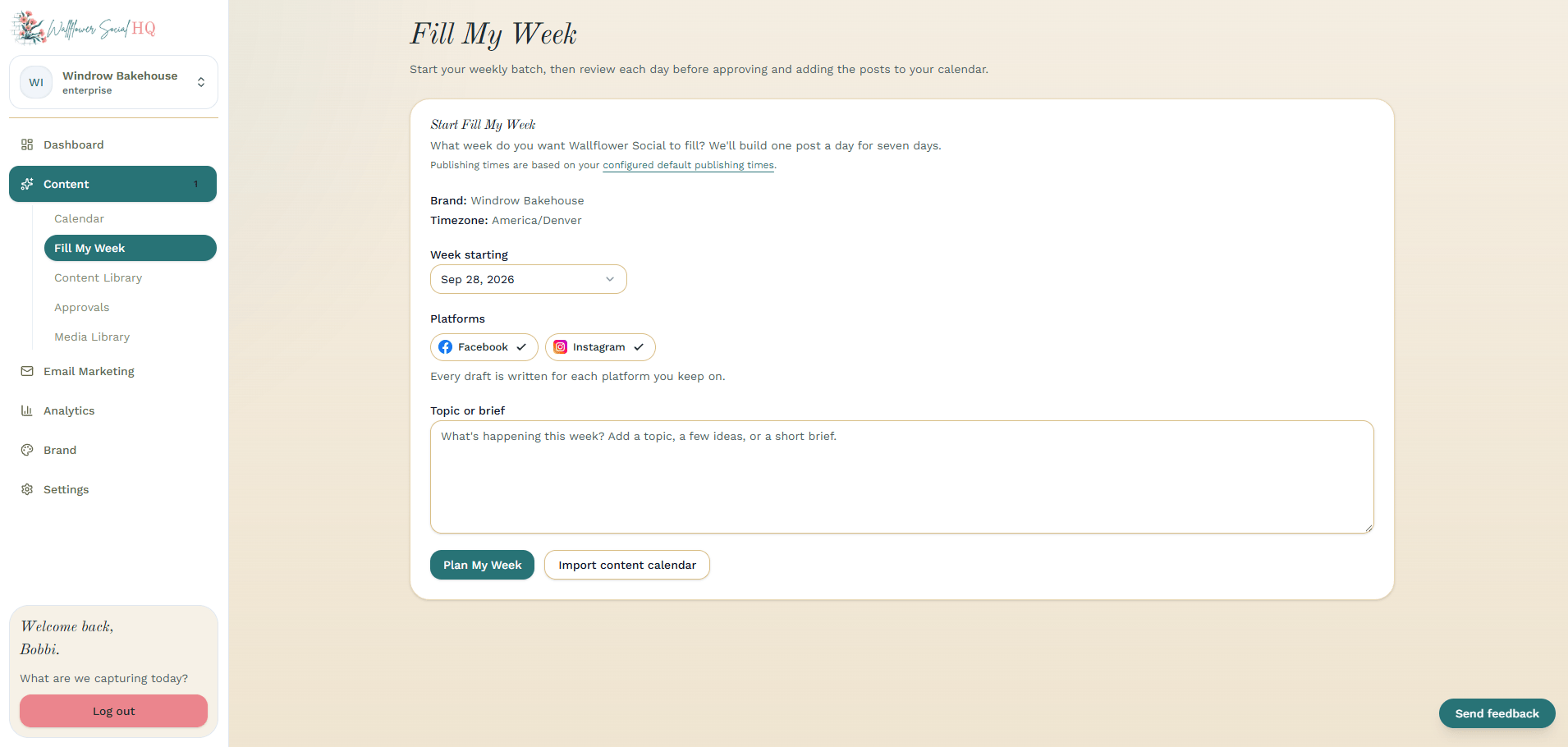
Click "Plan My Week" #
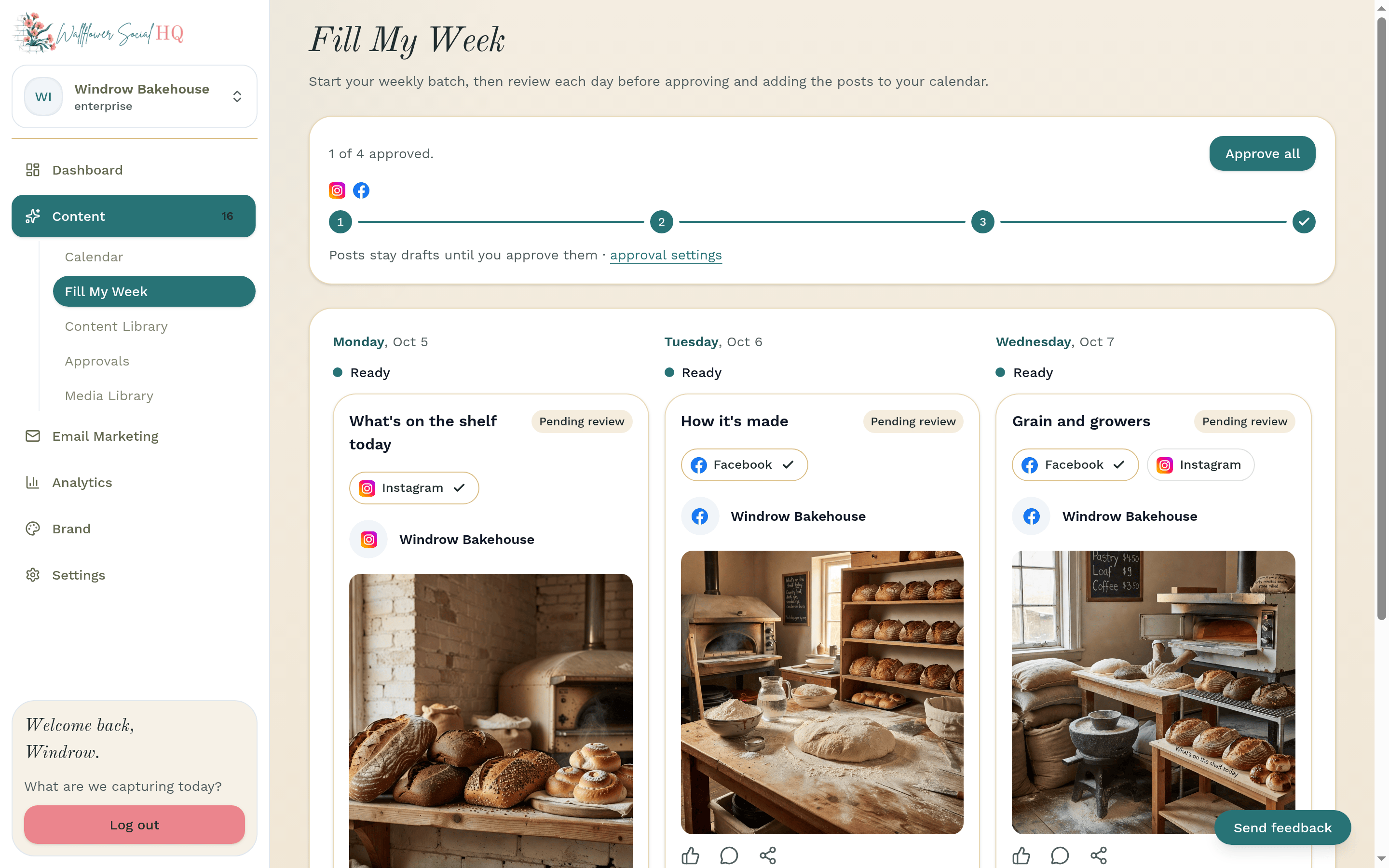
Click Plan My Week. Wallflower starts drafting and shows its progress, like "Drafting your week… 3 of 7 ready." You can leave the page and come back.
Check each day #
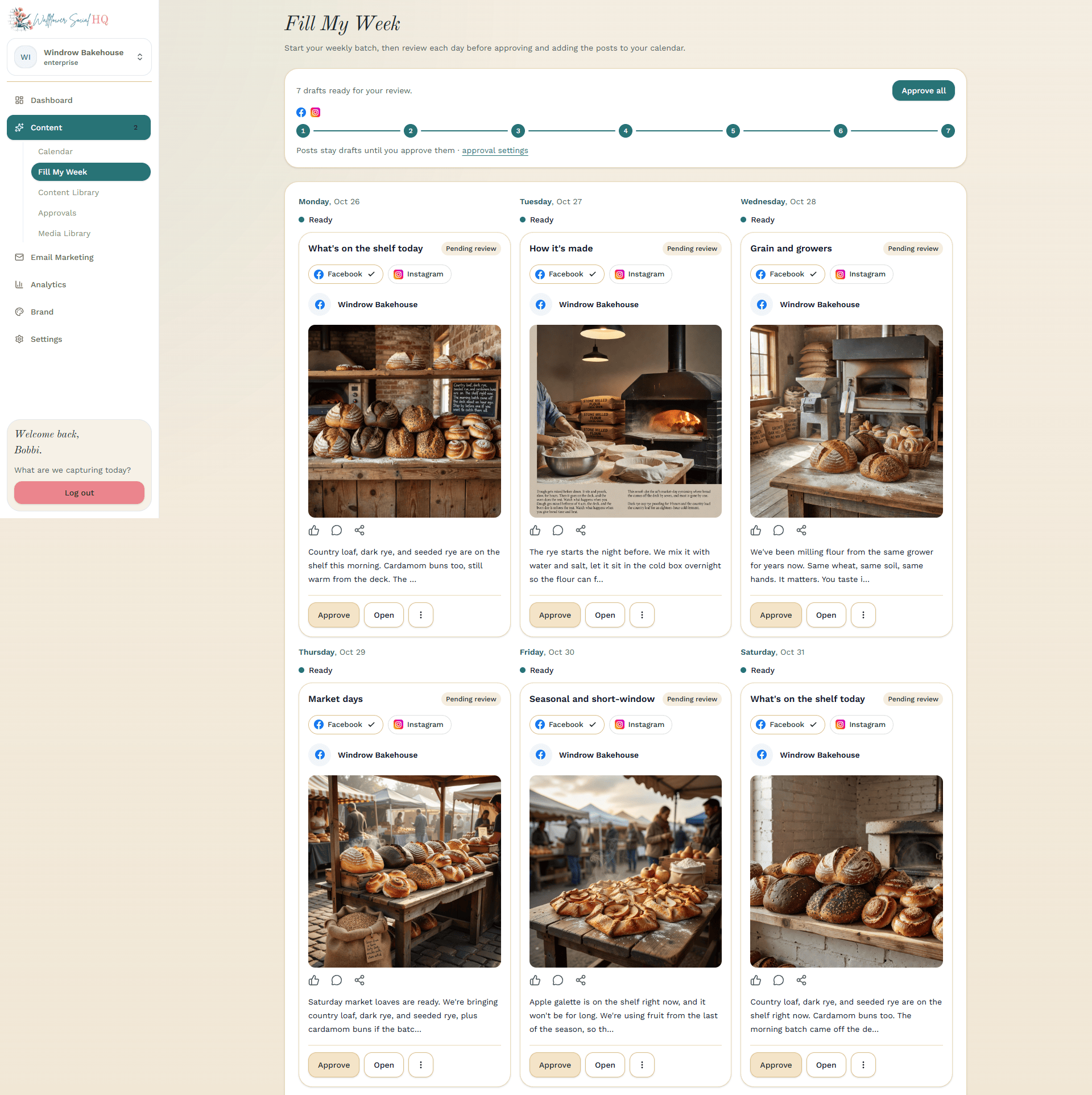
Each day tile shows its state. Most will say Ready. A few others you might see:
- Needs a nudge: this post needs your attention before it can go out.
- Occupied: that day already has a scheduled post.
- Plan limit reached: you've hit your plan's post limit for that day.
Click Open on a tile to read and edit the draft. See Review and edit drafts.
Approve the week #
Approve days one at a time with Approve on each tile, or click Approve all once every draft is ready. When you're done, you'll see "Your week is on the calendar." Click Open the calendar to see it, or Plan next week.
Owners and admins approve. Editors can plan the week and leave approval to an owner or admin.
Check before you approveApproved posts go out on their days at their scheduled times. Check the day, time and platform first.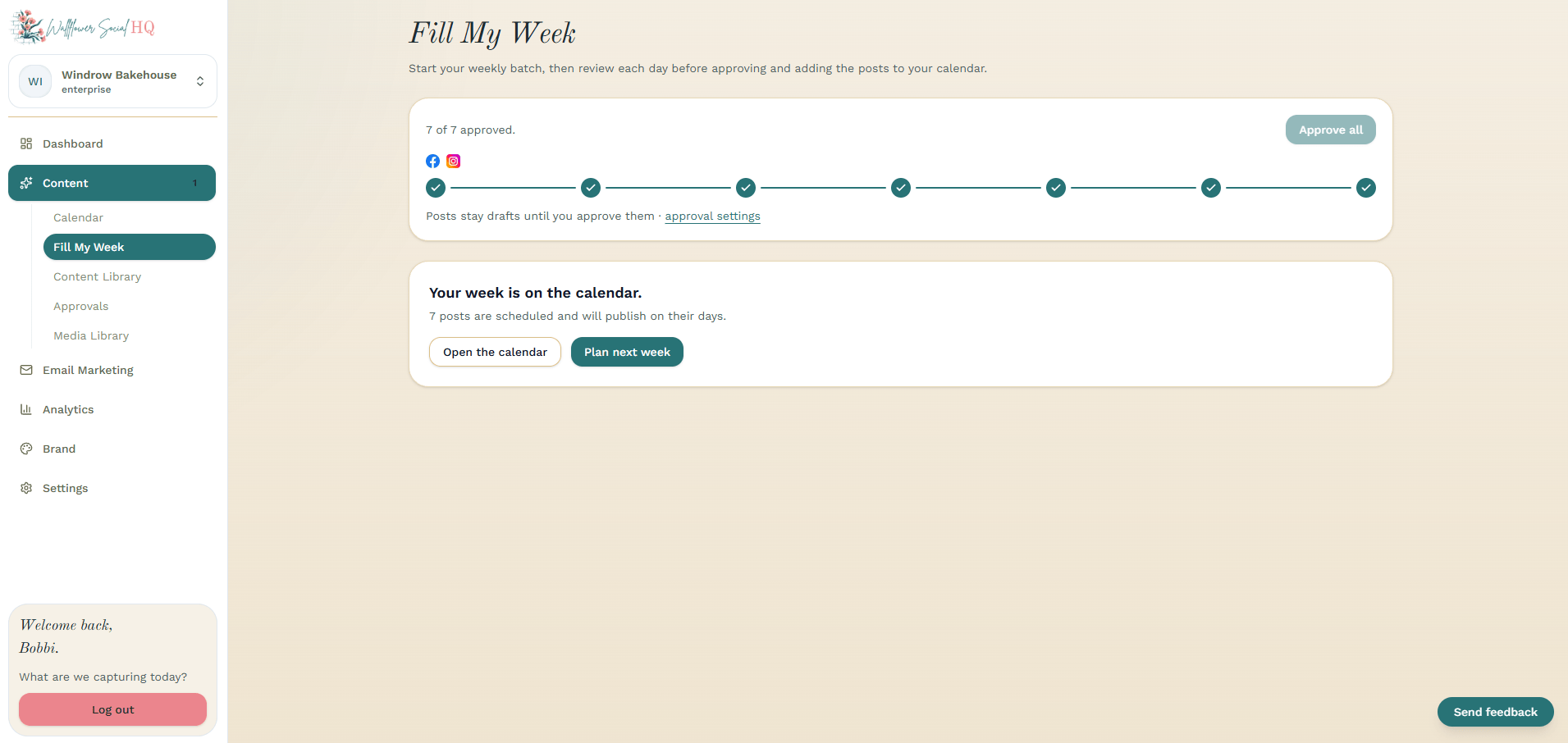
More in Fill My Week & drafts
Still stuck?
If you need more personalized support, send us an email and we will get back to you soon.