
Review and edit drafts
Everything Fill My Week plans arrives as a draft.
Fill My Week drafts go to you first. Read them, change what you like, redo the ones that miss, and drop the ones you don't want.
On this page
Before you start
- You've planned a week with Fill My Week, or drafts are waiting in Approvals.
Open a draft #
Drafts show up in two places:
- Fill My Week: click Open on a day tile.
- Approvals: open Content, then Approvals, to see every draft waiting for review.
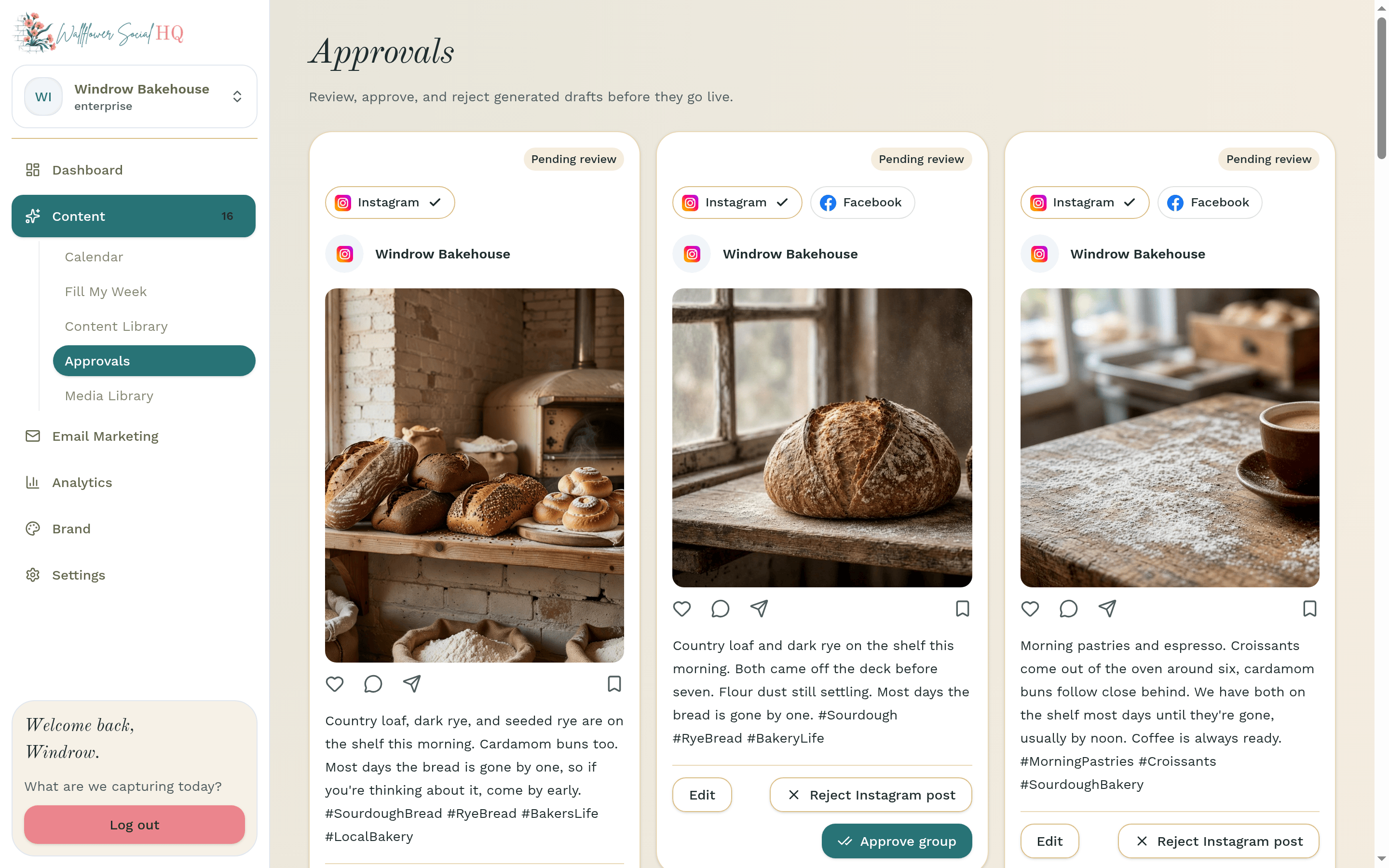
Edit the caption #
Click Edit next to a platform's caption, make your changes, and click Save. Each platform has its own caption, so you can say it differently on Instagram and Facebook.
NoteEditing a post that's already approved asks you to confirm first ("Change an approved post?"). Click Save changes to update it.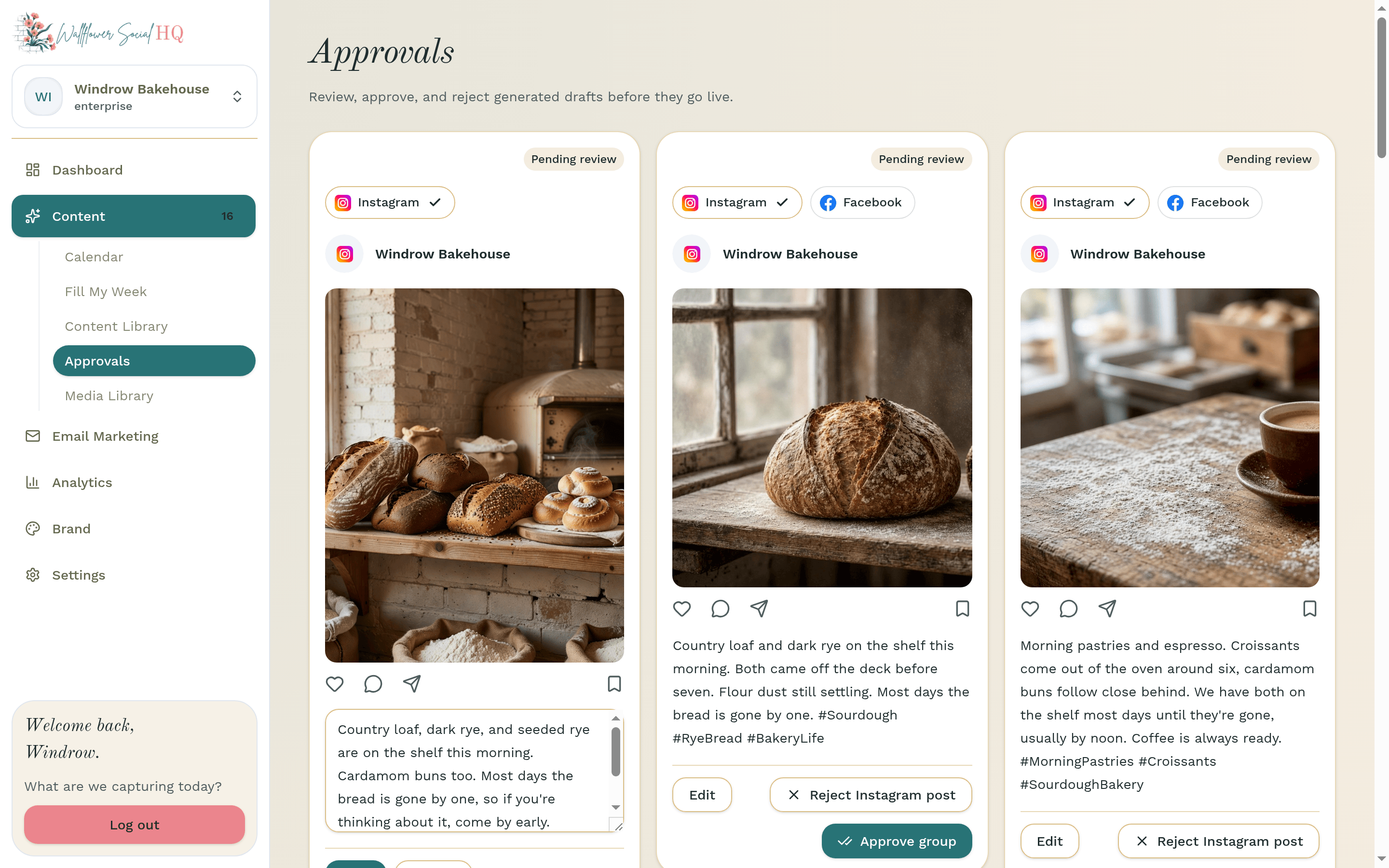
Regenerate one that misses #
On a Fill My Week day tile, open the slot actions and click Regenerate. Wallflower drafts that day again.
Move or drop a day #
From the same menu, click Reschedule to move the post, or Drop to delete it from the batch. Dropping asks you to confirm with Drop Post.
Reject with a reason #
On Approvals, reject a platform version to open Reject post. Pick what's off, add an optional note, and click Continue.
Your reason helps. Wallflower keeps it under What we've learned on your brand profile and steers future drafts away from it.
NoteOnly owners and admins can approve or reject. Editors can review and edit drafts.
More in Fill My Week & drafts
Still stuck?
If you need more personalized support, send us an email and we will get back to you soon.