
Draft a post from a quick prompt
Out of photos? Draft something on brand anyway.
No photo for today? Tell Wallflower what the post is about in a line or two, and it drafts one in your brand voice.
Open the composer in Wallflower
On this page
Before you start
- You're an Owner, Admin, or Editor.
- At least one social account is connected, so the draft can be shaped for each platform.
Start a new post #
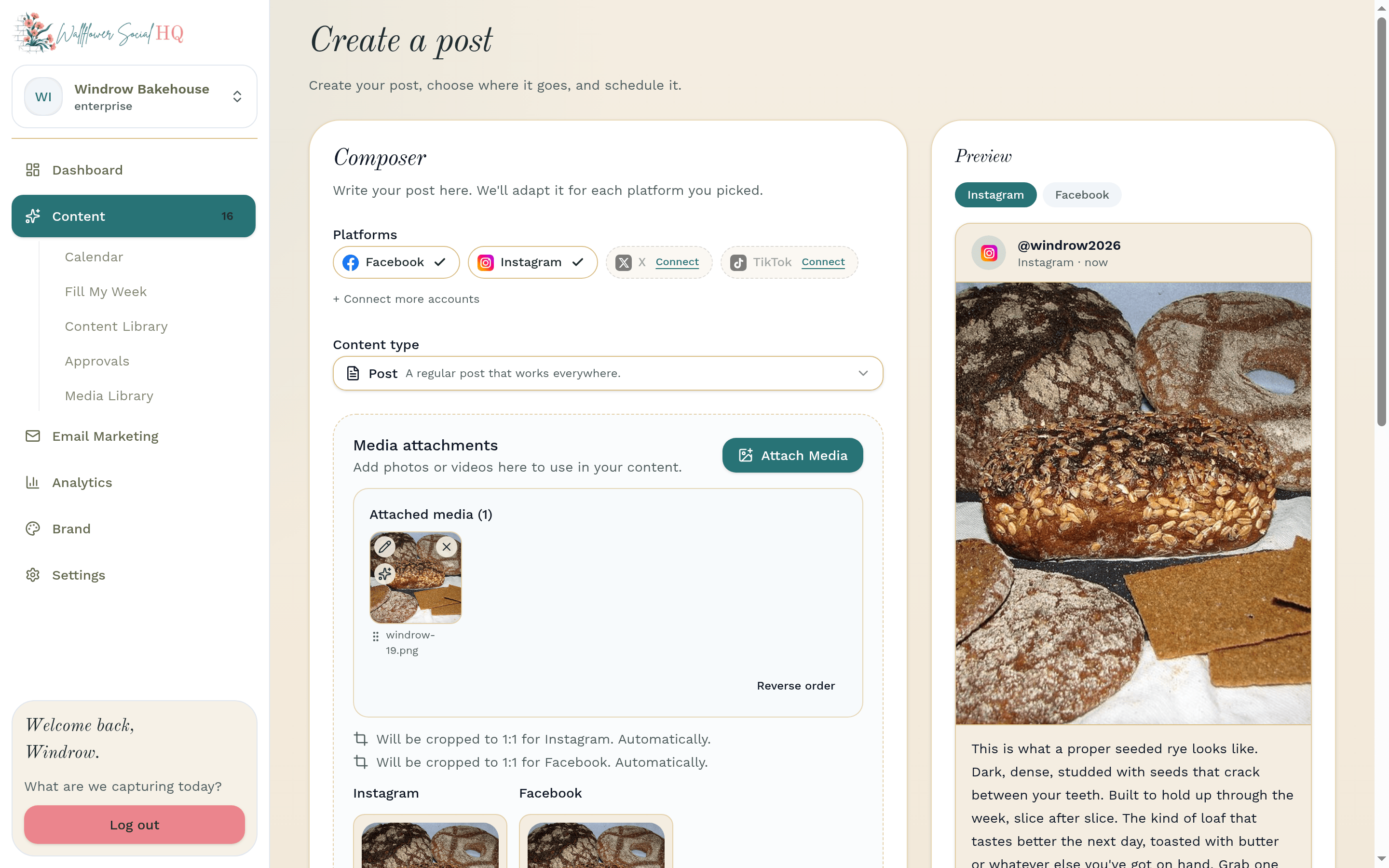
Open Content, then Calendar, and click Create Post.
Open the AI panel #
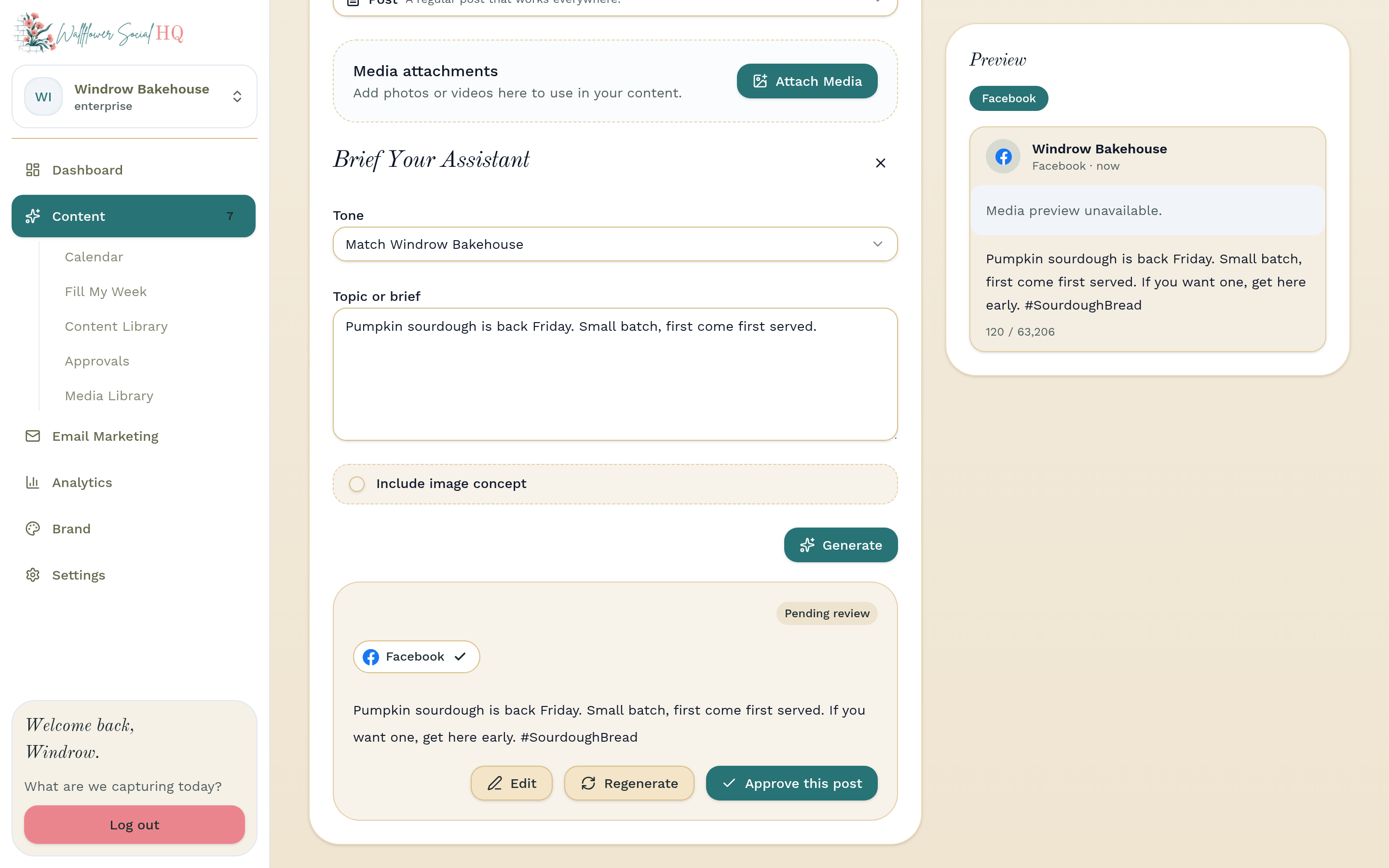
Click Generate with AI. The Brief Your Assistant panel opens.
Write your brief #
In Topic or brief, say what the post is about, who it's for, and what you want people to do. For example: "Saturday market stall, first cider donuts of the season, come early."
Then pick a Content type, the platforms under Choose Your Platform, and a Tone if you want one different from usual.
TipTurn on Include image concept if you want Wallflower to make an image with the draft. It makes one image for each platform you pick, and each one counts toward your monthly made-for-you images. See Made-for-you images and monthly allowances.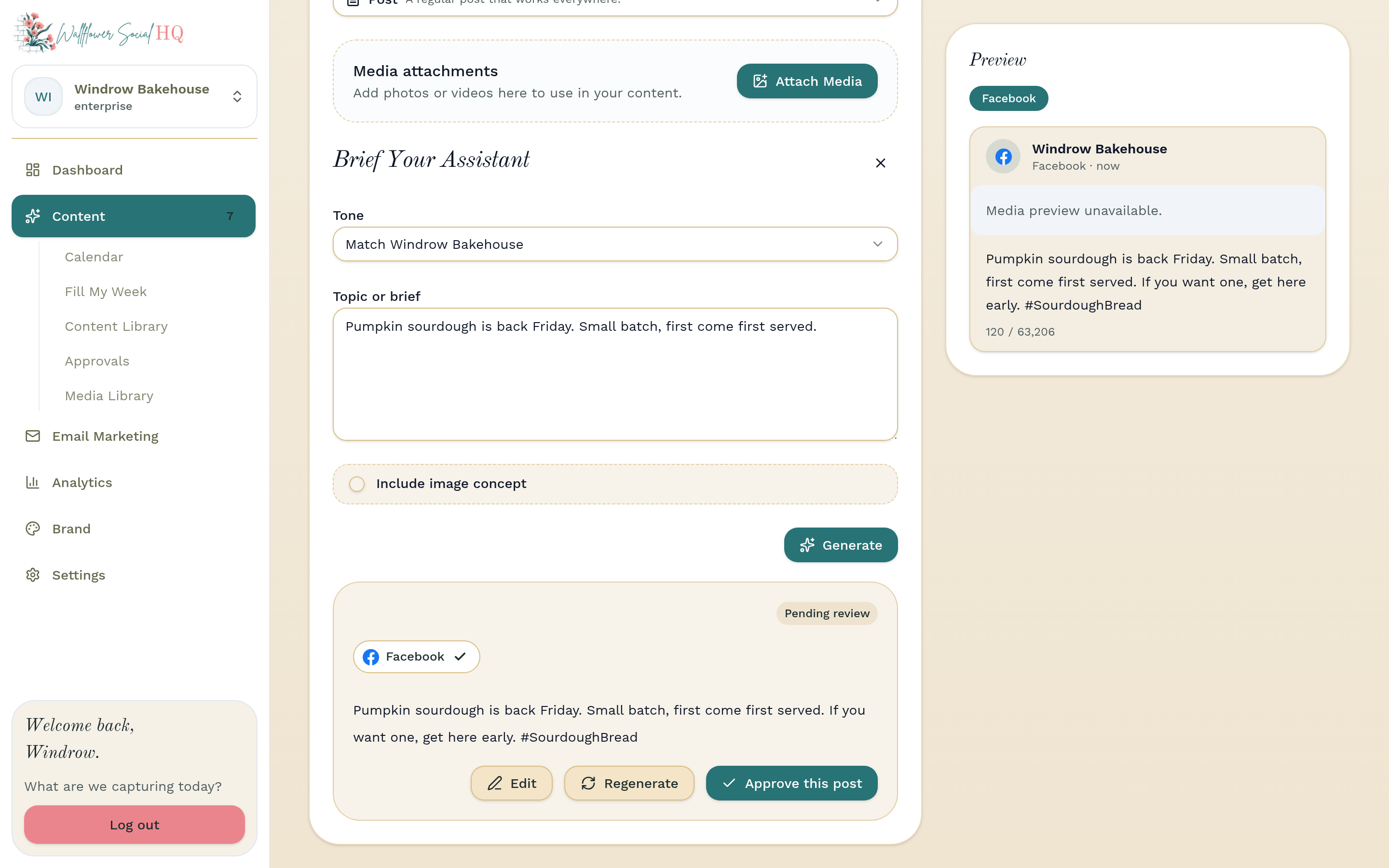
Click "Generate" #
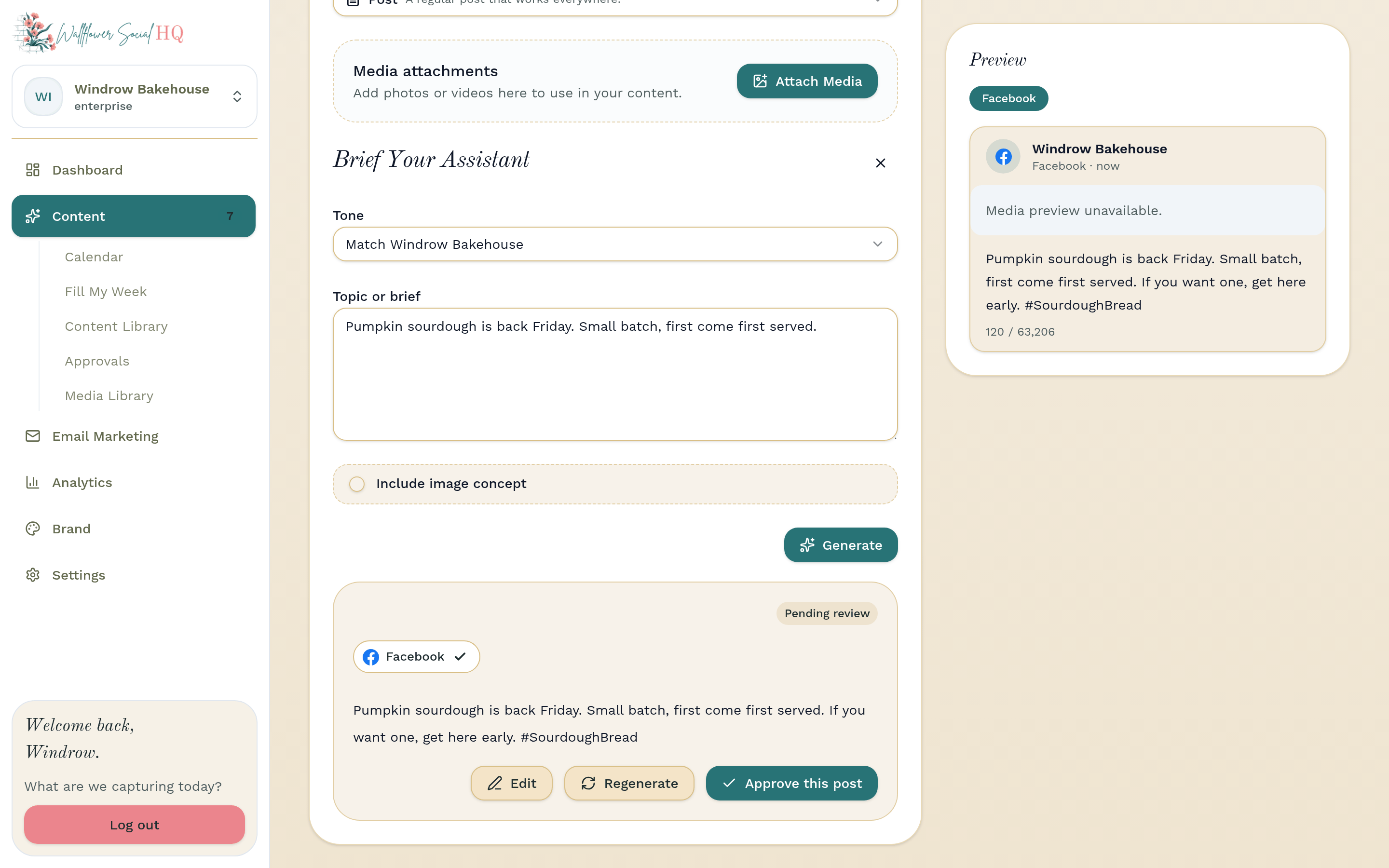
Click Generate. The draft appears in the composer, written for each platform you picked. If something goes wrong, click Retry.
Finish and schedule #
Edit the text in Post text. To give a platform its own caption, select its tab and edit the text there. Attach a photo with Attach Media if you have one. Then click Save as Draft or Schedule.
More in Fill My Week & drafts
Still stuck?
If you need more personalized support, send us an email and we will get back to you soon.