
Reschedule or edit a scheduled post
Move a post to a different day or time.
Plans change. You can move a scheduled post to another day or time, or fix its caption, right up until it goes out.
On this page
Before you start
- You're an Owner, Admin, or Editor.
- The post hasn't gone out yet. Once a post is live, you can't edit it from Wallflower.
Open your calendar #
Open Content, then Calendar.
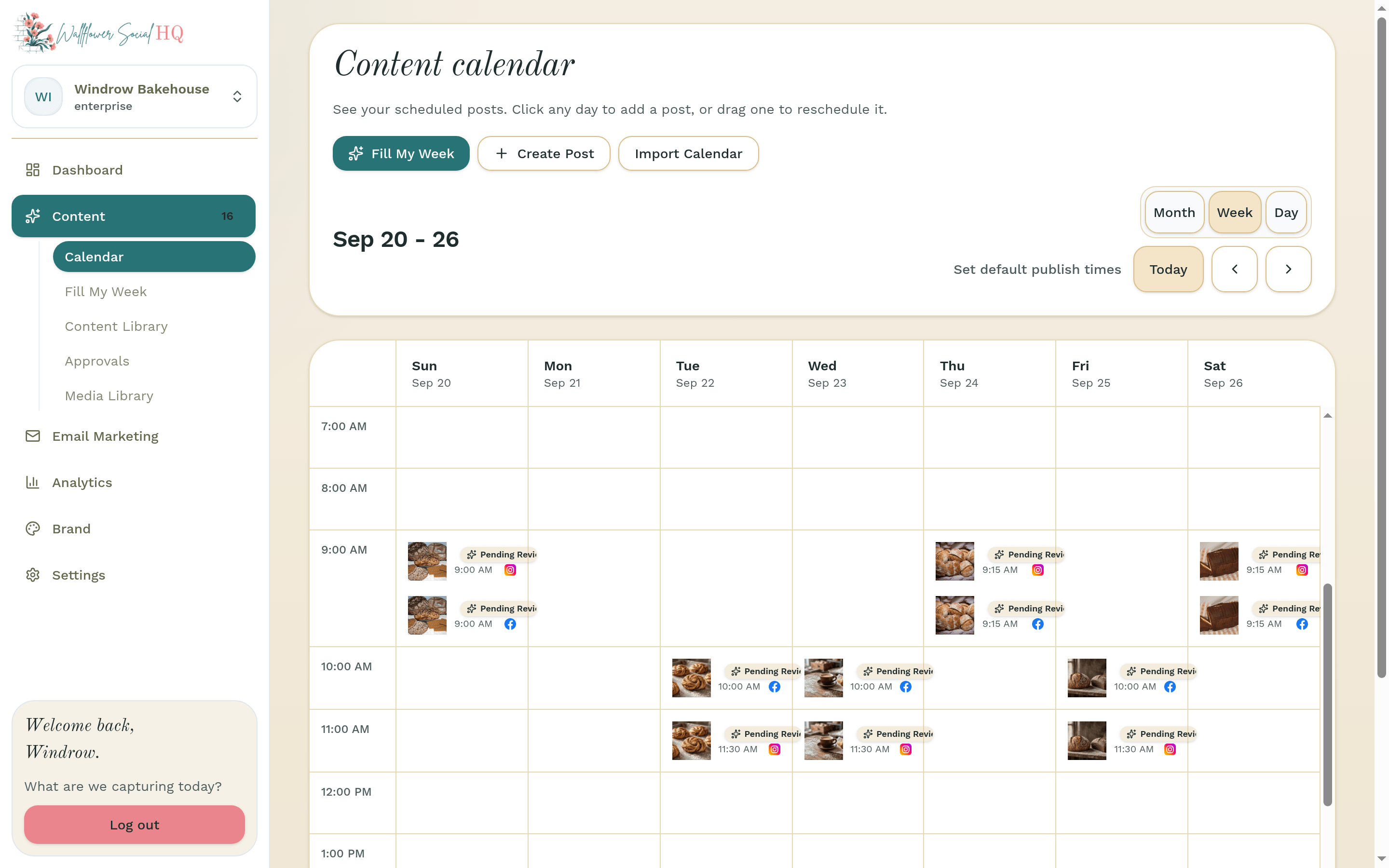
Drag it to a new time #
Drag the post to a different day or time slot. You'll see "Rescheduled successfully."
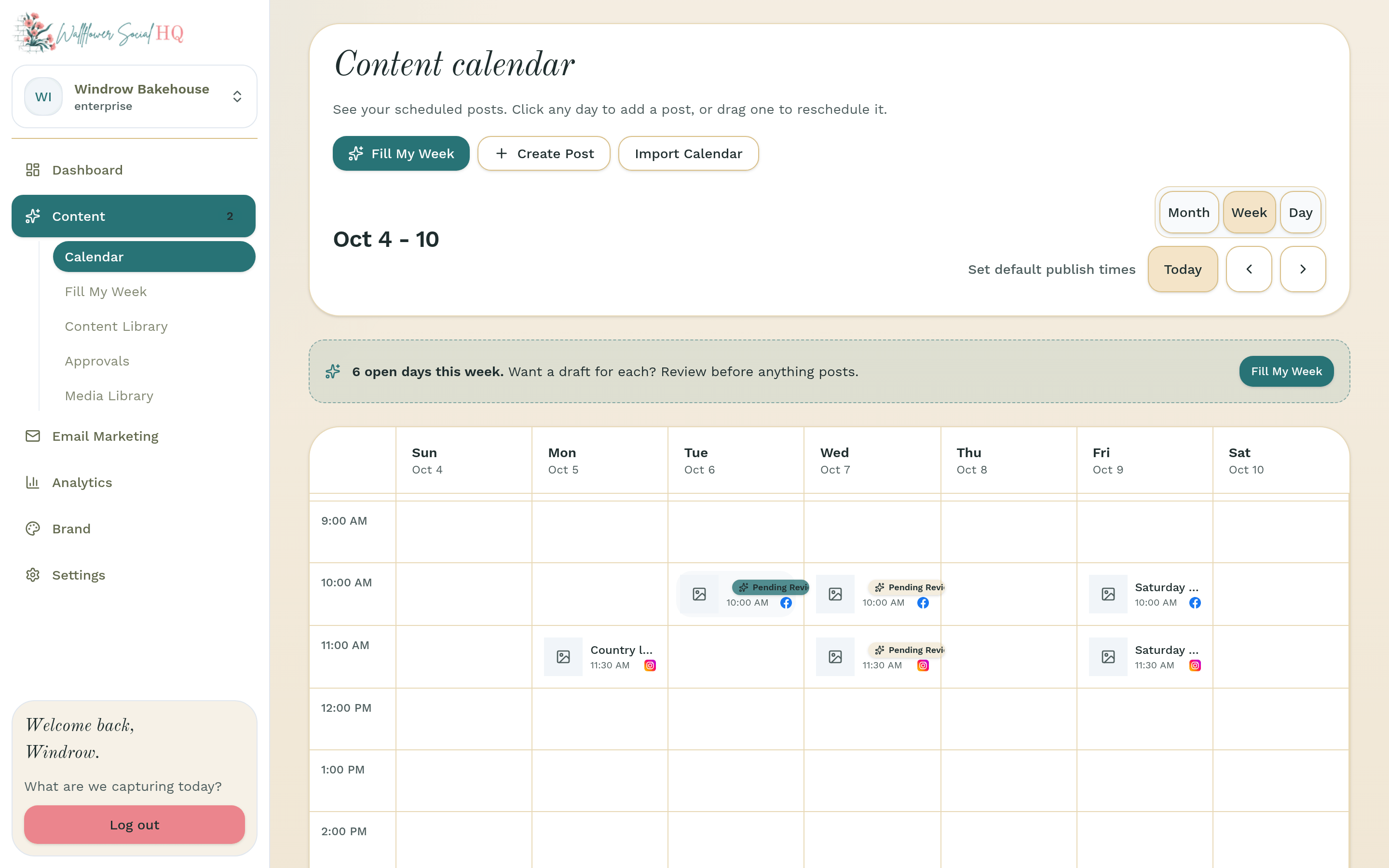
Or reschedule from the Content Library #
Open Content, then Content Library. On the post's row, click Reschedule. It opens your Calendar, where you drag the post to its new day as in step 2. Reschedule shows on scheduled, held and failed posts.
Edit the caption #
In Content Library, click Edit caption on the platform you want to change, edit it, and click Save. If the post was already approved, confirm with Save changes.
WarningPublishing is final. Once a post is live, you can't edit it from Wallflower. Check your copy and media before it goes out.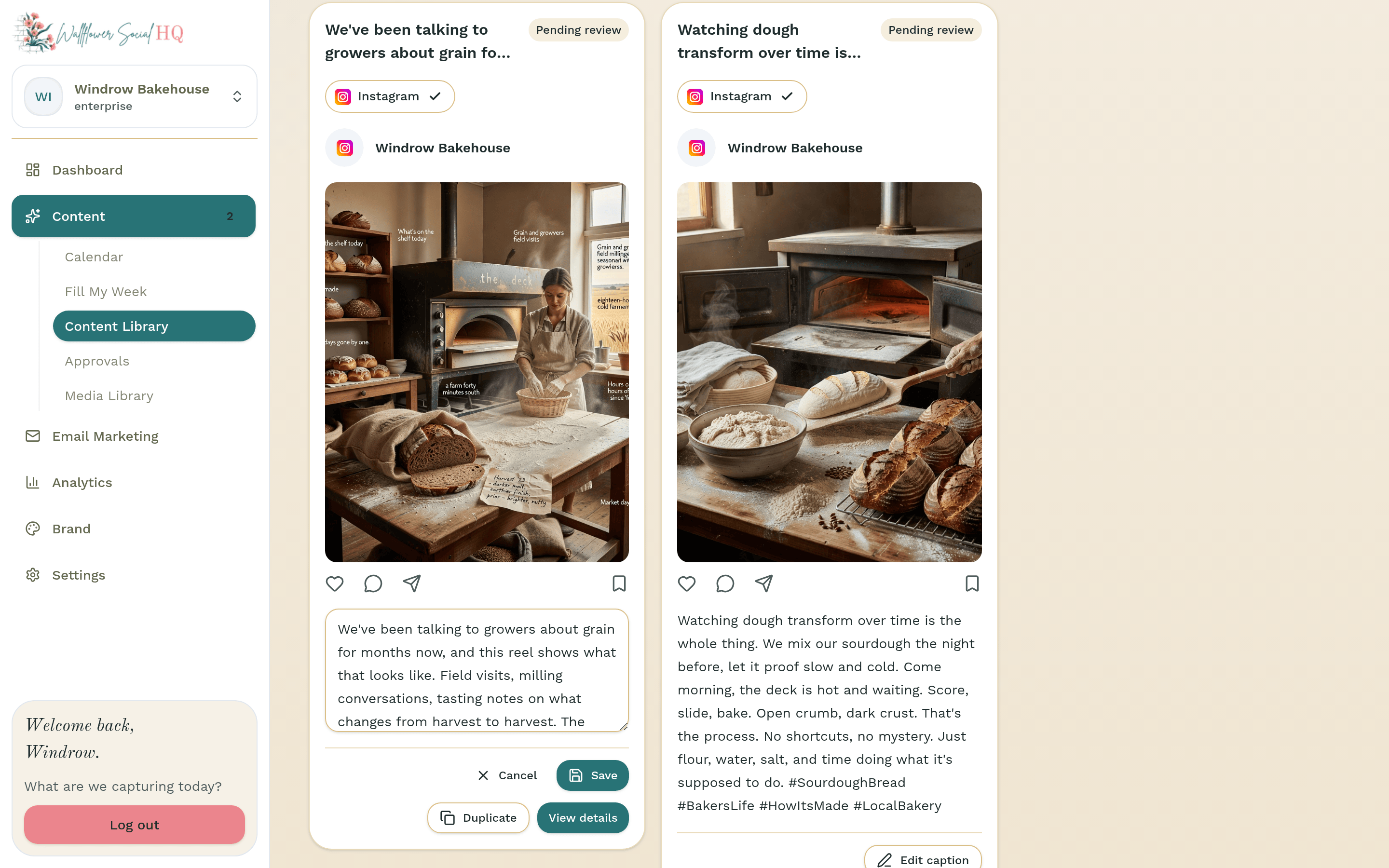
If a post was held #
If a post's time passes before it can go out, Wallflower holds it instead of posting late. You'll see "This post's scheduled time has passed." Click Publish now, or reschedule it for a new time.
If it was paused because a channel disconnected, reconnect first, then choose Publish now or reschedule. See Reconnect a channel.
More in Calendar, approvals & publishing
- Upload photos to your calendarAdd your own photos to your schedule and let Wallflower draft the posts.
- Import a content calendar (.xlsx or .csv)Upload a filled-in calendar and each row becomes a draft on your calendar.
- Let posts go out on their ownSkip the approval tap when you trust it.
- See what landed (analytics)Plain-number results, and how much history each plan keeps.
- Approve from your phone (Review tab)Approve waiting posts from the phone app’s Review tab.
Still stuck?
If you need more personalized support, send us an email and we will get back to you soon.