
Tour your dashboard
Where your brand profile, content library, and schedule live.
Your dashboard is the first page you see when you sign in. It shows what needs you, what's going out this week, and how last week went.
Open your dashboard in Wallflower
On this page
Before you start
- You're an Owner, Admin, or Editor. Companions who sign in on the web see a single page pointing them to the phone app.
Open your dashboard #
Sign in at app.wallflower.social. The dashboard opens with your workspace name at the top, followed by "at a glance."
NoteIf a channel stops working, a banner reading "A connection needs your attention" shows up here with a Reconnect button. See Reconnect a channel.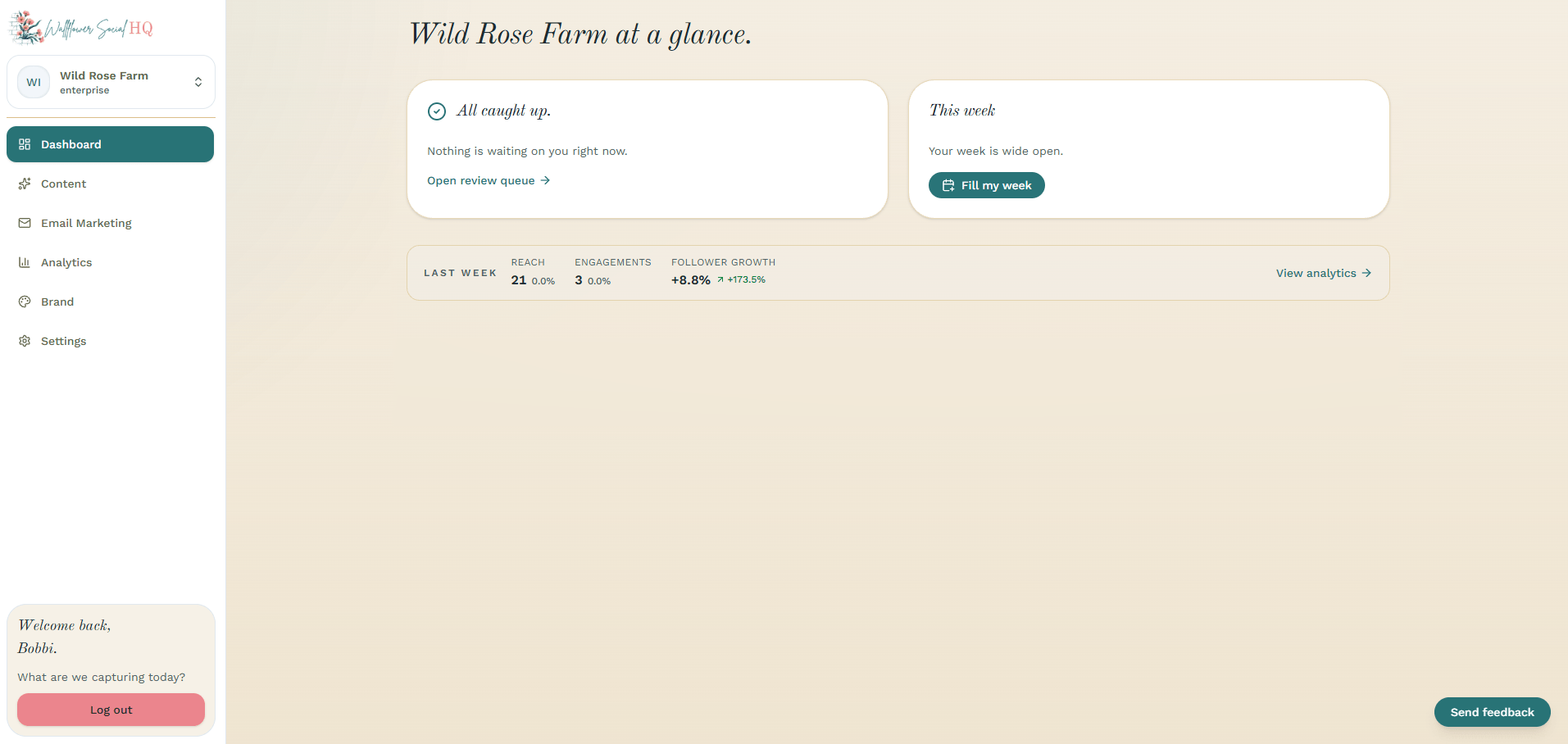
Check what needs you #
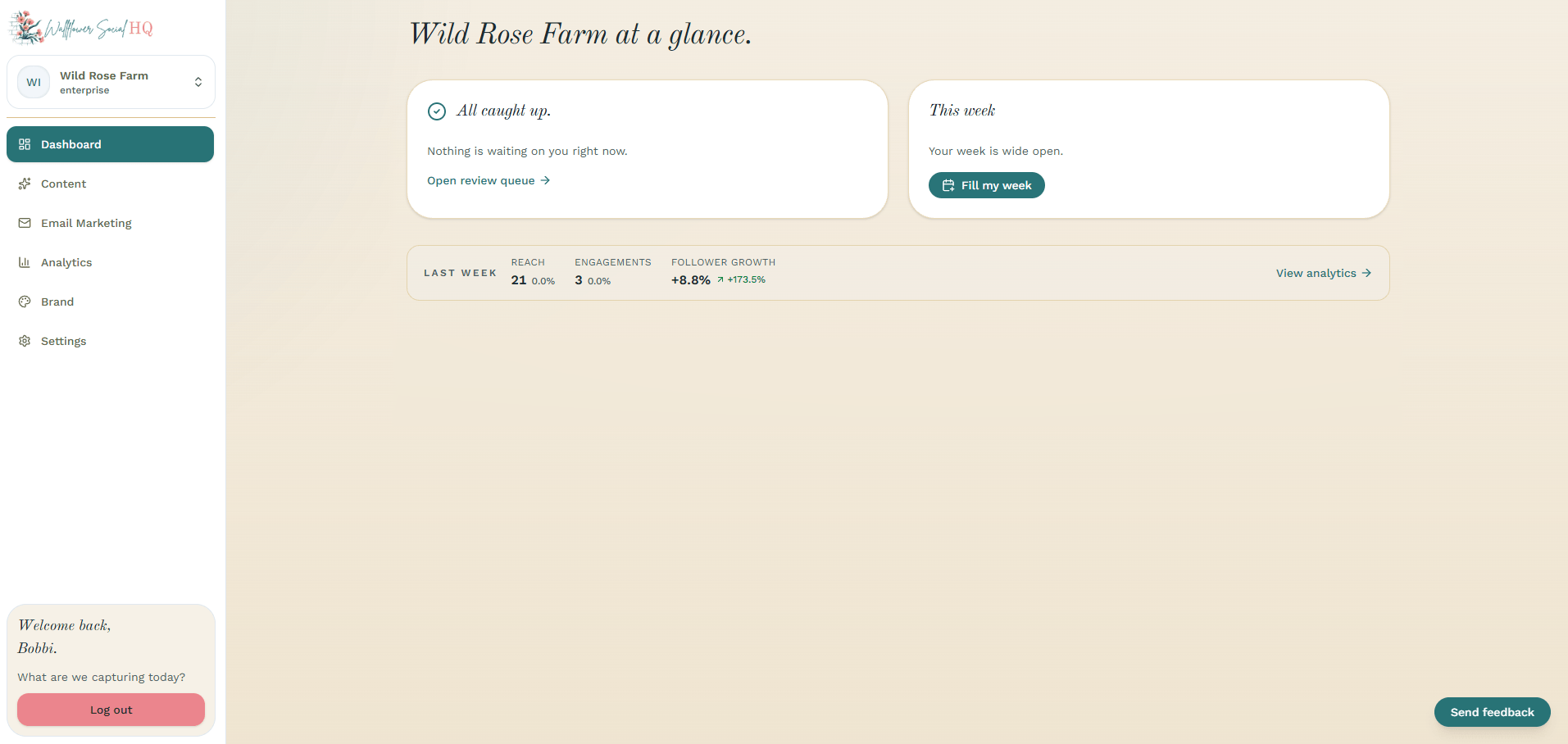
The Needs you card lists posts waiting for approval. Click Open review queue to go through them. When the list is empty, it says "All caught up."
Only owners and admins can approve. Editors draft and schedule, and their posts wait here for an owner or admin.
See this week #
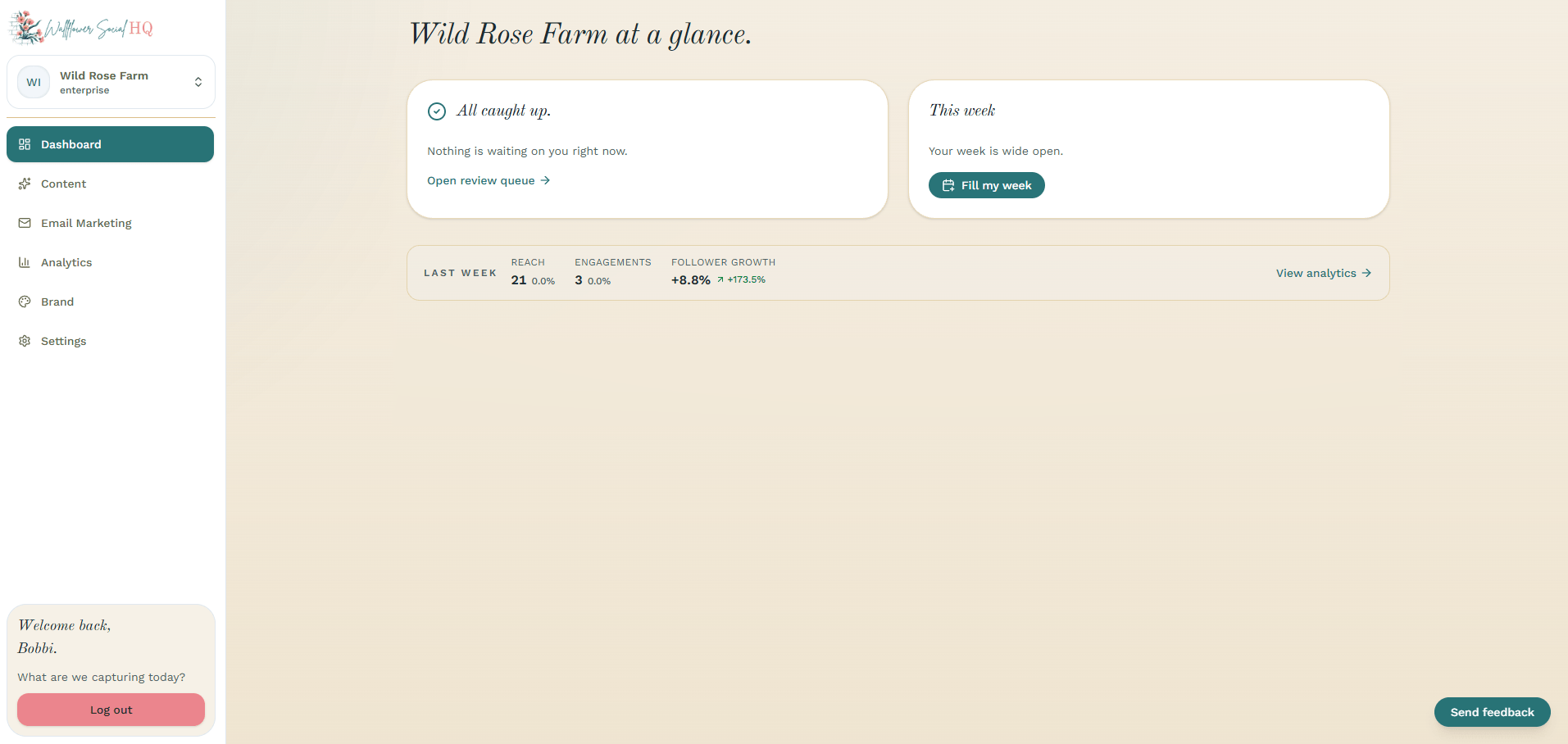
The This week card shows how many posts are going out and flags any days with nothing scheduled. Click Fill my week to draft posts for the gaps, or View calendar to see the whole week.
Look back at last week #
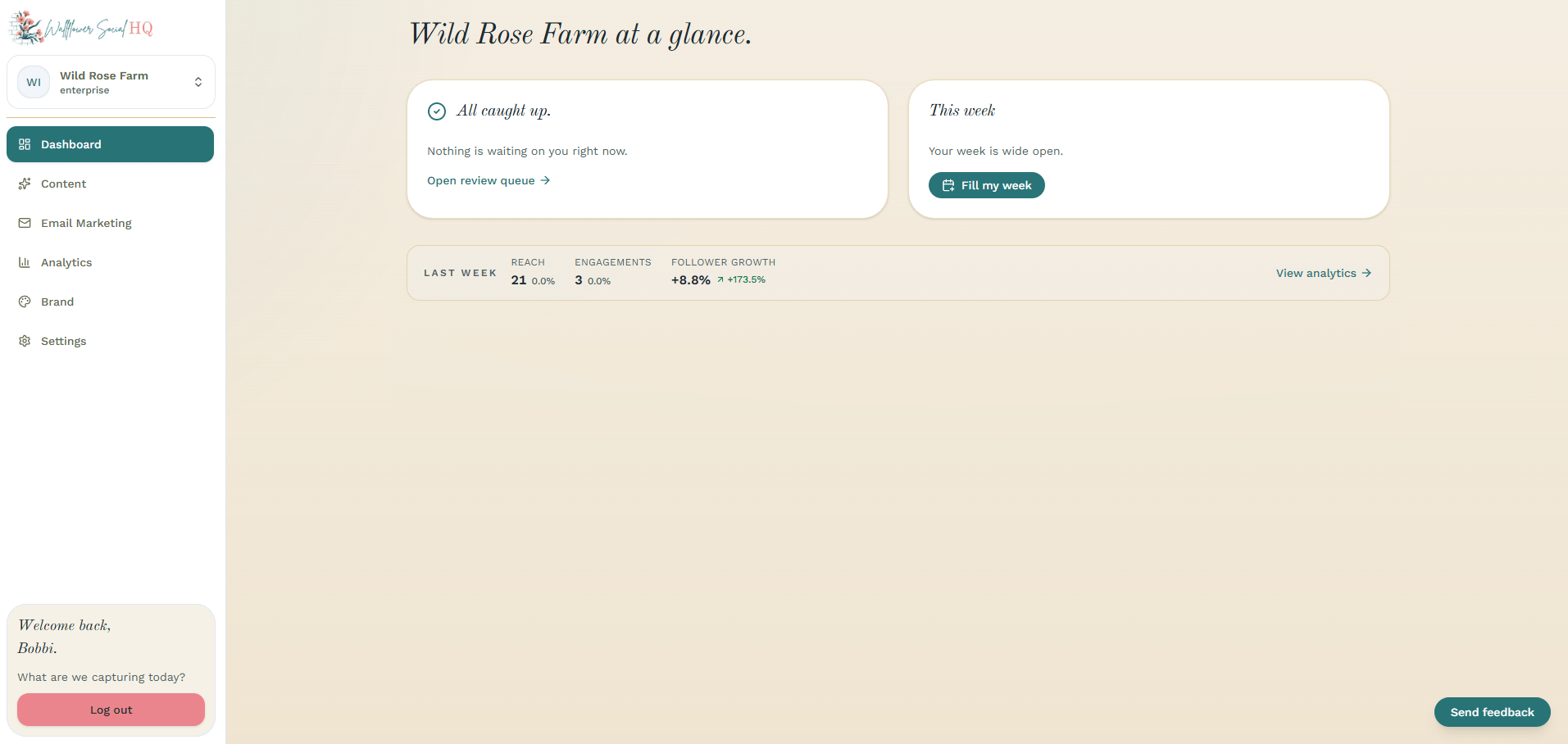
The Last week strip at the bottom shows Reach, Engagements, and Follower growth. Click View analytics for the full picture.
Find your way around the sidebar #
Everything else lives in the sidebar:
Sidebar item What's inside Dashboard This page Content Calendar, Fill My Week, Content Library, Approvals, Media Library Email Marketing Calendar, Campaigns, Audience, Forms, Templates Analytics Results for your posts and emails Brand Your brand profile Settings General, Publishing, Integrations, Email, Team & Security, Billing Some settings only show for owners and admins, like Publishing and Billing.
TipOn Enterprise, the workspace switcher at the top of the sidebar lists Your Workspaces. Pick one to jump between brands.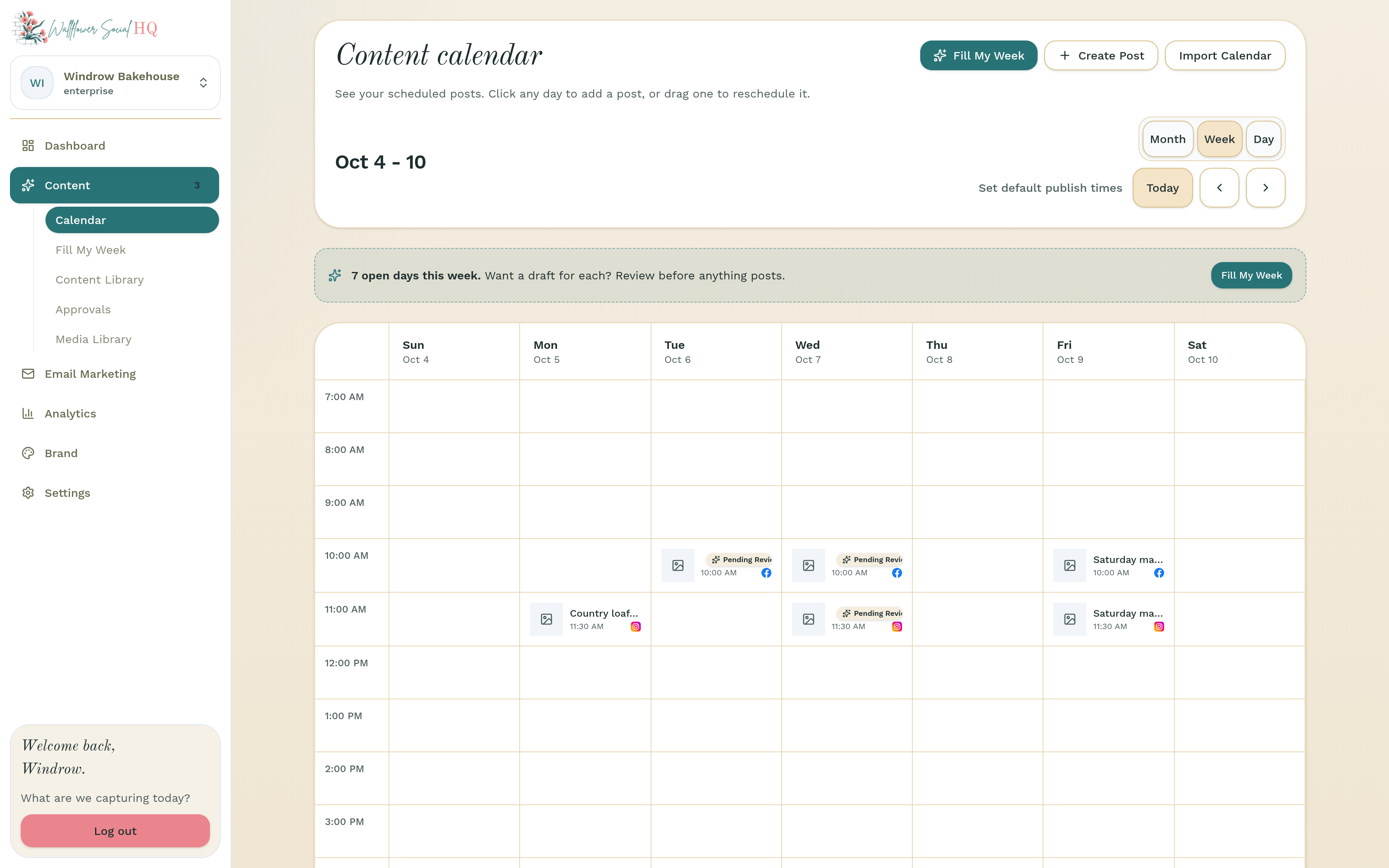
Still stuck?
If you need more personalized support, send us an email and we will get back to you soon.